If you're using Azure DevOps with one of the out-of-the-box process templates -- Scrum, Agile, CMMI, or Basic -- there's a bunch of behind-the-scenes configuration that just works and you never have to think about. But if you're using a custom process template, there are two settings that are easy to overlook and that can quietly break things: backlog levels and state categories.
These settings control how Azure DevOps understands the structure and flow of your work. Get them wrong and your backlogs might not display correctly, your boards might behave strangely, and any tool that reads your process template configuration -- including extensions, reporting tools, and APIs -- might not be able to find your data.
I recently ran into this when a user of my Honest Cheetah extension for Azure DevOps reported that all of their metrics were showing as 0 or N/A. Honest Cheetah was only picking up sprint dates and nothing else. It wasn't a bug in Honest Cheetah -- it was a process template configuration issue. But even if you've never heard of Honest Cheetah, these settings matter and they're worth understanding.
Let's take a look at what these settings are and where to find them.
Shameless plug: Honest Cheetah is a project delivery diagnostic and forecasting tool for Azure DevOps and GitHub. Think of it as a check engine light for your projects -- it reads your existing data, spots problems early, and helps you predict when things will actually get done.
What Are Backlog Levels?
Azure DevOps organizes work items into a hierarchy of backlog levels. If you've used the Scrum process template, you've seen this hierarchy even if you didn't know it had a name:
- Portfolio backlogs -- Epics, Features
- Requirement backlog -- Product Backlog Items
- Iteration backlog -- Tasks
The Requirement backlog level is the important one. This is the level that represents the deliverable items your team works on. In the Scrum template, it's the Product Backlog Item. In the Agile template, it's the User Story. In CMMI, it's the Requirement.
When you create a custom process template with custom work item types, Azure DevOps doesn't automatically know which of your work item types maps to which backlog level. You have to tell it. If the Requirement backlog level doesn't have a work item type assigned to it, Azure DevOps -- and anything that reads the process template configuration -- doesn't know what your team's deliverable work items are.
What Are State Categories?
Every work item type has states. Maybe yours are New, Active, and Closed. Maybe they're To Do, In Progress, and Done. Maybe they're something completely custom. The names can be whatever you want.
But behind the scenes, each state is mapped to a state category. These are the state categories that Azure DevOps uses:
- Proposed -- work that hasn't started yet
- In Progress -- work that's actively being worked on
- Resolved -- work that's done but might need validation
- Completed -- work that's finished
- Removed -- work that's been canceled or removed
Azure DevOps uses state categories to drive board behavior, calculate analytics, and power the cumulative flow diagram. Any tool or extension that needs to understand the flow of work -- when did something start? when did it finish? -- reads the state categories to figure that out.
If your custom states aren't mapped to the right categories, things get weird. Your board columns might not behave as expected. Analytics might not calculate correctly. And tools that rely on the process template configuration will see your data but not be able to make sense of it.
How to Check Your Configuration
Let's walk through how to find these settings in Azure DevOps Services (the cloud version).
Navigate to Organization Settings
Go to https://dev.azure.com/{your-org-name} where {your-org-name} is the name of your Azure DevOps organization. In the bottom-left corner of the page, you'll see a link called Organization settings. Click on it.
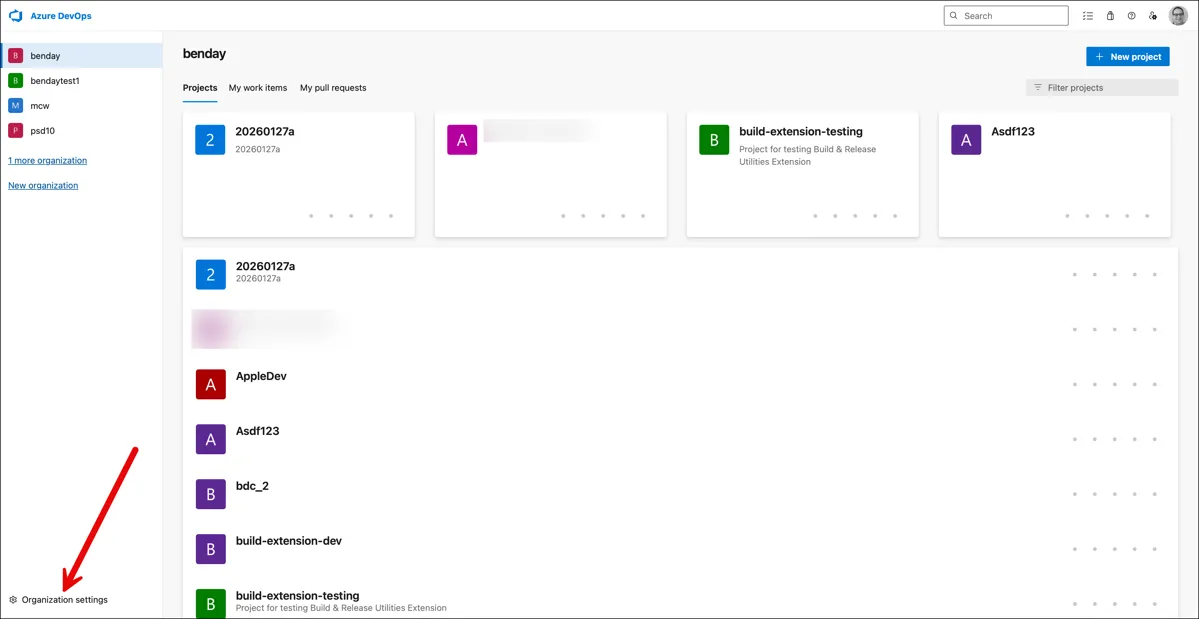
That'll take you to https://dev.azure.com/{your-org-name}/_settings/organizationOverview.
Find Your Process Template
On the left-hand navigation, look for the Boards section and click on Process.
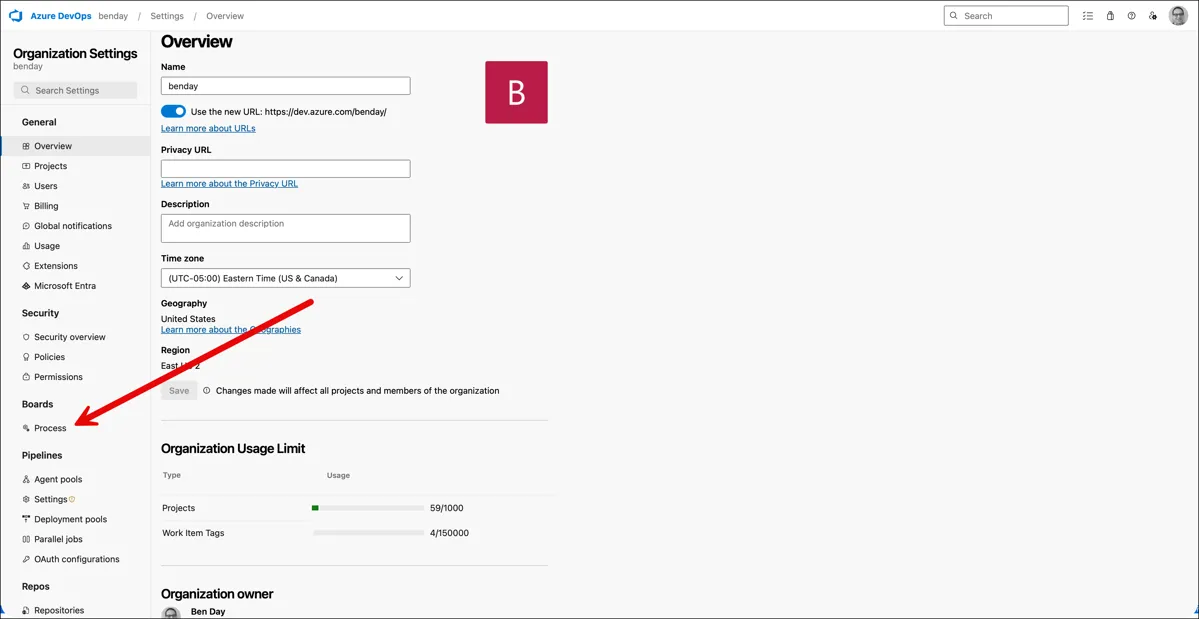
This will show you all of the process templates in your organization -- the built-in ones (Basic, Agile, Scrum, CMMI) plus any custom templates. Notice that the built-in templates have a lock icon next to them and the custom templates are shown indented underneath the built-in template they inherited from.
Find the custom process template your team project uses and click on it. In my case, I've got a custom template called "Scrum with Backlog Refinement" that inherits from the Scrum template.
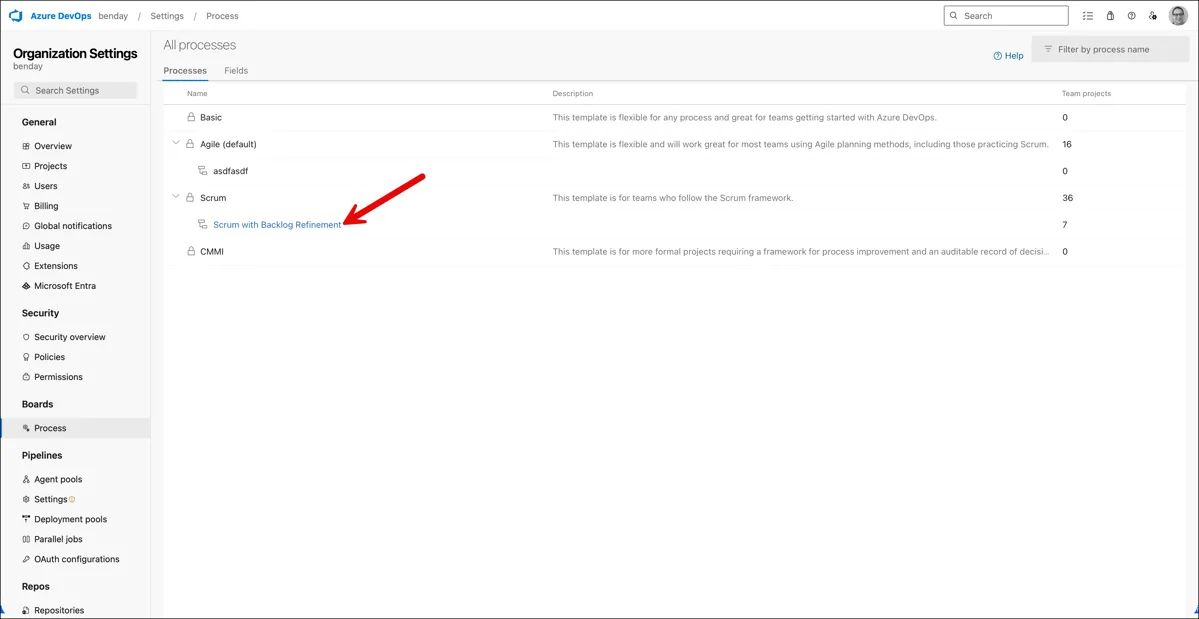
If you're not sure which template your project uses, the number in the Team projects column on the right tells you how many projects are using each template. You can also go to Organization settings > Projects to see which template each project is associated with.
Check the Backlog Levels
Once you've clicked into your custom process template, you'll land on the Work item types tab. This shows you all of the work item types defined in this template.
What you want is the Backlog levels tab. Click on it.
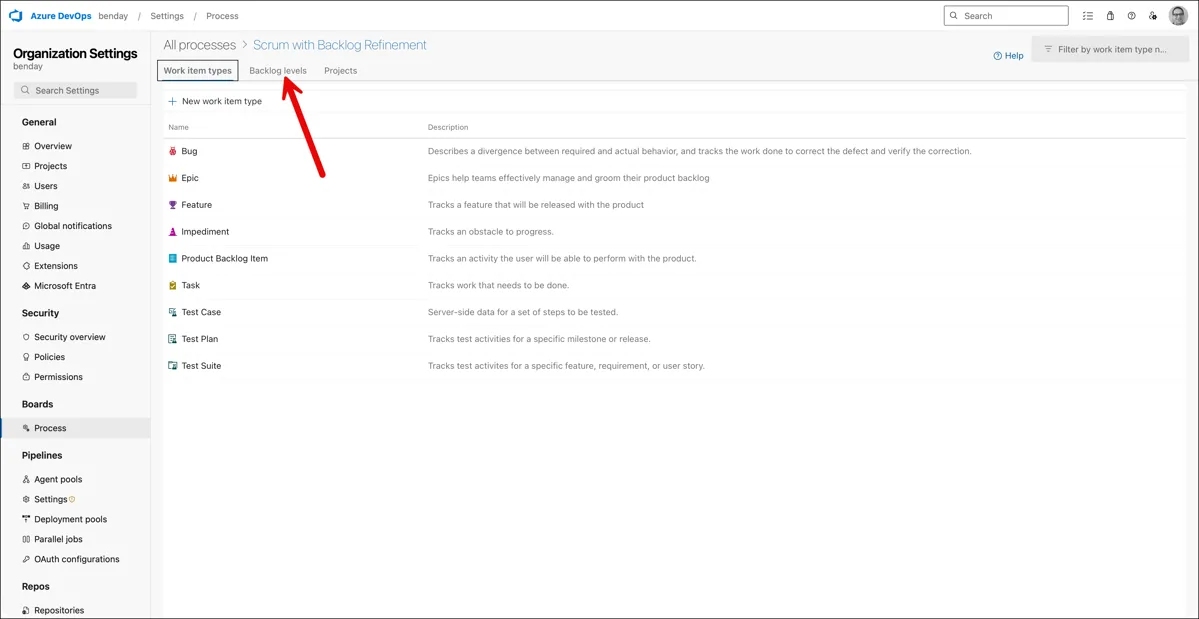
Now you can see the hierarchy of backlog levels for this template. You've got the Portfolio backlogs at the top (Epics, Features), the Requirement backlog in the middle, the Iteration backlog at the bottom (Tasks), and then an Other work item types section.
What you're looking for: Is there a work item type assigned to the Requirement backlog level?
In the screenshot below, you can see that the Requirement backlog has "Product Backlog Item" assigned to it. That's correct -- this is how Azure DevOps knows that Product Backlog Items are the deliverable work items for this template.
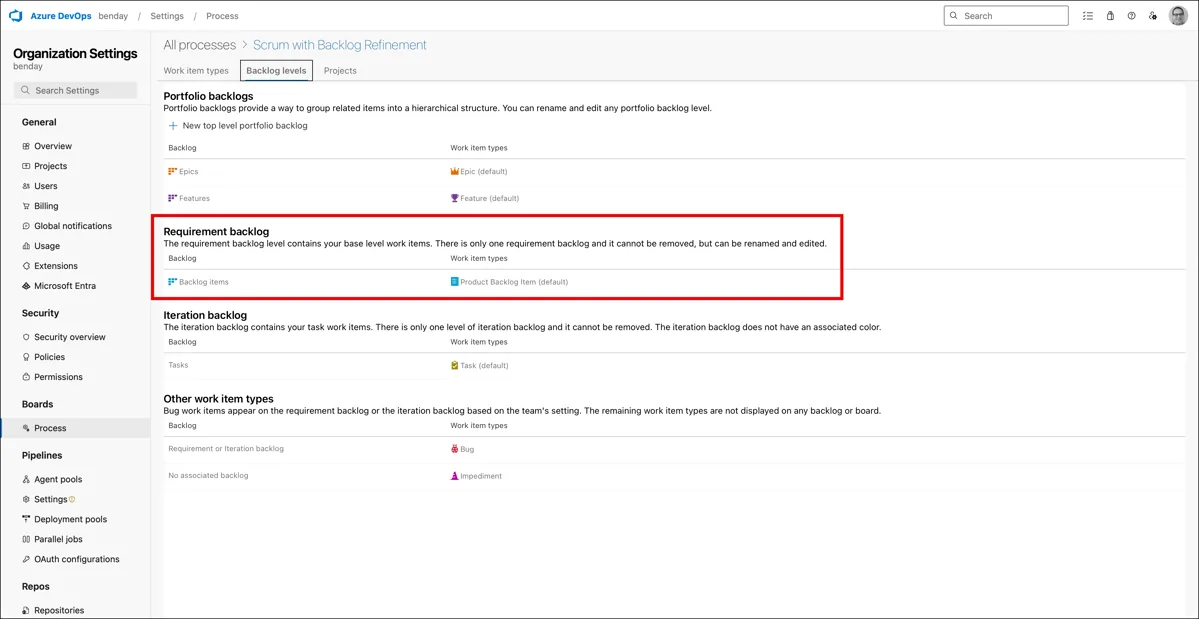
If the Requirement backlog level is empty -- no work item type mapped to it -- that's your problem. Azure DevOps and any tooling that reads the process template won't know which work items represent your team's deliverable work.
To fix it: Click on the Requirement backlog level and add the work item type that represents your team's deliverable items. This is whatever your team uses as their equivalent of a User Story or Product Backlog Item -- the things they commit to delivering in a sprint.
Check the State Categories
Now let's check the state categories. Go back to the Work item types tab and click on the work item type that's assigned to your Requirement backlog level. In my case, that's Product Backlog Item.
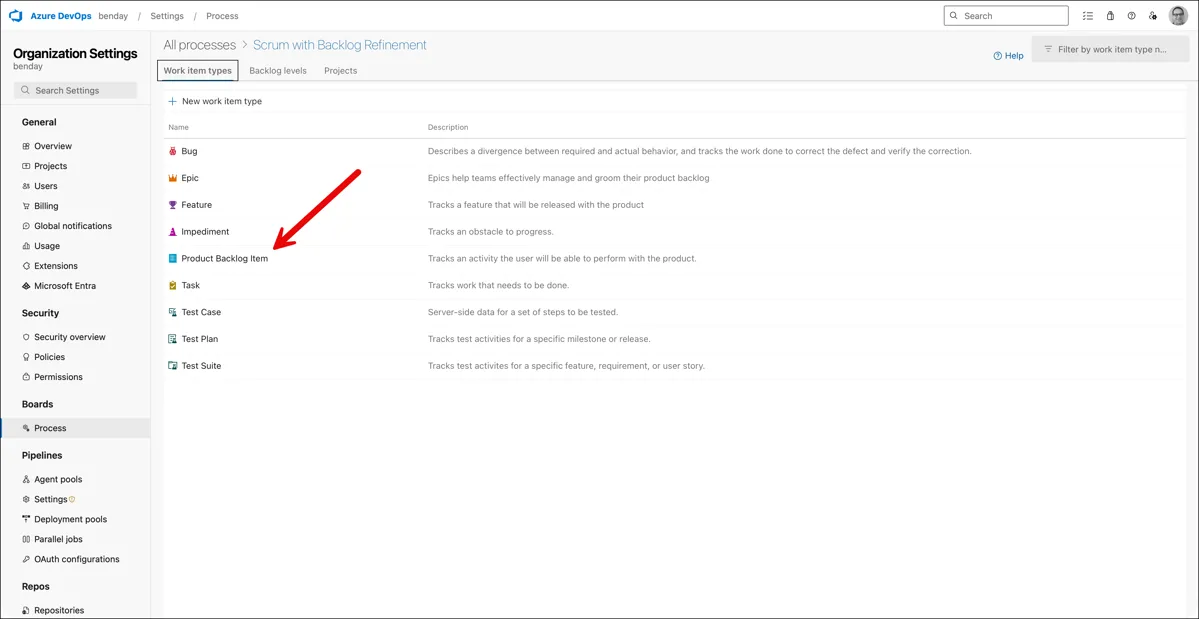
That'll take you to the layout editor for that work item type. You'll see three tabs at the top: Layout, States, and Rules.
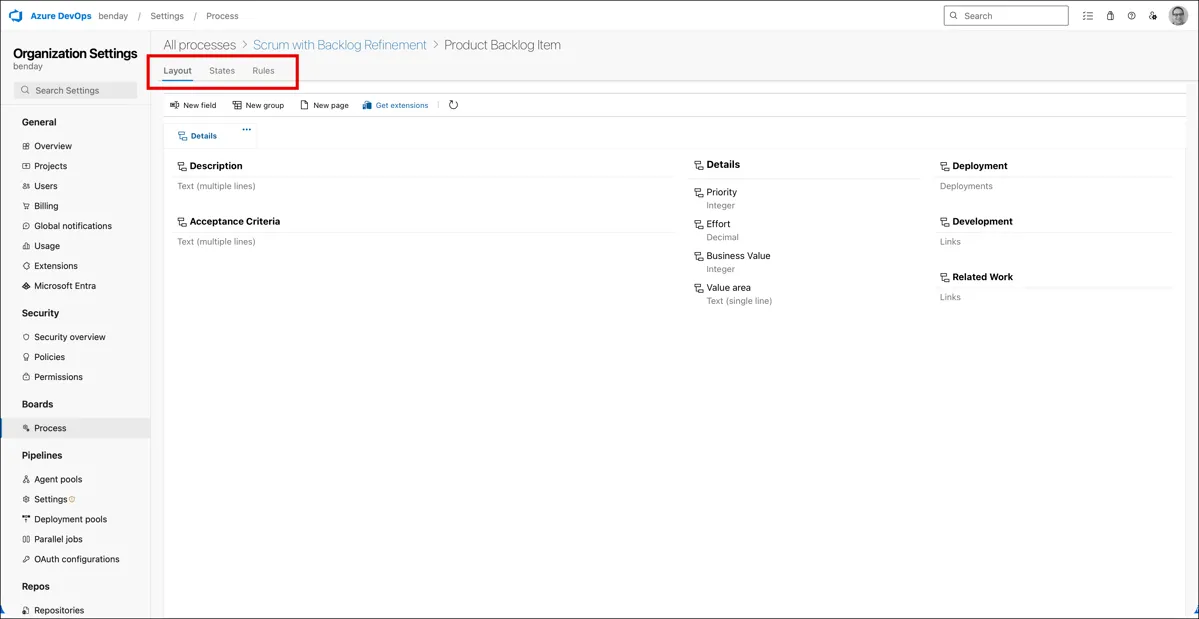
Click on the States tab.
Now you can see all of the states for this work item type, organized by their state category. This is the important part. Each state category is shown as a heading and the states assigned to that category are listed underneath it.
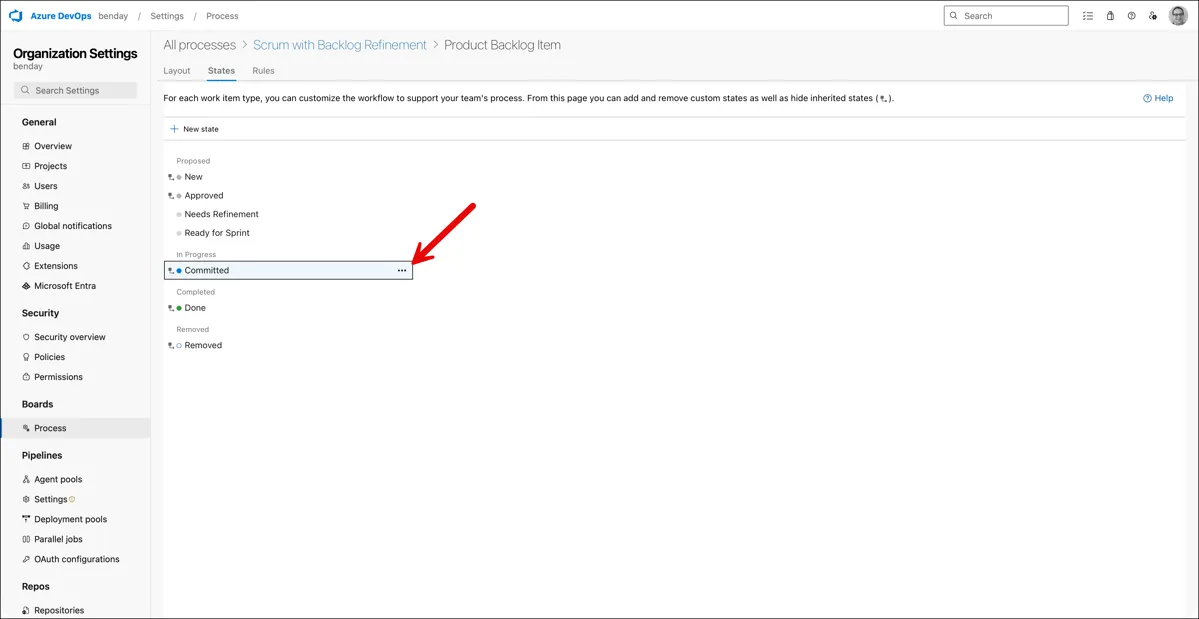
In this screenshot, you can see the states for the Scrum template's Product Backlog Item:
- Proposed: New, Approved (with custom substates for Needs Refinement and Ready for Sprint)
- In Progress: Committed
- Completed: Done
- Removed: Removed
If you click on a state, you'll get a dialog that shows you the details including the State category that it's mapped to. Here's what it looks like when I click on the "Committed" state:
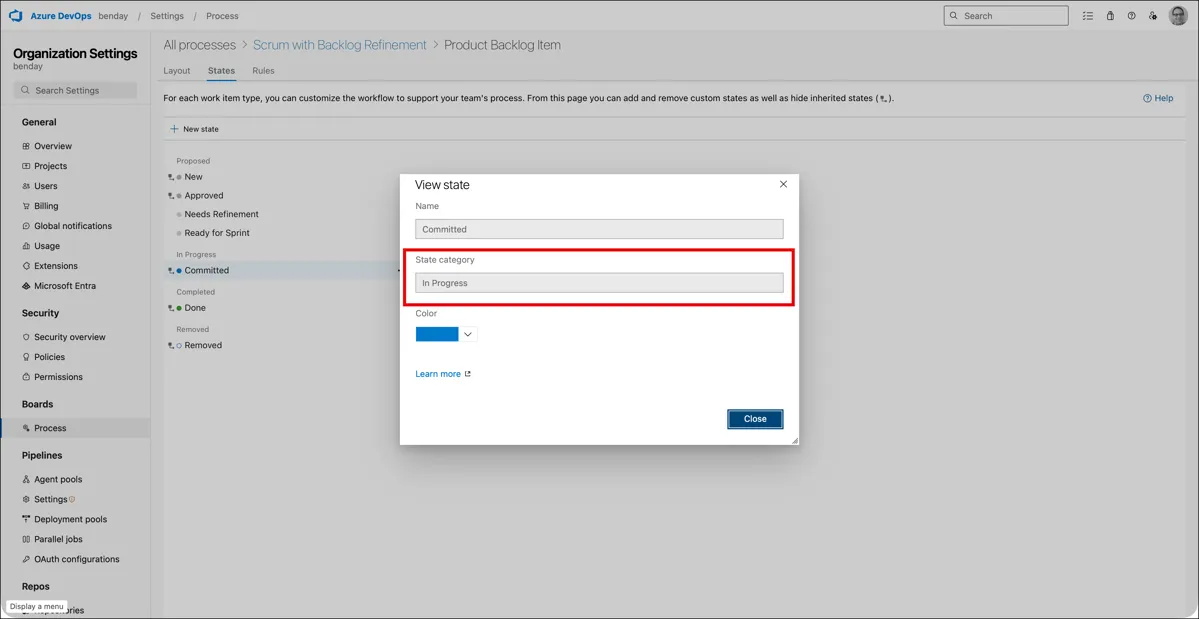
The State category field is the one that matters. This is what tells Azure DevOps -- and any tool reading the process template -- what this state means.
What to Look For
The two most critical mappings for flow metrics, delivery tracking, and tools like Honest Cheetah are:
- At least one state mapped to "In Progress" -- this is how Azure DevOps knows when work has started
- At least one state mapped to "Completed" -- this is how Azure DevOps knows when work is finished
If all of your states are mapped to "Proposed" or if they're all in the same category, Azure DevOps can't distinguish between work that hasn't started, work that's in flight, and work that's done. That's going to cause problems across the board -- your Kanban board behavior, your analytics, your cumulative flow diagram, and any extensions that read the process template.
To fix it: Click on a state, change the State category dropdown to the appropriate value, and save.
Why Does This Get Missed?
When people create a custom process template in Azure DevOps, they typically focus on the visible stuff -- adding custom fields, creating custom work item types, defining rules and layouts. That's the fun part. The backlog levels and state categories are more of an infrastructure-level concern that's easy to overlook, especially if you don't know these settings exist.
The out-of-the-box templates handle all of this for you automatically. But when you go custom, you're responsible for making sure these pieces are wired up correctly. And if you inherited a custom process template from someone else, there's a decent chance these settings were never configured or were configured incorrectly.
What About Honest Cheetah?
If you're here because Honest Cheetah for Azure DevOps is showing 0s and N/A for all your metrics, this is almost certainly the fix. Honest Cheetah reads the process template configuration to figure out which work item type is the Requirement type and which state categories represent "in progress" and "completed." Without those mappings, it can't calculate throughput, cycle time, or any of the other metrics. It's not a bug -- it's a configuration issue in the process template.
After you fix the backlog levels and state categories, go back to Honest Cheetah and refresh your data. Your metrics should start populating.
Quick Checklist
Here's the short version if you just want to verify your custom process template is configured correctly:
- Go to Organization settings > Boards > Process.
- Click into your custom process template.
- Click on the Backlog levels tab. Verify that a work item type is assigned to the Requirement backlog level.
- Click into the work item type assigned to the Requirement level. Click on States. Verify that the states are mapped to the correct state categories -- especially In Progress and Completed.
Summary
Backlog levels and state categories are two of those Azure DevOps settings that you never think about when you're using the out-of-the-box process templates. But when you go custom, these settings need to be configured explicitly or things will quietly break. Your boards, analytics, cumulative flow diagrams, and any extensions that read the process template -- including Honest Cheetah -- all depend on these configurations being correct.
I hope this helps.
-Ben