This is Part 4 of 4 (so far) in the GitHub Projects in 2026 series.
← Previous: Part 3: Your First Project, From Draft Issues to Real Issues
Shameless plug: Already running your team in GitHub Projects? Honest Cheetah adds test management and "when will it be done?" forecasting right inside GitHub, using the data you already have. It measures the system, not the people.
▶ Watch this video on YouTube (opens in a new tab)
One of the three questions we're trying to answer when we do project management is question number one: what are we going to work on? In most teams, that's represented by something called a backlog. It's a pile of features and requirements that the team is supposed to work on in some kind of priority order.
But here's the problem. Most backlogs really are just a pile. Features, bugs, and chores all mixed together, and you can't tell which is which. And that makes "what are we going to work on?" really hard to answer.
In this post, I'm going to show you issue types, which are how GitHub helps you sort the pile. We're going to go from a 33-item mess to a backlog you can actually read.
TL;DR
- GitHub gives you three issue types out of the box: Feature, Task, and Bug. A feature is a requirement. A task is work that turns a feature into done software. A bug is a report of a problem.
- Issue type only exists on real issues that live in a repository. Draft issues don't get one.
- Add the Type column to your backlog view, tag issues right in the grid, and use the fill handle to bulk-tag a run of rows.
- Filter with
type:Featureor slice by type to see the backlog one kind of work at a time. - Issue types are defined at the organization level, under Settings → Planning → Issue types. Not in the project.
- Pro tip: bugs are tricky. Several bugs often describe one root cause. Triage them, and start the actual work from a feature.
The Pile
I'm back in my demo organization, in the same projects-2026 project from Part 3. I've populated it with a bunch of test data since last time, so the old "Requirement A, B, C, D" items are gone and now there's a pile of new stuff.
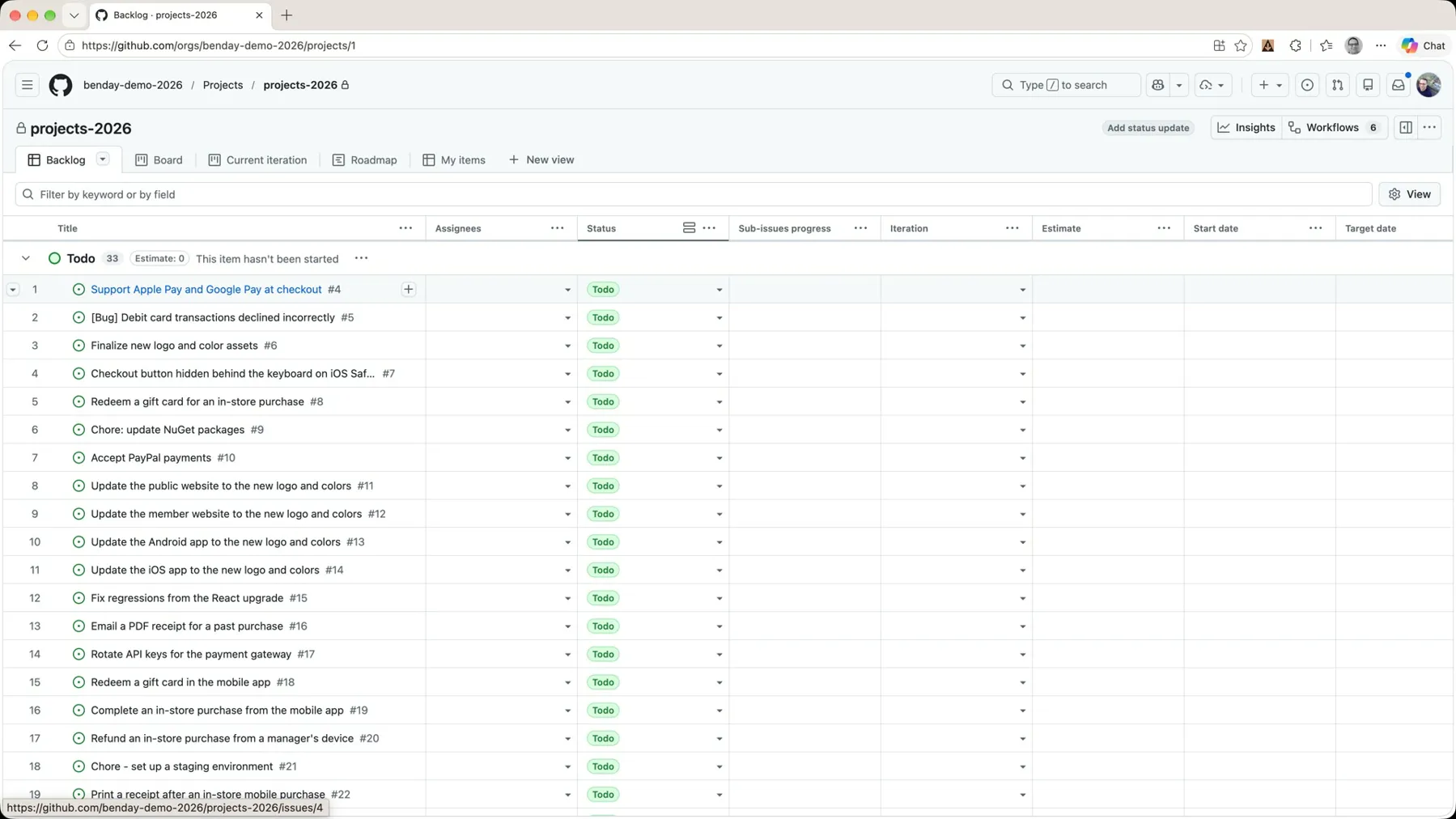 *Thirty-three items. Requirements, bugs, and chores, all mixed together.*
There are thirty-three items in here, and it's a combination of not just requirements, but also bugs and miscellaneous little maintenance chores. Stuff like "rotate the API keys for the payment gateway." It's a mix. And whenever you have a mix of stuff, it's kind of hard to understand what's going on, because it's just a pile.
Set an Issue Type
Let's open the first one up: Support Apple Pay and Google Pay at checkout. The description says "As a customer, I want to pay with Apple Pay or Google Pay so that I don't have to type in my card number on my phone." It's got acceptance criteria. This is definitely a requirement.
But looking at the backlog, you really wouldn't be able to tell which items are requirements and which are just other kinds of work. That's where this nice feature in GitHub Issues called issue type comes in.
In the issue panel, there's a Type field with a little gear icon next to it. Click the gear and it shows you the three default issue types: Task, Bug, and Feature.
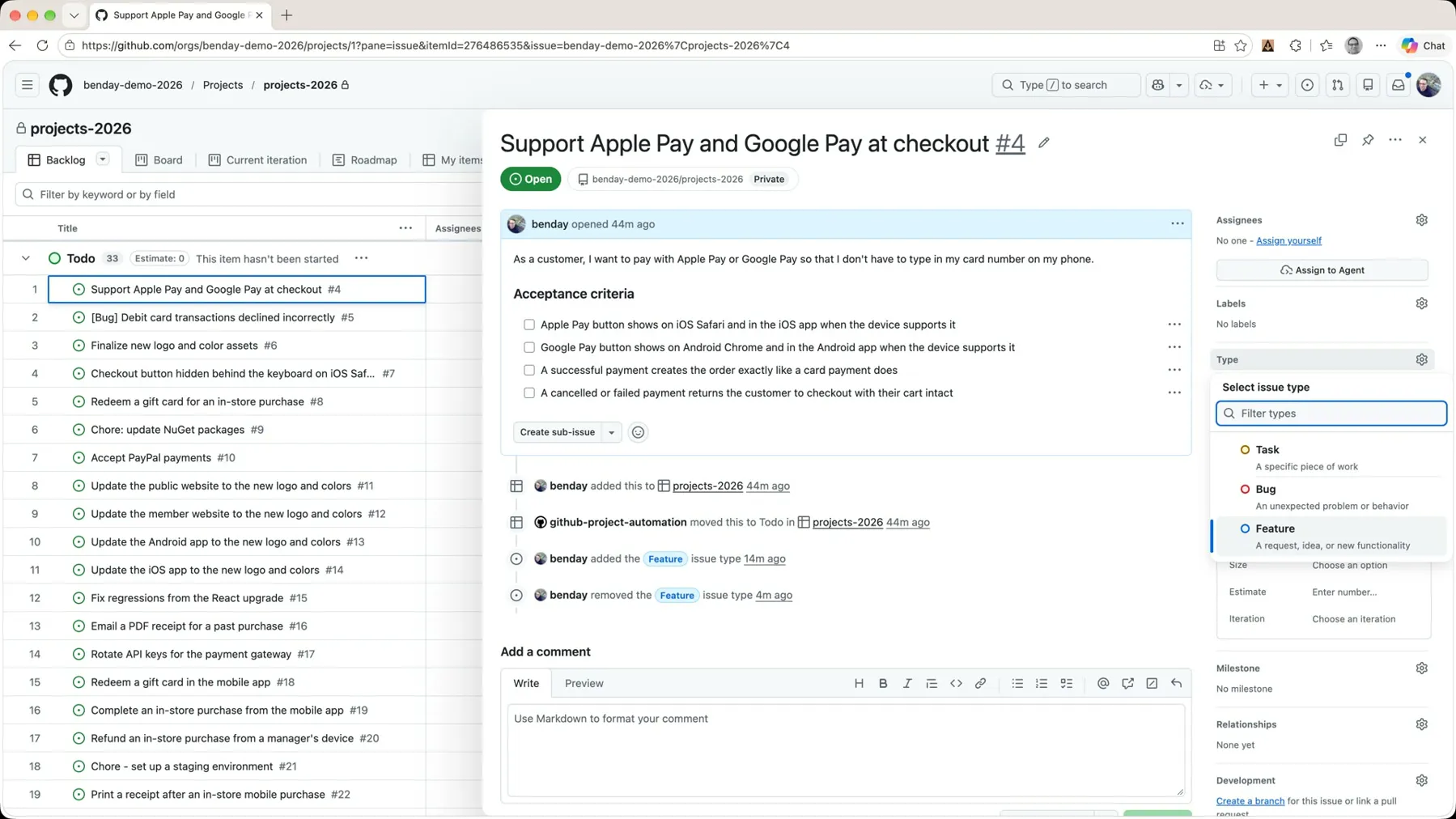 *The Type field on an issue. Three defaults: Task, Bug, Feature.*
The Three Issue Types
Before I pick one, let's talk about what these three types are actually for.
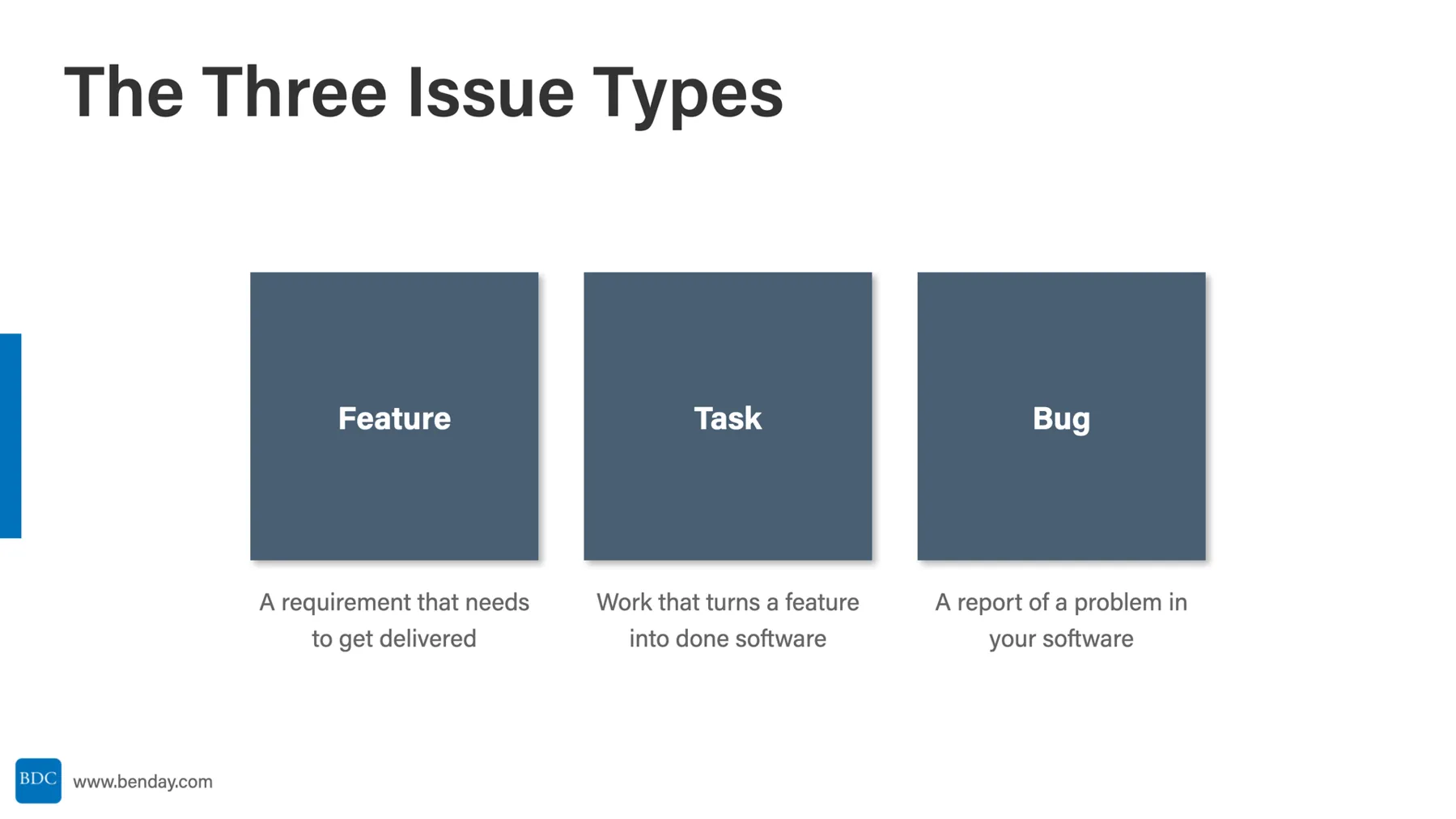
- Feature. A feature is a requirement. It's something that needs to get delivered. Call it a user story, a product backlog item, a PBI, whatever your team calls them. This is the thing the customer actually wants.
- Task. A task is typically an item that needs to get completed as part of turning a feature into a piece of done, working, shippable software. Tasks usually hang off of a feature. (More on that in the next video.)
- Bug. A bug is a report of a problem in your software. Something's broken, somebody noticed, and they wrote it down.
Pro Tip: Bugs Are Tricky
That last one deserves a little more attention, because bugs are tricky little things.
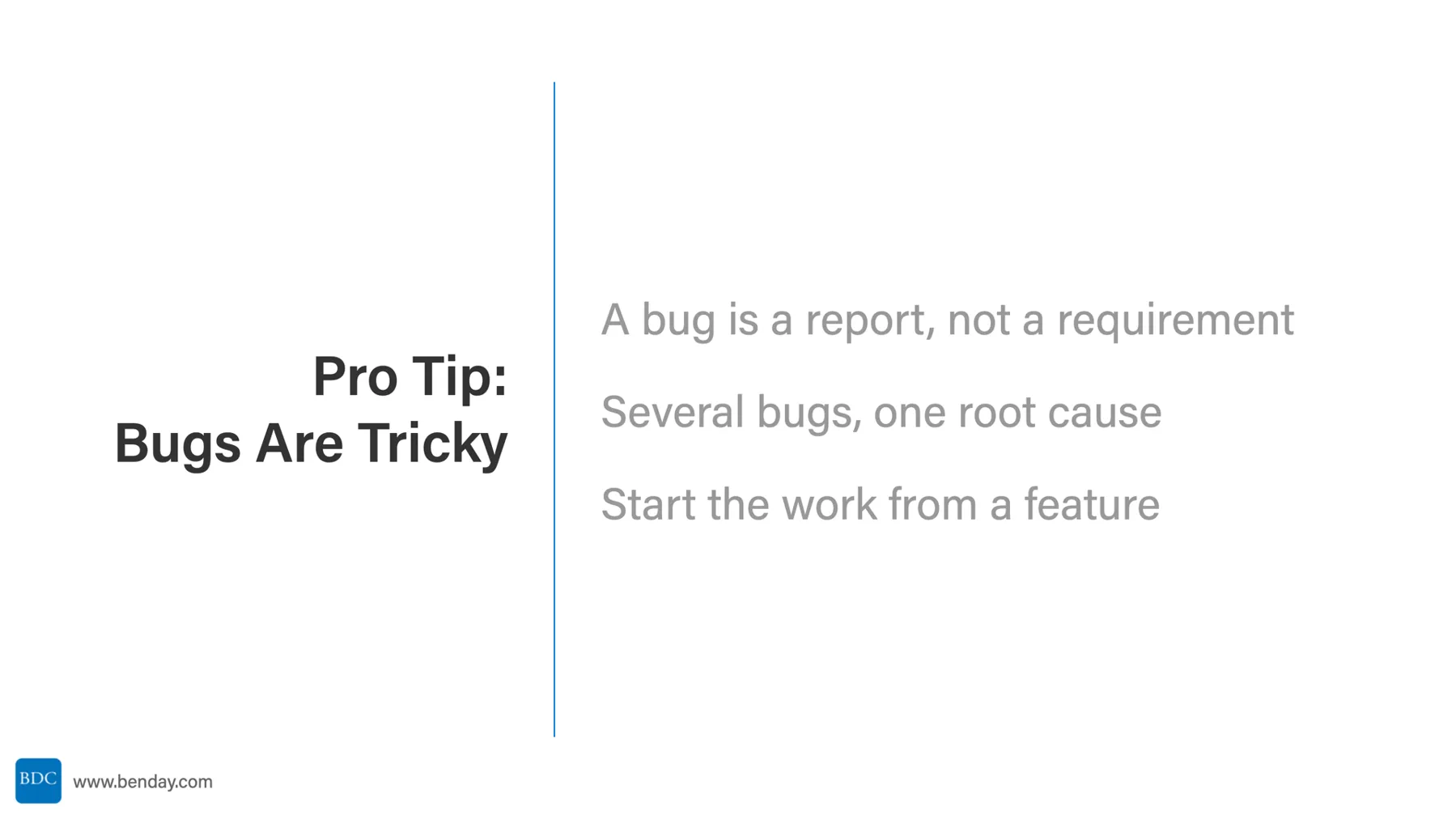
A bug is a report, not a requirement. Bugs are often pretty confusing and messy in their own way. A single bug might only describe one piece of something that's failing. It's a report from whoever happened to hit the problem.
Several bugs, one root cause. You might end up with three or four or more bugs that all report different aspects of one root-cause problem in your app. Which is an oblique way of saying that bugs need to be triaged. And by the time you're done triaging, you'll probably describe the problem in a completely different way.
Start the work from a feature. So when you start working on stuff, always start from a feature. A requirement, a user story, a PBI. Don't work on bugs directly. Bugs can inspire features, but bugs shouldn't be features. Honestly, that's a whole post on its own.
Draft Issues Don't Get a Type
One thing to know, just to be clear: issue type is not available on draft issues. The item has to be a real, full-blown issue that lives inside of a repository. If you skipped Part 3, that's the whole draft-versus-real thing.
Ok. Back to the demo. This one's a feature, so I'm marking it as Feature. Now there's a little badge next to the Open pill that says Feature.
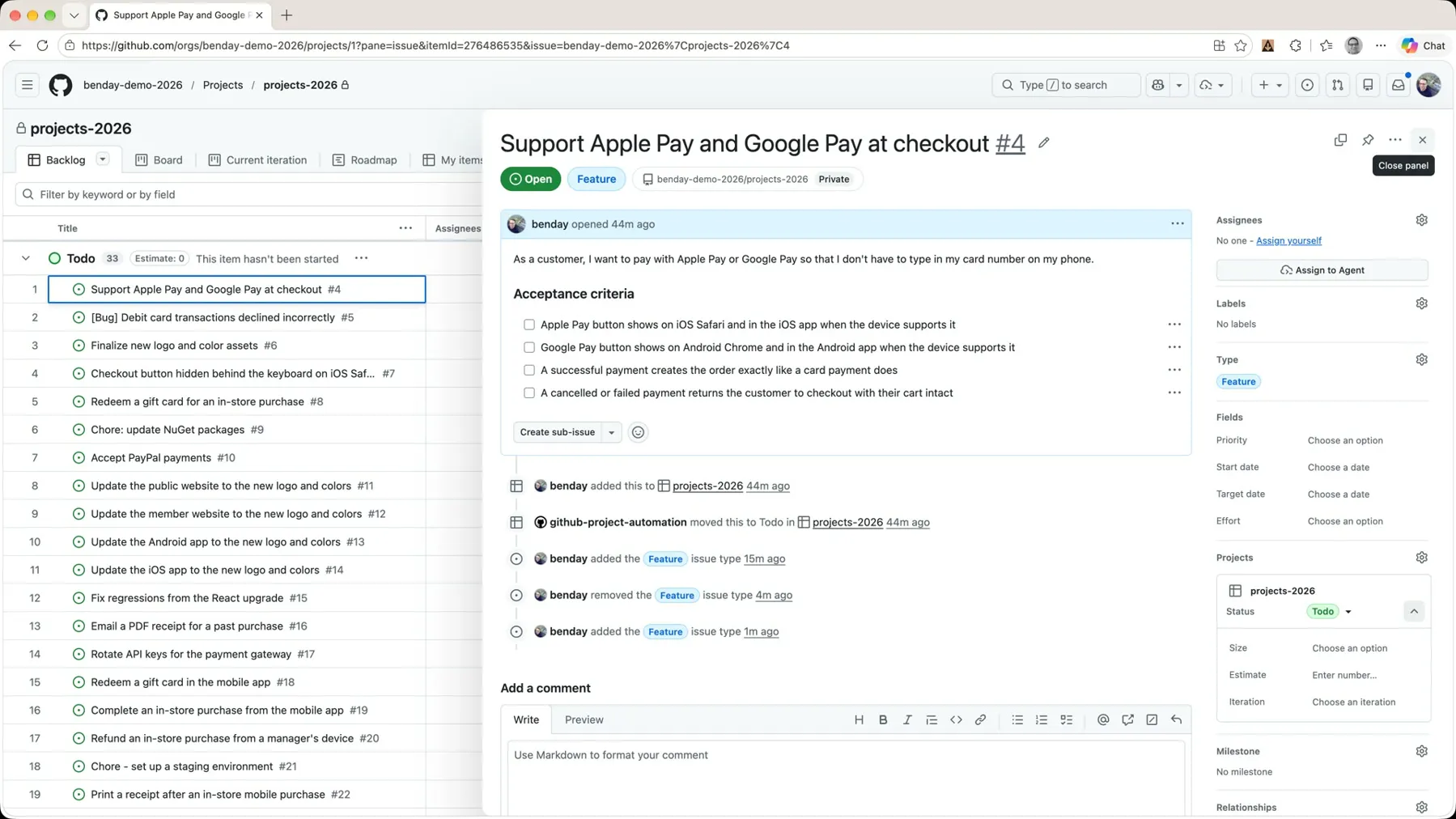 *Tagged as a Feature. (Full disclosure: you can see in the history that Feature got added and removed before. I recorded part of this demo once already and it didn't go very well.)*
Show the Type Column
Close the panel and go back to the backlog, and... it still looks like just a pile of stuff. It would be nice to be able to see the type of each item right in the list.
So let's customize the view. Click View, go to Fields, and down in the list there's a Type field. That's issue type. Check it.
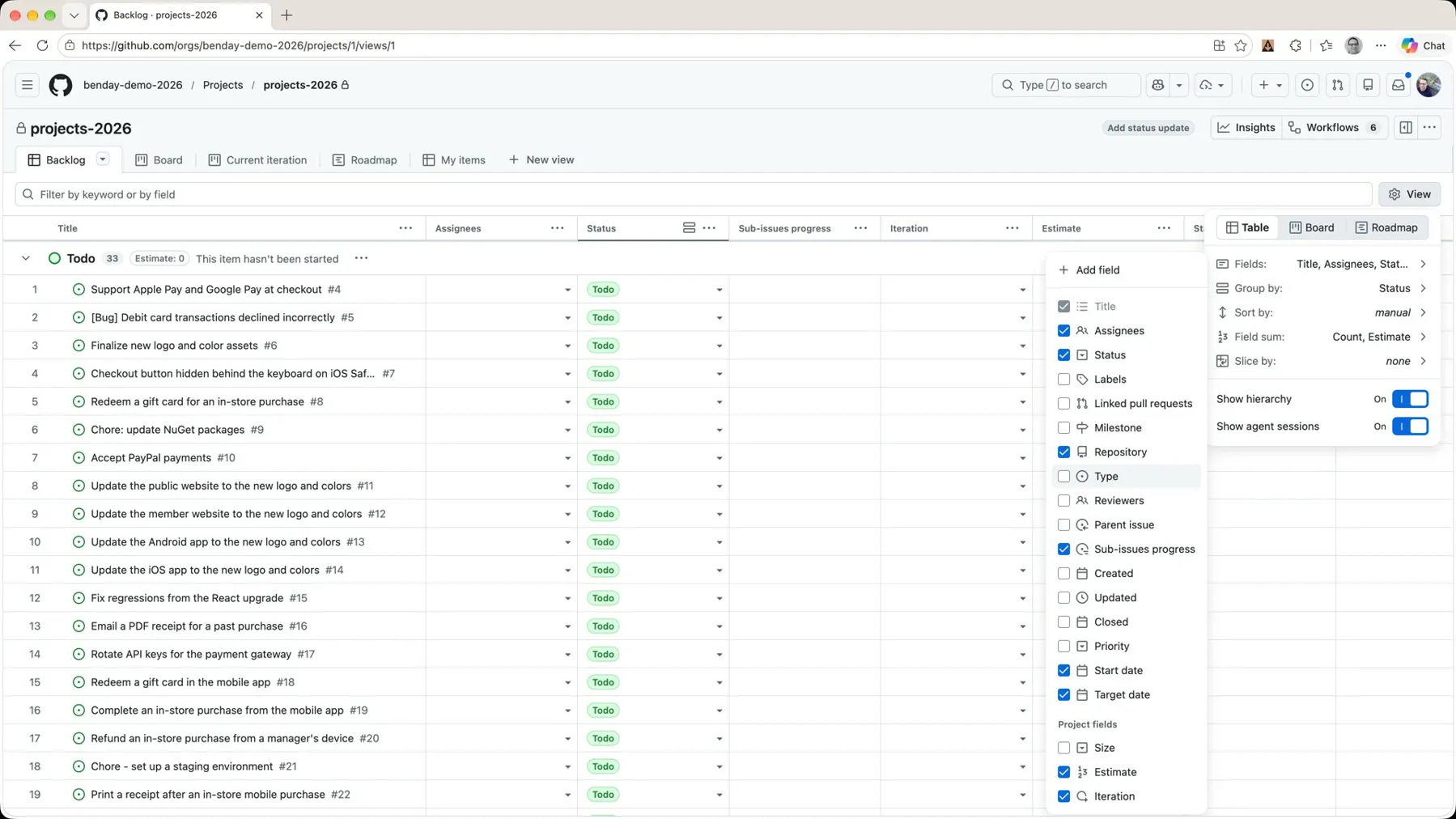 *View → Fields → Type.*
Then click Save view, and yes, save it for everyone.
When you look at the grid, hmm, where is that column? Scroll all the way over to the right. It's way at the end.
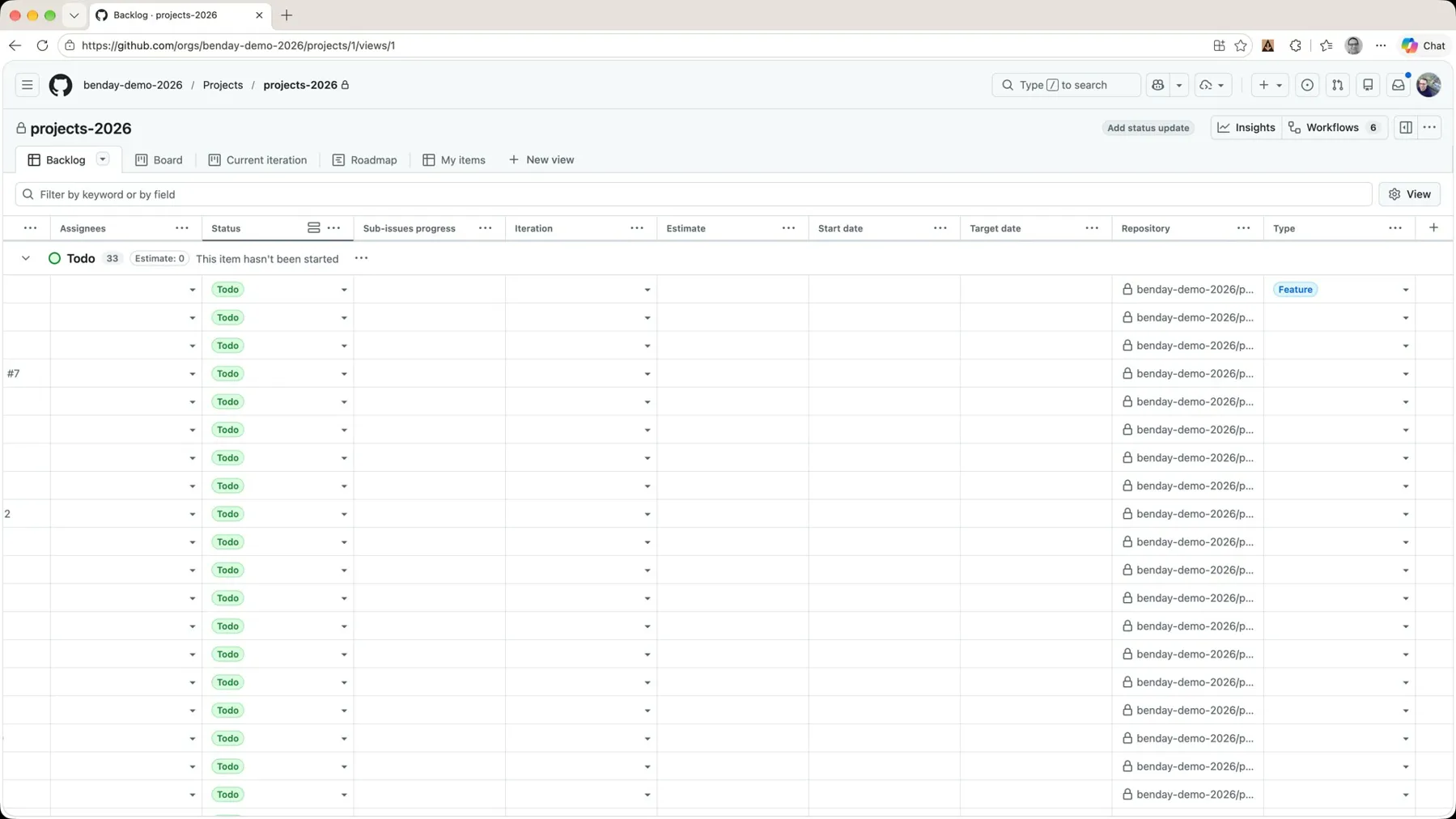 *New columns show up at the far right. Drag the header to move it.*
Hover over the column header to get the hand icon and drag it over next to Title. Now the issue type is right there where you can see it. I saved the view again, because I think that's a good customization.
Tag the Backlog
Now we can go through and tag things, and there are two ways to do it.
In the grid. The second item has "[Bug]" right in the title, so click its Type cell and pick Bug. Done. No panel required.
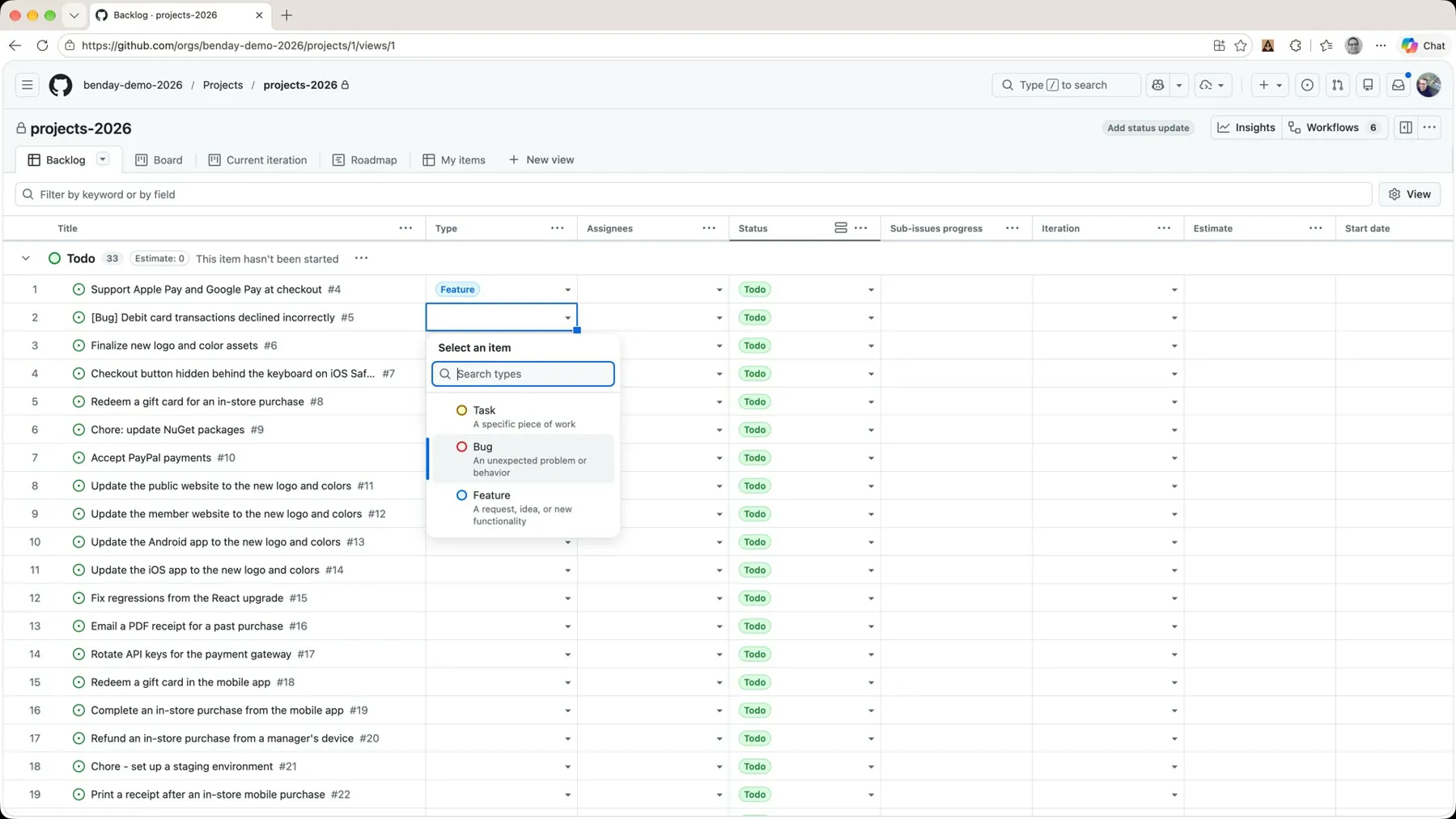 *Pick the type right in the grid cell.*
In the issue panel. For the ones where I need to read the description first, open the item, check what it is, click the gear, pick the type, close the panel.
- Finalize new logo and color assets. Another requirement. Feature.
- Checkout button hidden behind the keyboard on iOS Safari. That looks like a Bug to me.
- Redeem a gift card for an in-store purchase. That's a requirement again. Feature. (I just can't train myself to say "feature" instead of "requirement.")
- Chore: update NuGet packages. That's a Task, not a feature.
When you come back to the grid, there's a combination of work types all in the same list. It's still a little messy, but now you can at least see what type each thing is.
Filter by Type
The filter bar at the top of the view is truly excellent. Click in it, type type:, and pick Feature from the list.
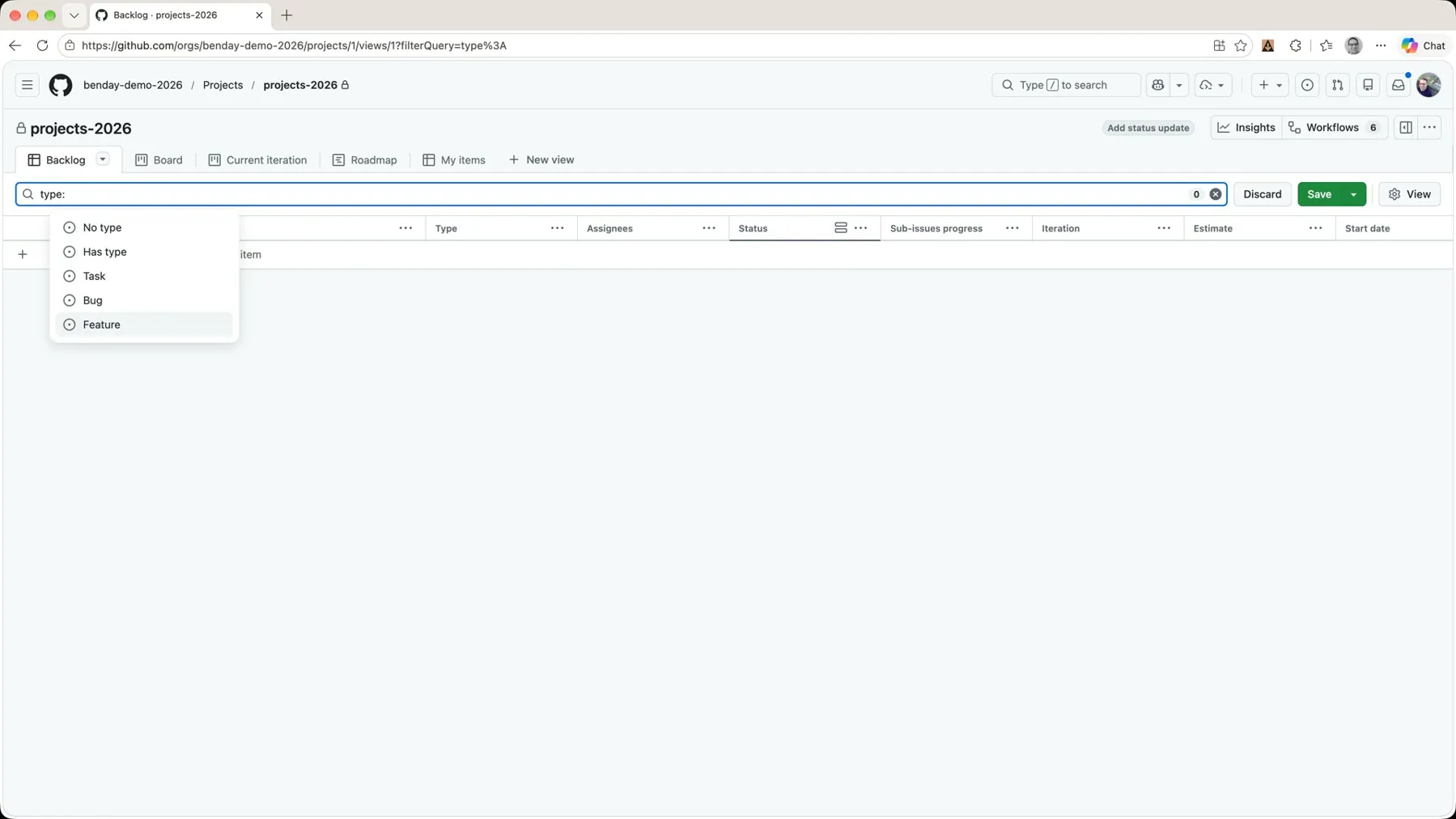 *type: and pick from the list.*
Now it shows just the features. That's a really quick way to visualize what's in the backlog. Clear it out to go back to the full list.
Tag the Rest in the Grid
I'm going to tag a bunch more, and here's where the grid really earns its keep.
Accept PayPal payments is a feature. Update the public website to the new logo and colors is a feature. And the next three rows are all the same rebrand work: the member website, the Android app, the iOS app. So here's the trick: click the Feature cell, grab the fill handle in the corner, and drag it down three rows. It fills in Feature for all three.
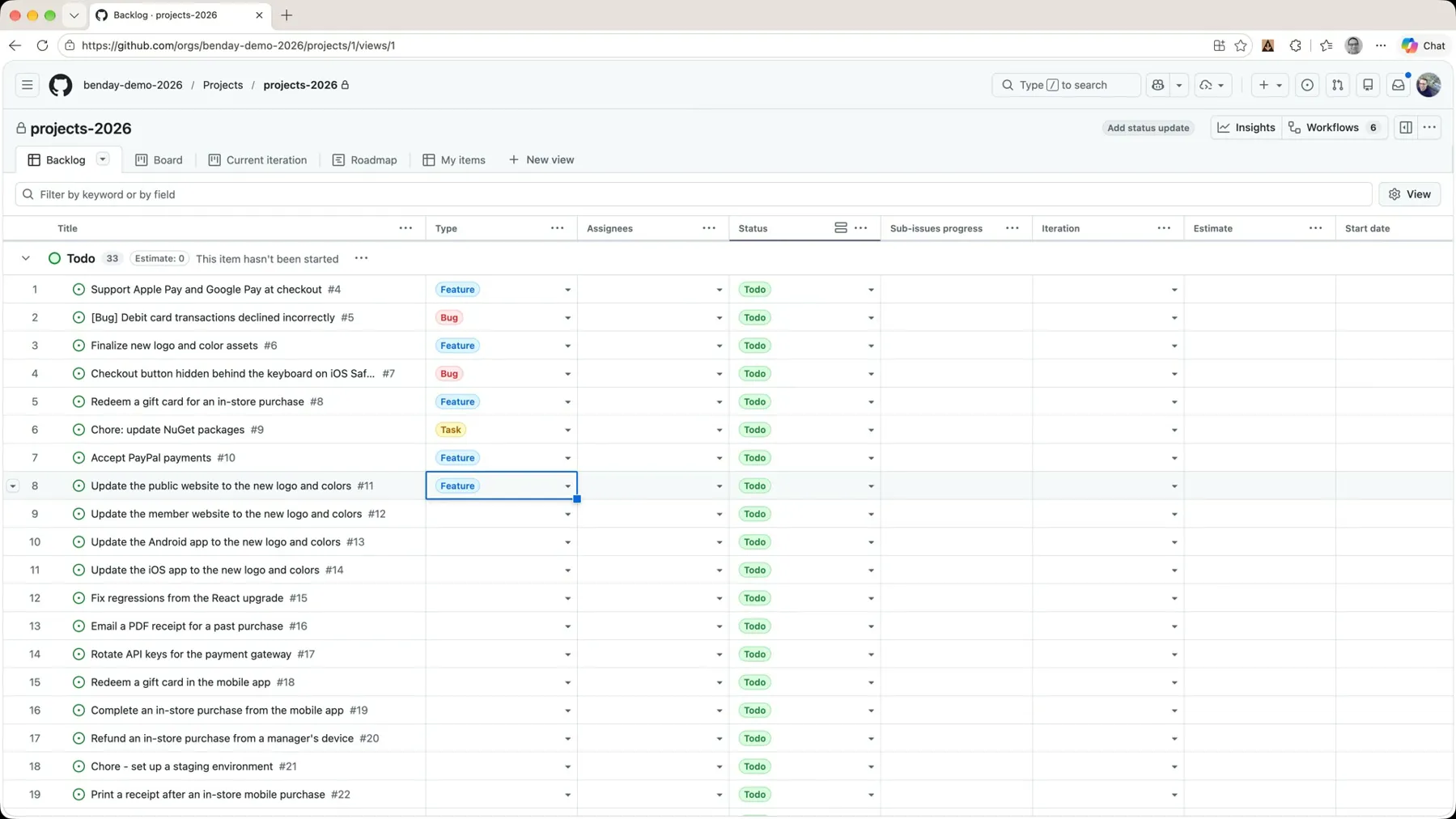 *Tag one cell, drag the handle down, done.*
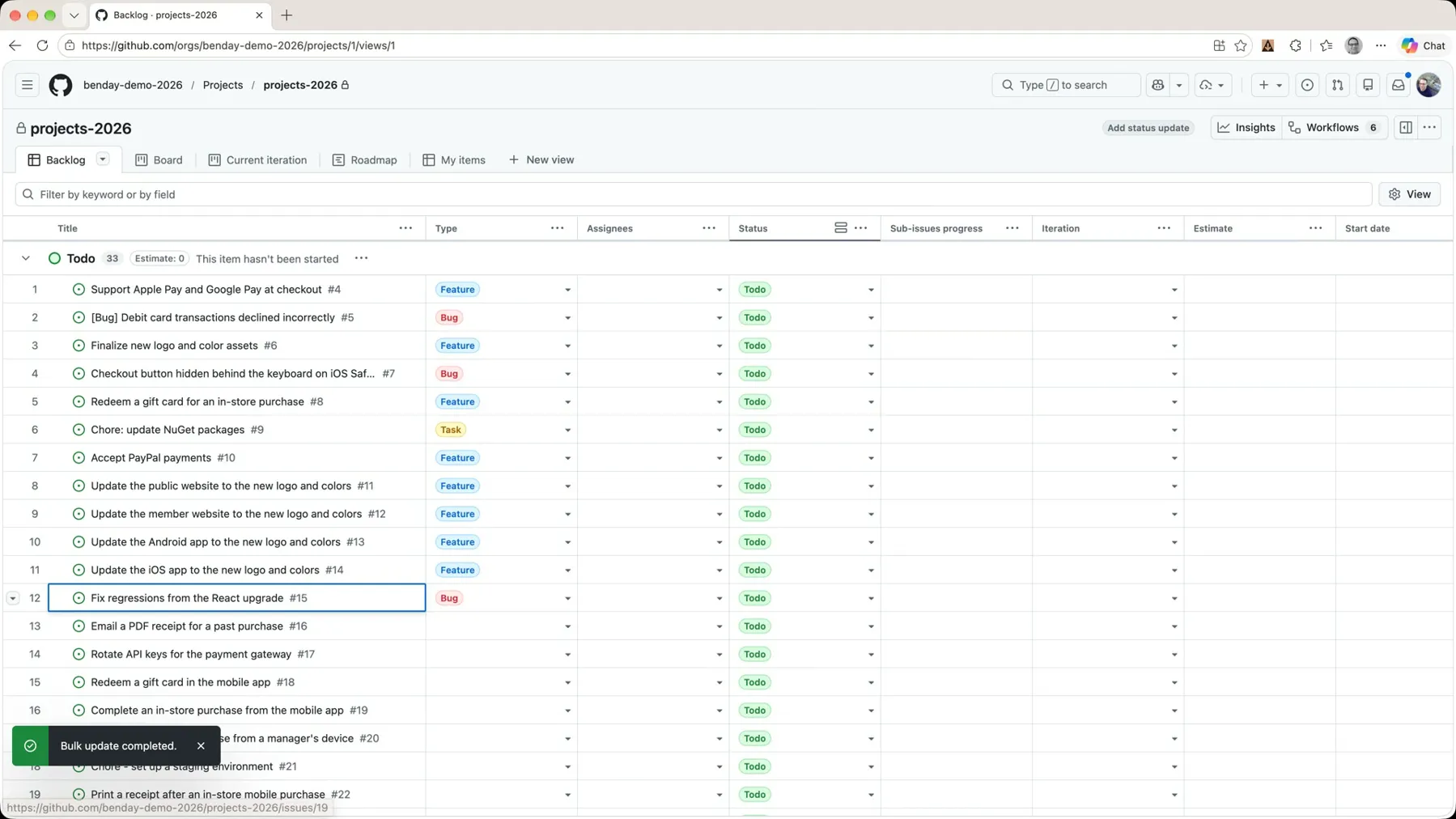 *'Bulk update completed.' The rebrand rows are all Features now.*
Fix regressions from the React upgrade is a bug. Email a PDF receipt is a feature. Rotate the API keys for the payment gateway is a task. Redeem a gift card in the mobile app is a feature. And so on down the list.
I got through about two-thirds of the list and left the rest untyped on purpose. Now when I filter by type:Feature again, there are sixteen features instead of three.
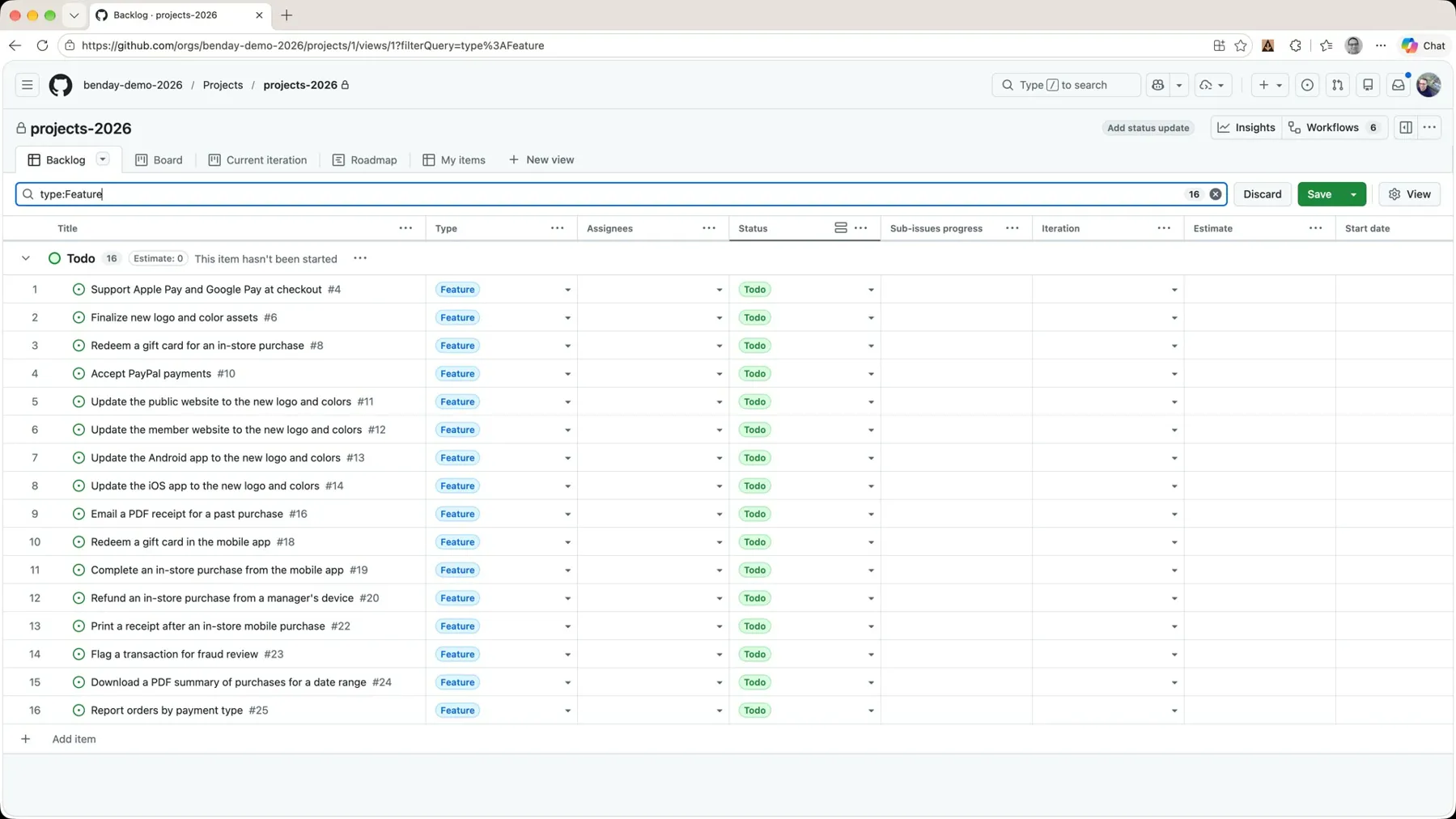 *Sixteen features. The pile is starting to read like a backlog.*
Slice by Type
There's one more way to look at this that I like a lot. Go to the View menu, and down near the bottom there's Slice by. Slice by Type.
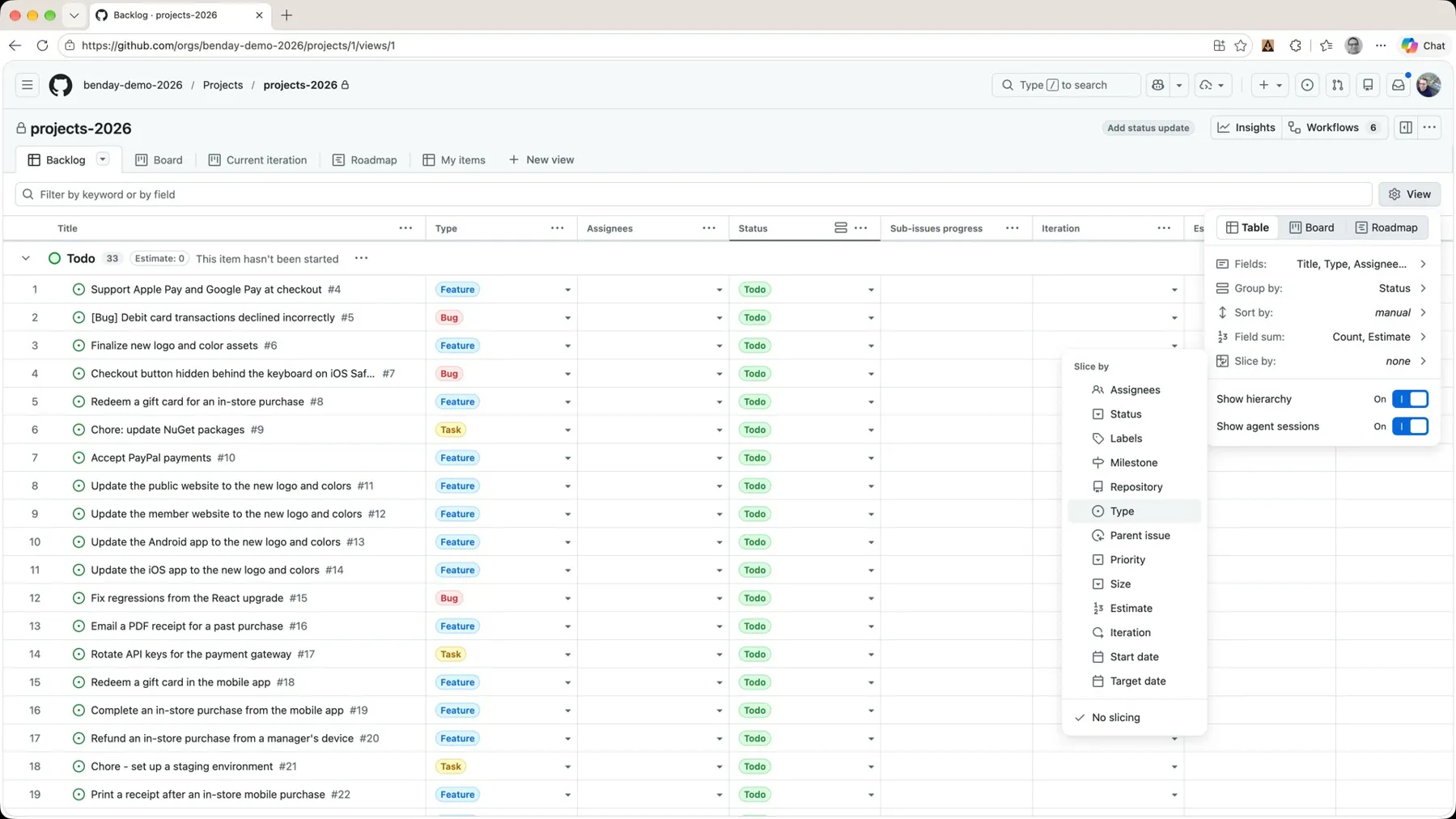 *View → Slice by → Type.*
Now there's a panel on the left: Bug, Feature, Task, and No Type, with a count for each one. Click Bug and it shows you the bugs. Click Feature and it shows you the features. Click Task, the tasks. And No Type is the stuff you haven't categorized yet.
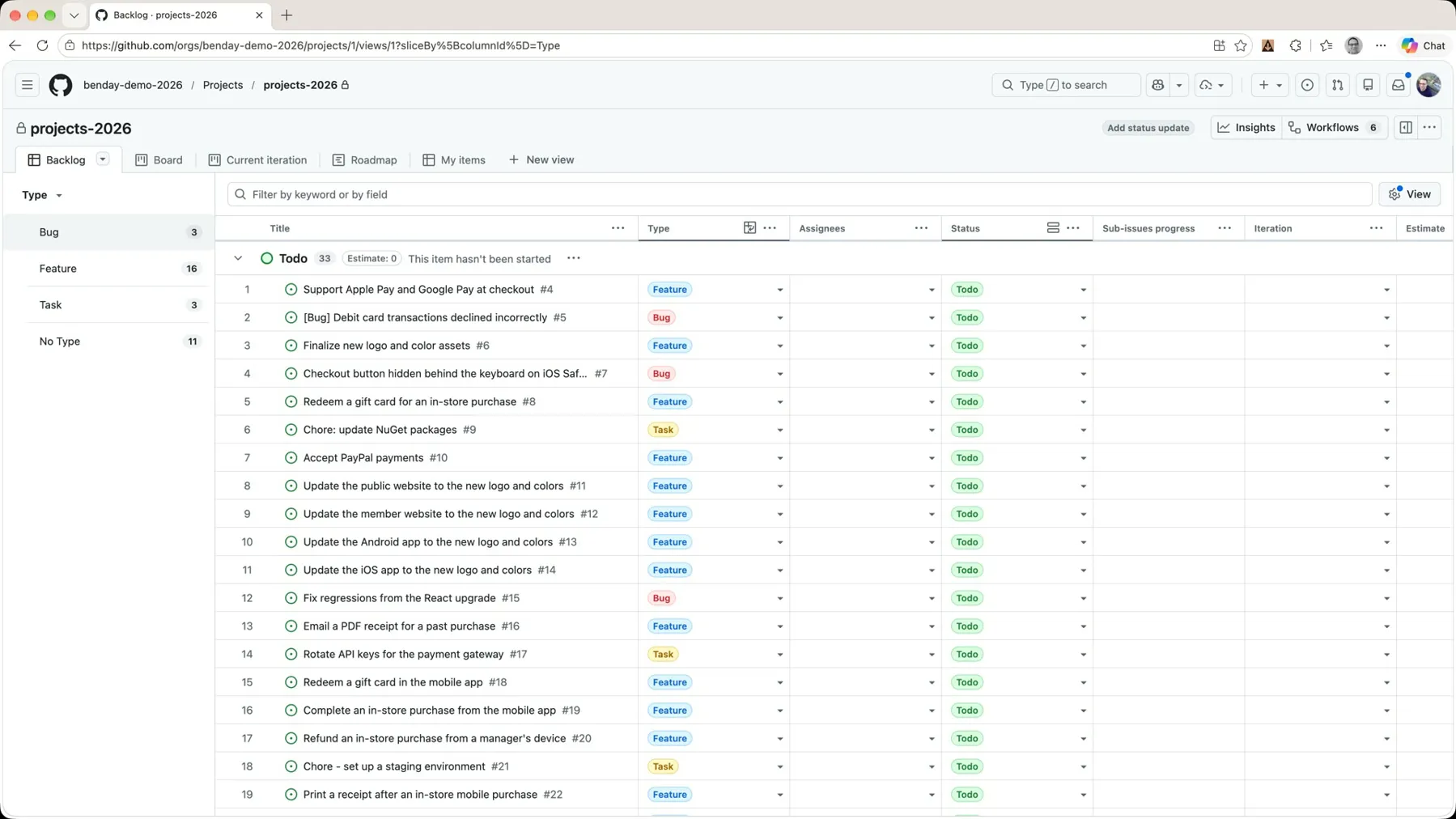 *Sliced by type: 3 bugs, 16 features, 3 tasks, 11 still untyped.*
Three ways to see the same list: the Type column, the filter bar, and slicing. Use whichever one answers the question you've got.
Where Issue Types Are Defined
Now, if you want to add more issue types, you can. And you'd probably go looking for that in the project settings, so let's go in there.
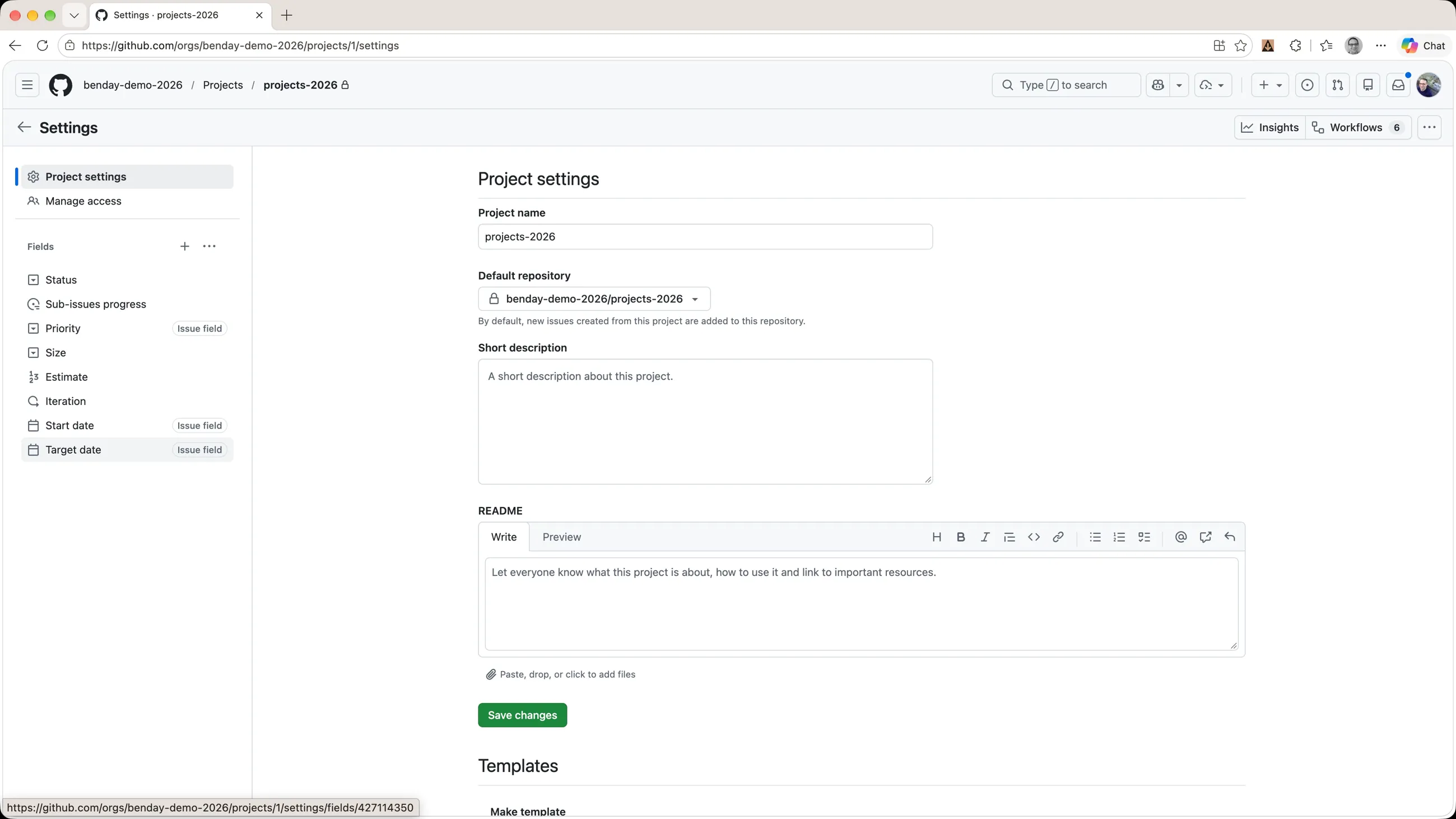 *Project settings. Issue types aren't here.*
And, well, it's not here. You'd kind of expect it to show up in the settings for the project, but it isn't stored there. Issue type is an organization-level thing, kind of like the fields in this list that are marked Issue field: Priority, Start date, Target date. Those are defined at the org level, and so are issue types. (I covered issue fields in the What's New in GitHub Projects & Issues post if you want the details.)
So go up to the org, benday-demo-2026, and go to Settings in the tabs across the top. A little way down the left-hand side there's a section called Planning. Expand it and you get Projects, Issue types, and Issue fields.
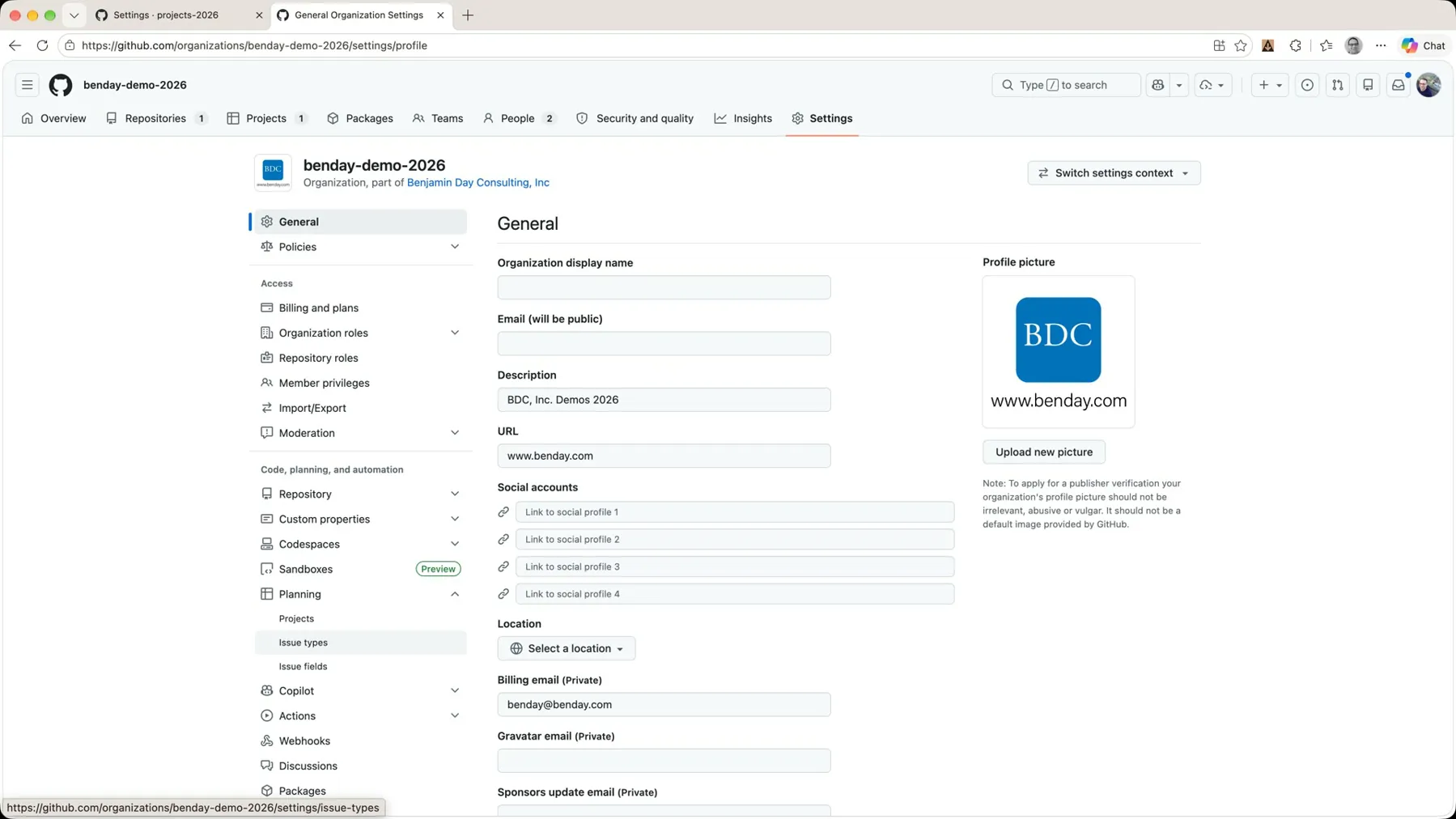 *Organization settings → Planning.*
Click Issue types, and this is where you define issue types inside of your organization.
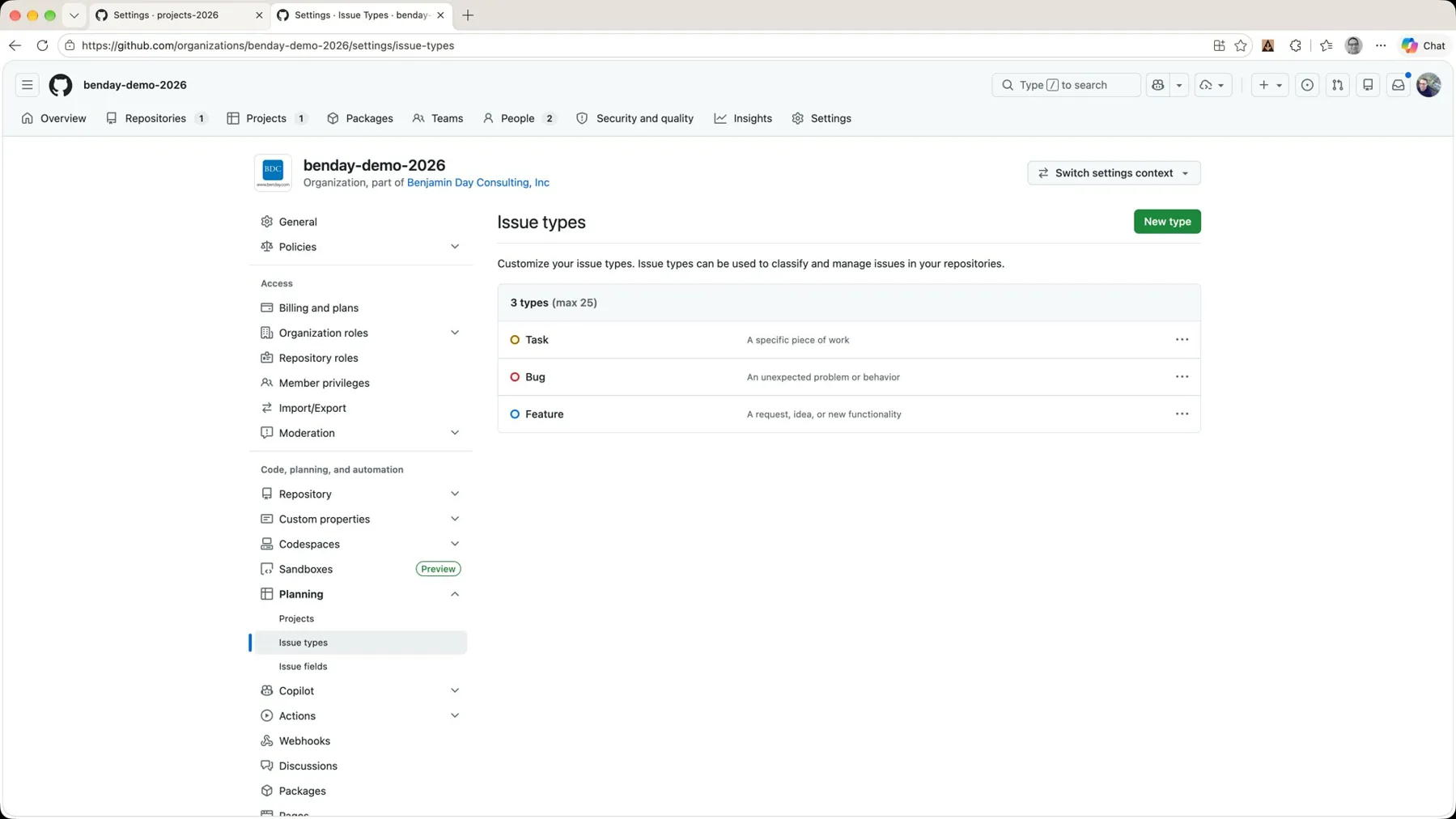 *Task, Bug, Feature. Three types, max 25.*
By default you get Task, Bug, and Feature, and you can have up to twenty-five. But the thing to remember is that your issue types are the same for everything inside of your organization. Any project you create in the future is going to have the same issue types. That's a feature, not a limitation: it means "Feature" means the same thing on every board in the org.
It's also an org admin thing, so you might need to go find that person.
Recap
We've added issue types to a bunch of issues, and I showed you a couple of different ways to filter and slice so you can actually see what's inside of your backlog. It's not just a pile anymore.
The things I'd like you to remember:
- A pile isn't a backlog. Until you can tell requirements from bugs from chores, "what are we going to work on?" has no good answer.
- Feature, Task, Bug. A requirement, the work to deliver it, and a report of a problem.
- Bugs need triage. Start the work from a feature. Bugs can inspire features, but bugs shouldn't be features.
- Issue types live in the org, not the project. Settings → Planning → Issue types.
- The grid is still the fastest editor. Tag one cell, drag the handle down, done.
Shameless Plug
I built a product for GitHub called Honest Cheetah. It's got the tools to answer the important questions like "when will it be done?", plus AI-assisted project management and project coaching, QA testing tools, and the ability to import your work items and test cases from Azure DevOps. Give it a try and let me know what you think.
Next Up
Next time, we take this backlog and start planning the next chunk of it: sprint planning with iterations and sub-issues.
-Ben
-- Looking for help adopting GitHub Projects for your team or your company? Need an assist getting going with GitHub Actions for automated builds and releases? Want to move your stuff over to GitHub from another service? We can help. Drop us a line at info@benday.com.
GitHub Projects in 2026: The Full Series
- Part 1: It Can Do Anything. That's the Problem.
- Part 2: Why Projects and Issues Feel Weird (and Why It Makes Sense)
- Part 3: Your First Project, From Draft Issues to Real Issues
- Part 4: Taming a Messy Backlog with Issue Types (you are here)
Related: