This is Part 6 of 6 (so far) in the GitHub Projects in 2026 series.
← Previous: Part 5: Sprint Planning with Iterations and Sub-Issues
Shameless plug: Already running your team in GitHub Projects? Honest Cheetah answers "are we on track?" with forecasting from your real throughput, plus AI-assisted backlog refinement and sprint planning, test management, and Azure DevOps import. It measures the system, not the people.
▶ Watch this video on YouTube (opens in a new tab)
Last time, we planned a sprint. We picked three features for the current iteration and broke one of them down into tasks using sub-issues.
Which brings us to the second of the All-New Three Questions: what are we working on right now?
To answer that without calling a meeting, you need three things. A board the team can actually run the sprint from. Some idea of how much work is left. And a way to see progress rolling up from the tasks to the features. That's what this post builds.
TL;DR
- Turn the Current iteration view into a task board: filter to
type:Task, slice by parent issue, save the view. - Show hierarchy is a toggle on the view. If your sub-issues won't expand, that's why.
- Add sub-issues to a feature straight from the backlog with the Add sub-issue button. They still don't inherit the iteration, so fill it down.
- Task estimates are hours remaining. Not a commitment, your best guess of what's left.
- The same Estimate field holds story points on features and hours on tasks. Filter by issue type before you add anything up.
- The task board is your daily scrum. The backlog view, with its progress bars, is the product owner's view.
A Task Board for the Sprint
This is the current iteration board from last time. Three features, and the six PayPal tasks underneath Accept PayPal payments. It's showing us what work is in the sprint, but it's a bit of a jumbled mess at the moment: features and tasks all mixed together in the Todo column. What I want is something I'd call a scrum board: just the tasks, grouped by the feature they belong to.
So, up in the filter bar, add type:Task after the iteration:@current that's already there.
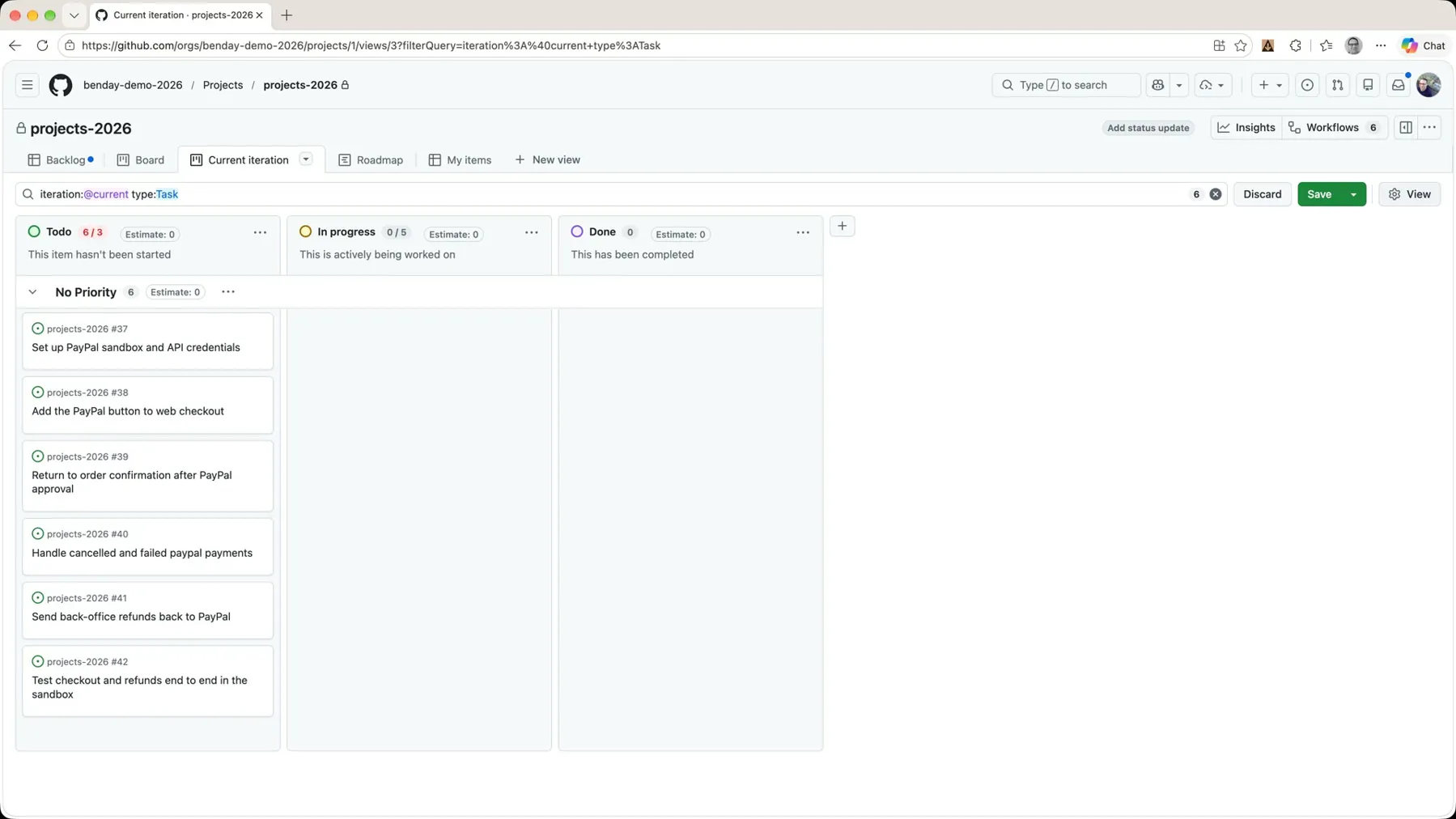 *iteration:@current plus type:Task. Now the board only shows tasks.*
Now the board only shows the tasks. But I've lost the feature. So, once again, I'm going to use slice. View, Slice by, Parent issue.
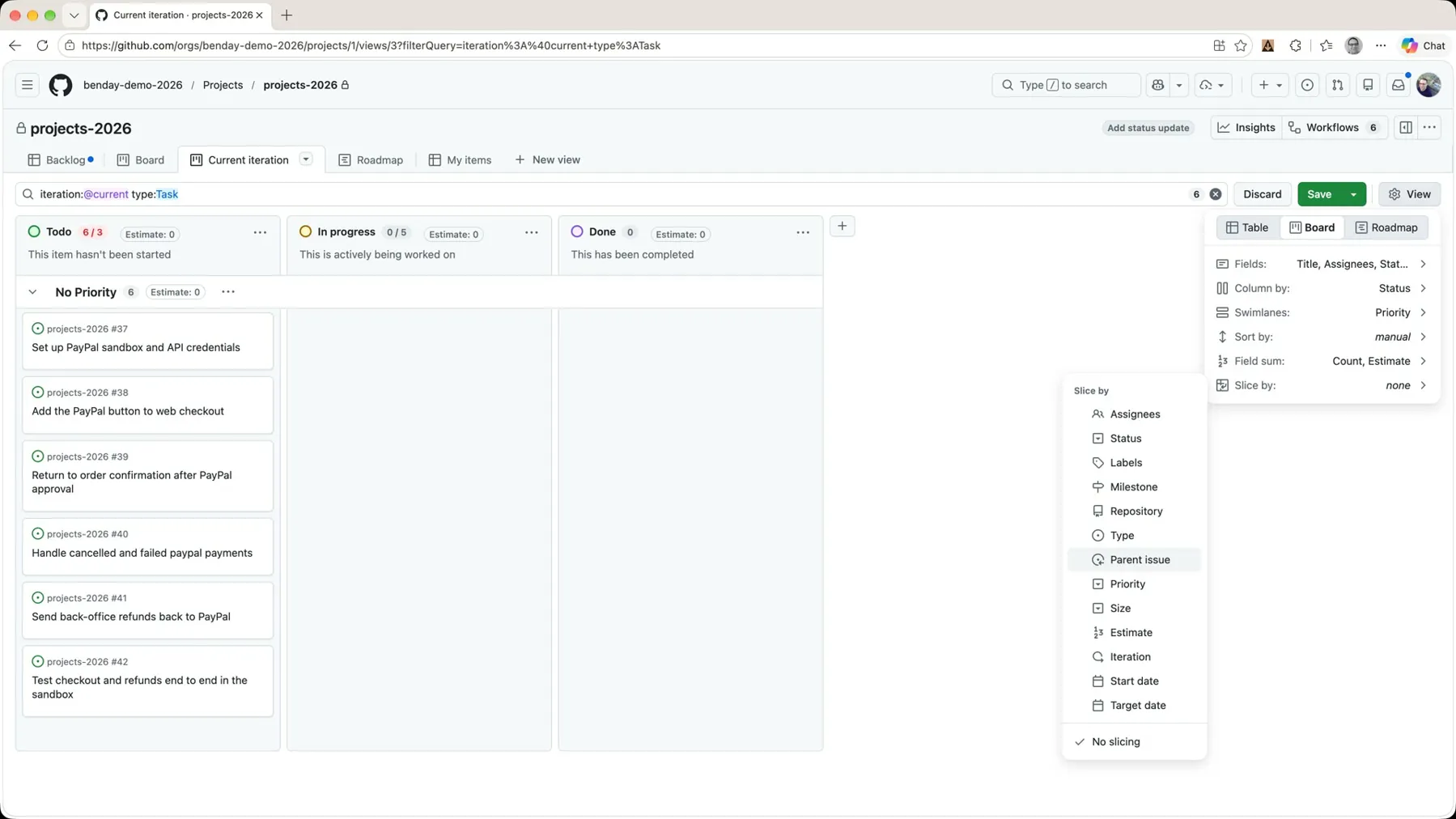 *View → Slice by → Parent issue.*
That gives me a panel on the left with the features, and clicking one shows me just the status of the tasks for that feature.
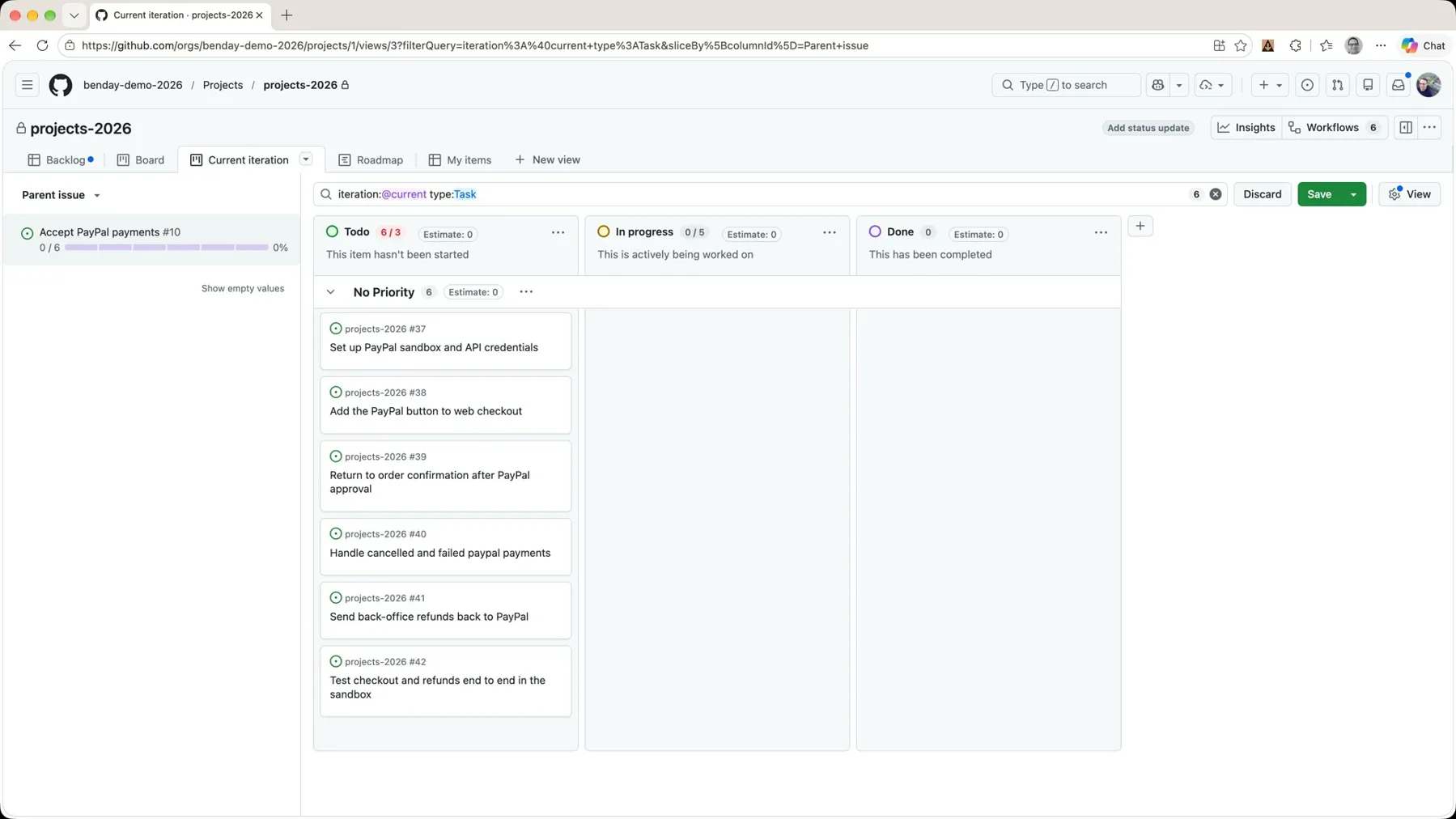 *Sliced by parent issue. The feature stays in view on the left without being a card in the columns.*
Right now we only have one feature with tasks scheduled into this iteration, so it's not particularly interesting yet. I saved the view (View → Save view) and went back to the backlog to add some more.
Show Hierarchy
Before I forget, here's something that has caught me up in the past and been a little confusing.
On the backlog, by default, it's showing me the parent features with all their child tasks nested under them. That is an optional feature of the view. Click View and down at the bottom there's a toggle: Show hierarchy.
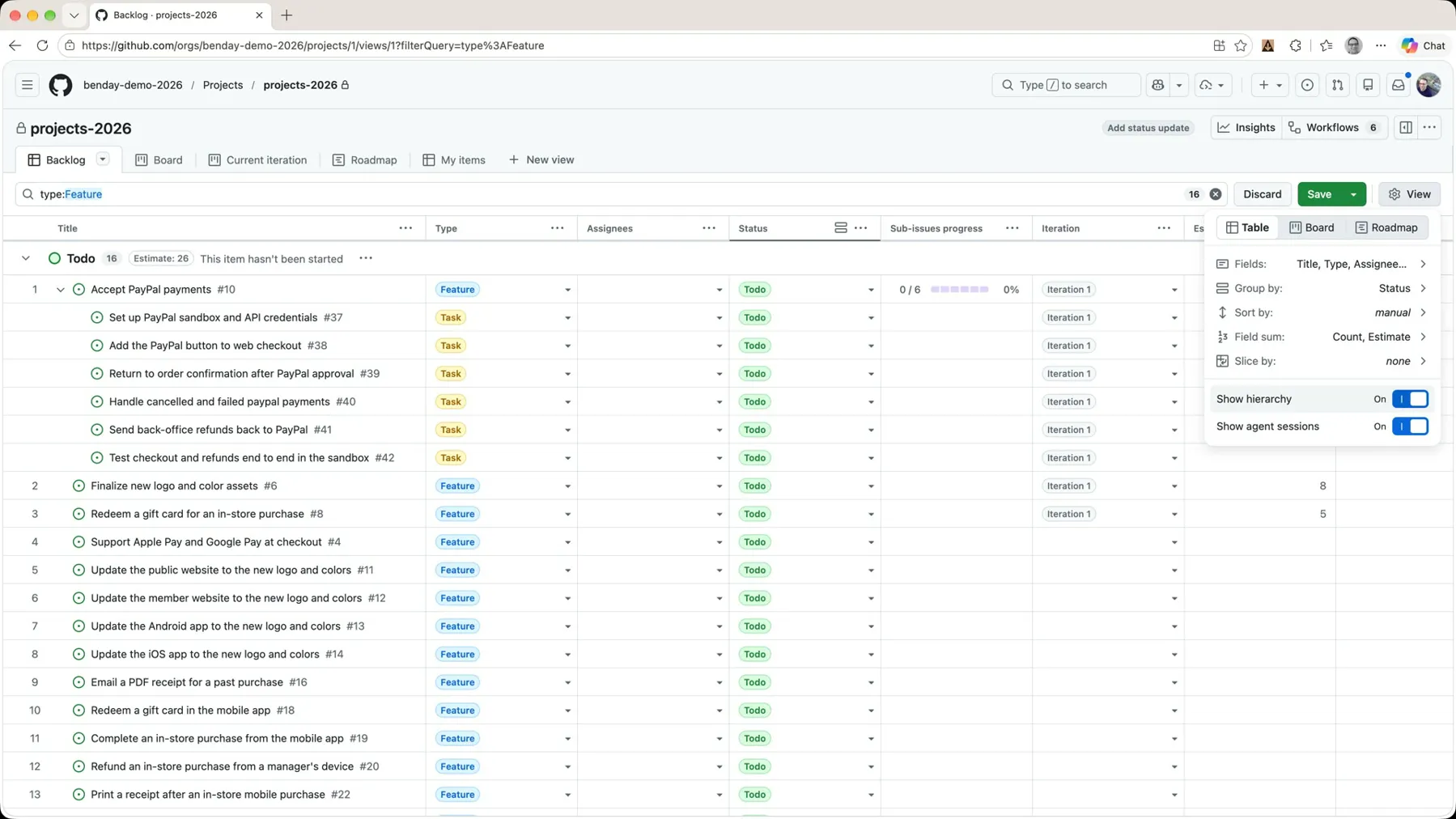 *The Show hierarchy toggle, on. The tasks nest under their parent.*
I had a project once that, for whatever reason, had Show hierarchy turned off. I could see the sub-issues progress bar on the feature, and I kept thinking, why can't I expand this? Here's what that looks like: flip the toggle off and the tasks disappear from the list.
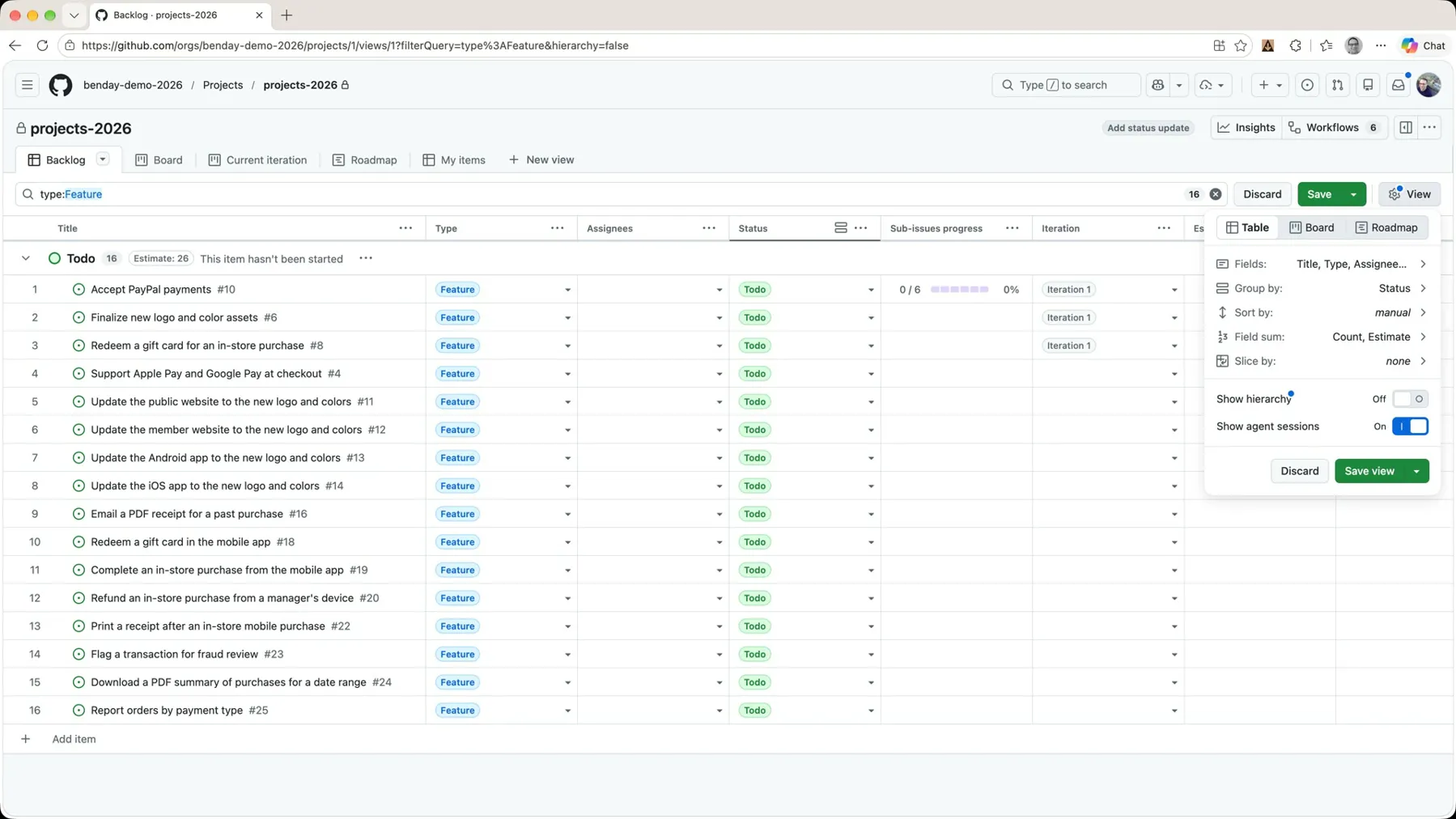 *Show hierarchy off. The progress bars are still there, but nothing expands.*
The answer is: turn Show hierarchy back on and save the view. That's all. But it cost me a good ten minutes the first time.
Add Sub-Issues From the Backlog
Now I'm going to add some tasks for the second feature, Finalize the new logo and color assets, and I'll show you another way to do it. You can do it right from the backlog. Hover over the feature's row and there's a little plus button: Add sub-issue.
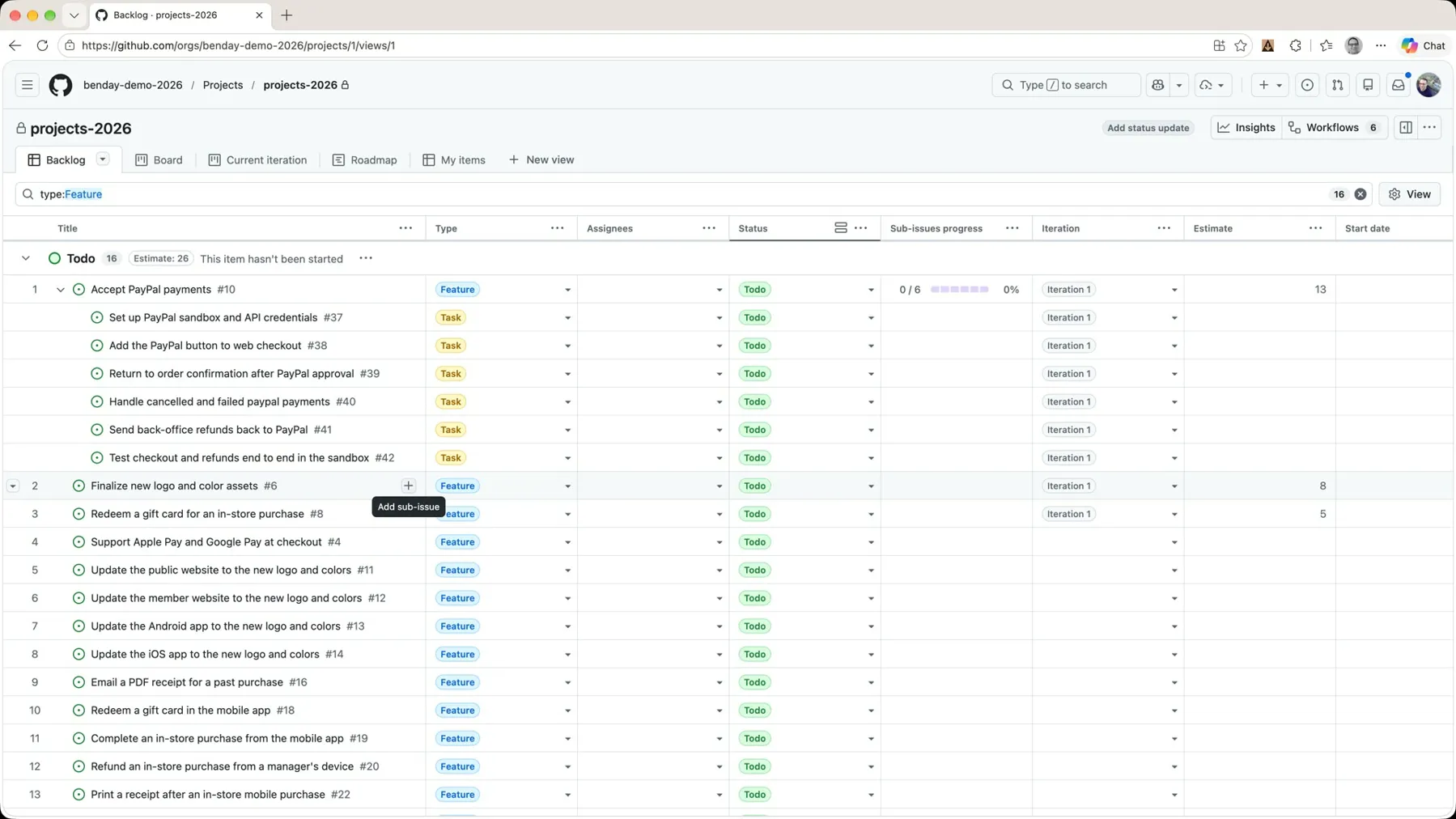 *Hover the feature row and click the plus. No need to open the issue.*
That brings up the same dialog as last time. I want the issue type to be Task, and I want to create more than one, so I check Create more sub-issues.
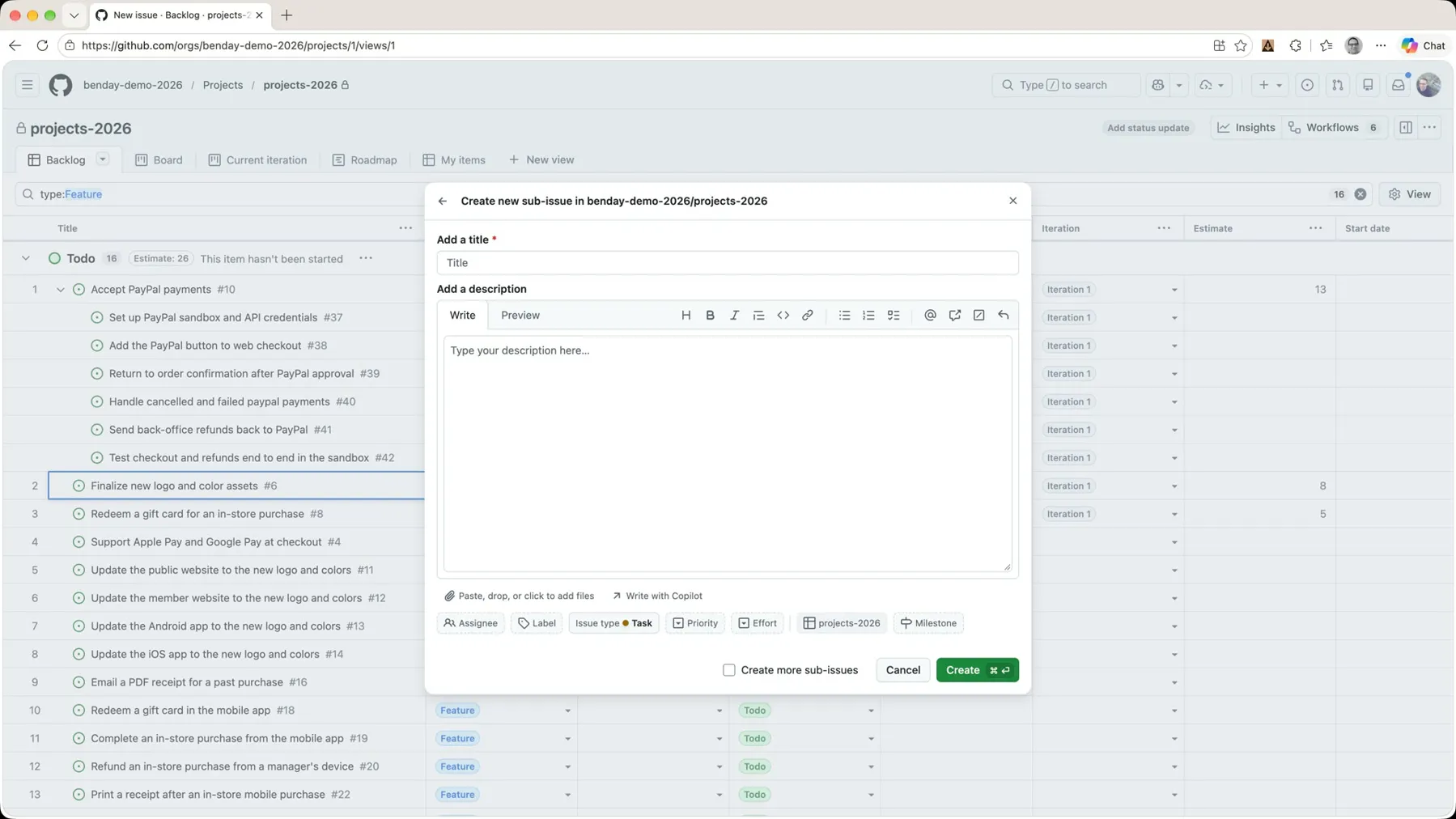 *The same dialog, launched from the backlog.*
A Wish for GitHub
If anyone from GitHub is watching this: one thing I really want is to be able to set the iteration as one of the options along the bottom of this dialog. It's got assignee, label, type, priority, project, milestone. Iteration would save me a trip every single time. That's one of my wish list features. If you wouldn't mind, add that. Thanks, GitHub.
Tasks for the Second Feature
I added five tasks for the logo feature:
- Get SVG and PNG exports (1x/2x/3x) from the design agency
- Get the color palette as hex values and design tokens
- Check the new colors for accessibility contrast and color blindness
- Put assets in the shared design folder and notify the rebranding team
- Review final logo options with marketing and get signoff
Expand the feature on the backlog and there they are: five tasks, 0 of 5 done.
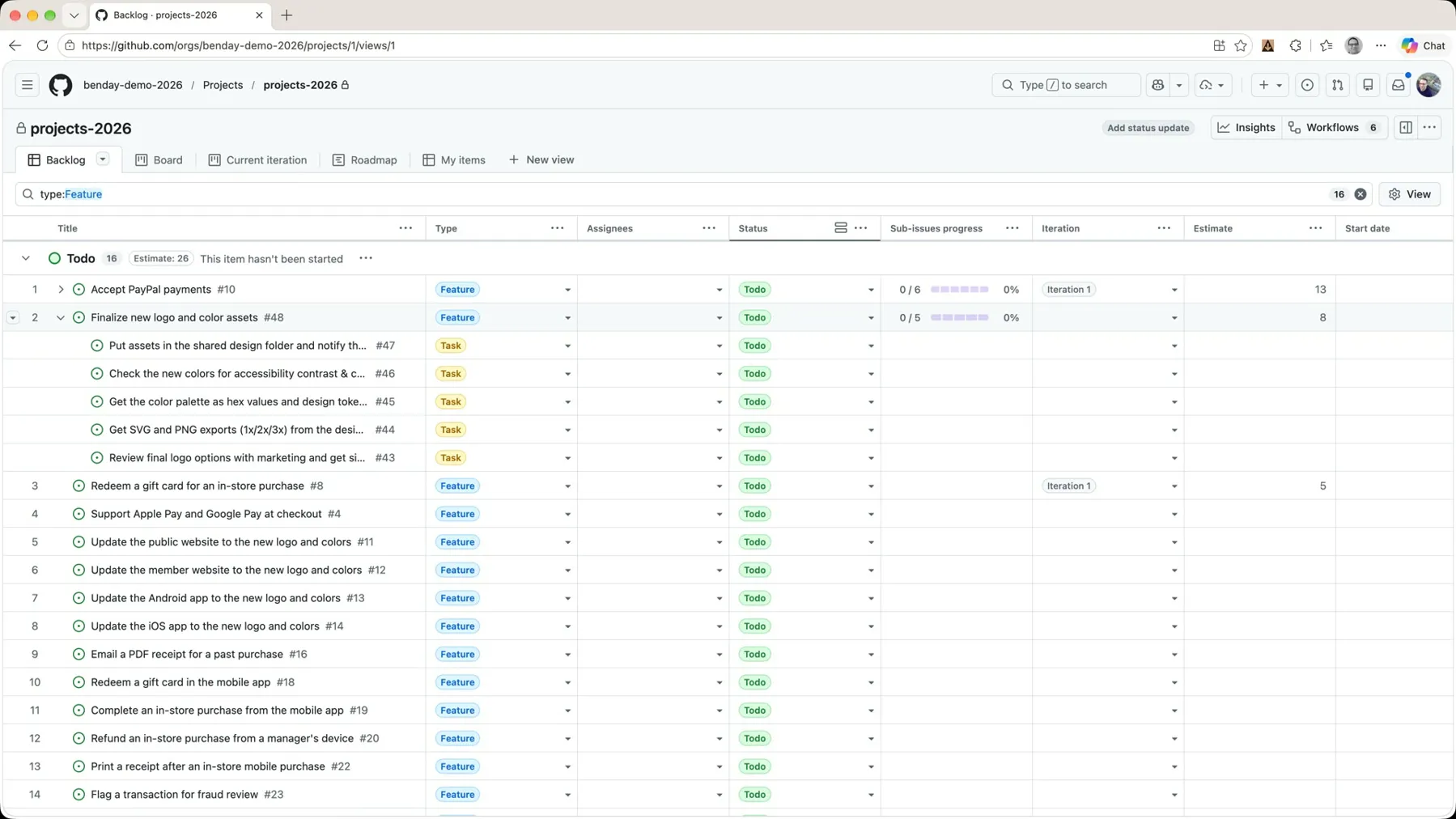 *Five tasks under the logo feature. Notice the Iteration column on the tasks is empty.*
Now go over to Current iteration. And we're not seeing any of those tasks. Same thing as last time: they're not part of the iteration. So, back to the backlog, put the feature's Iteration cell to Iteration 1, and fill that down to the tasks.
Back on the current iteration board, the slice panel on the left now shows both features, each with its own tasks underneath.
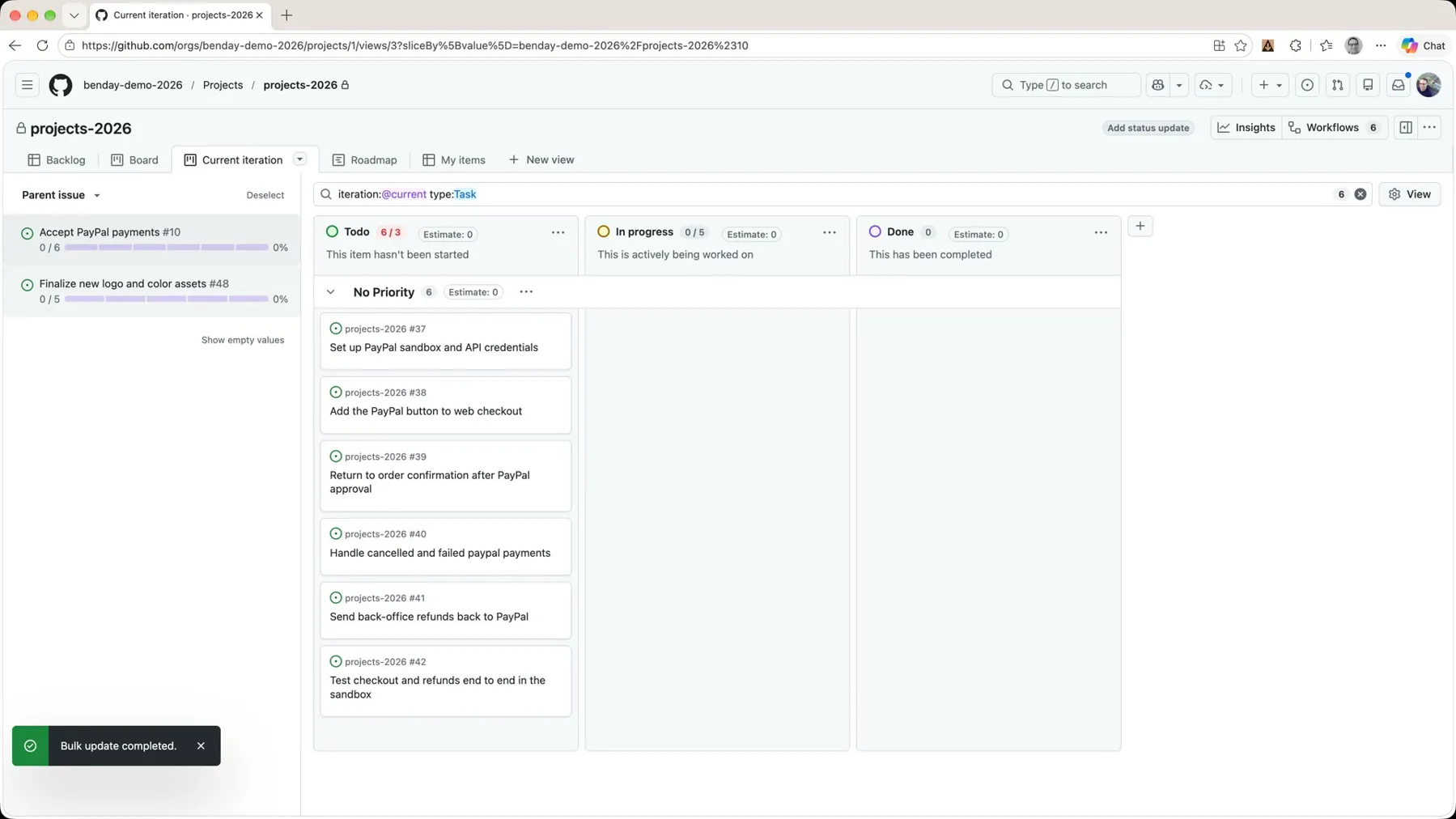 *Two features in the slice panel, each with its tasks on the board.*
Hours Remaining on Tasks
So what you probably want to do next is add some kind of estimate to these tasks. And for tasks, that estimate is almost always going to be in hours.
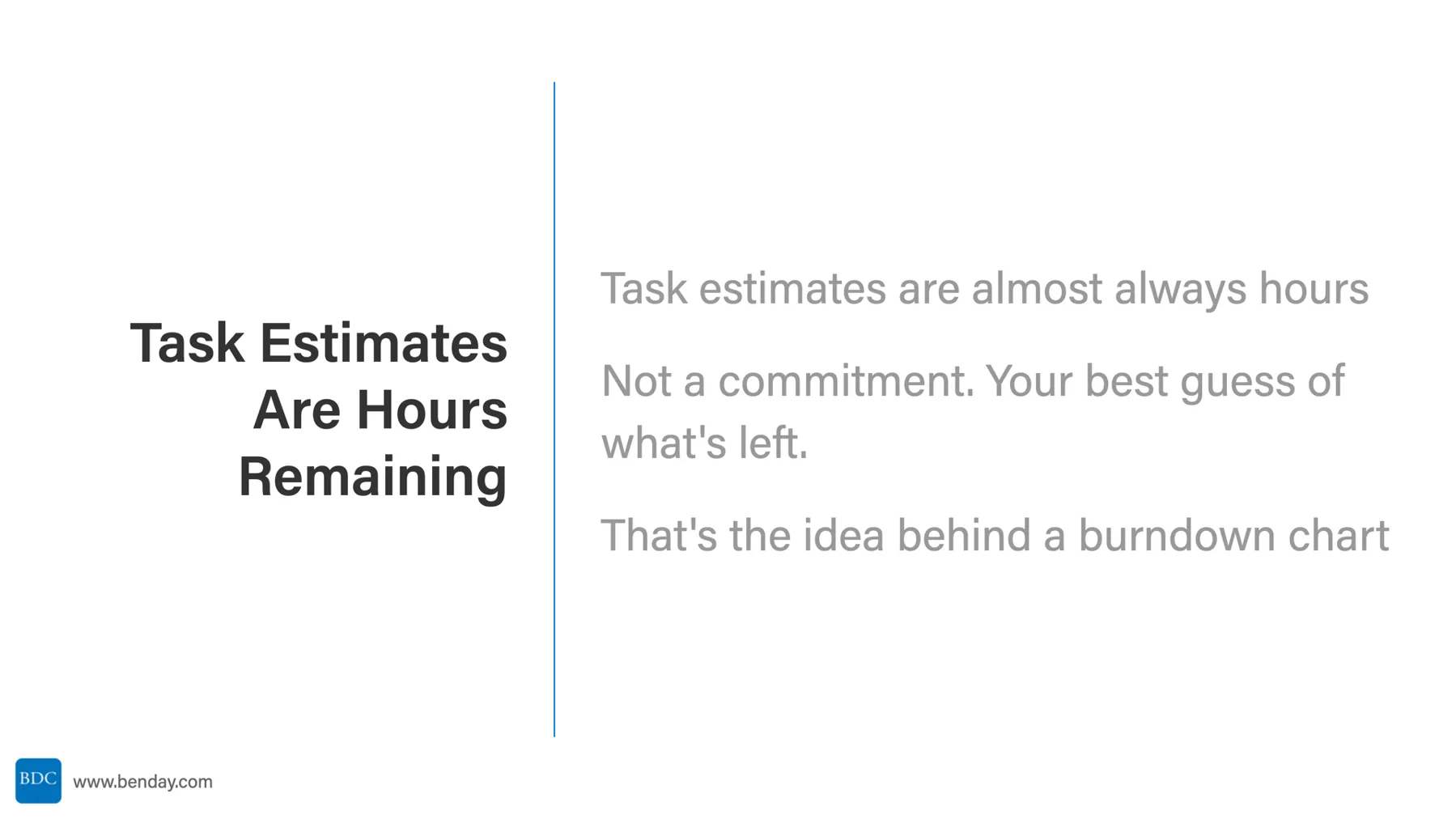
But don't think of that number as something to hold somebody to. Think of it as remaining work. The estimate on a task should always hold your best guess of how many hours are left to finish it. As you work on it, that number goes down. That's the idea behind a burndown chart. (I'll cover estimation and forecasting in more detail in a future video.)
Same Field, Different Units
Here's the slightly weird part about all of this.
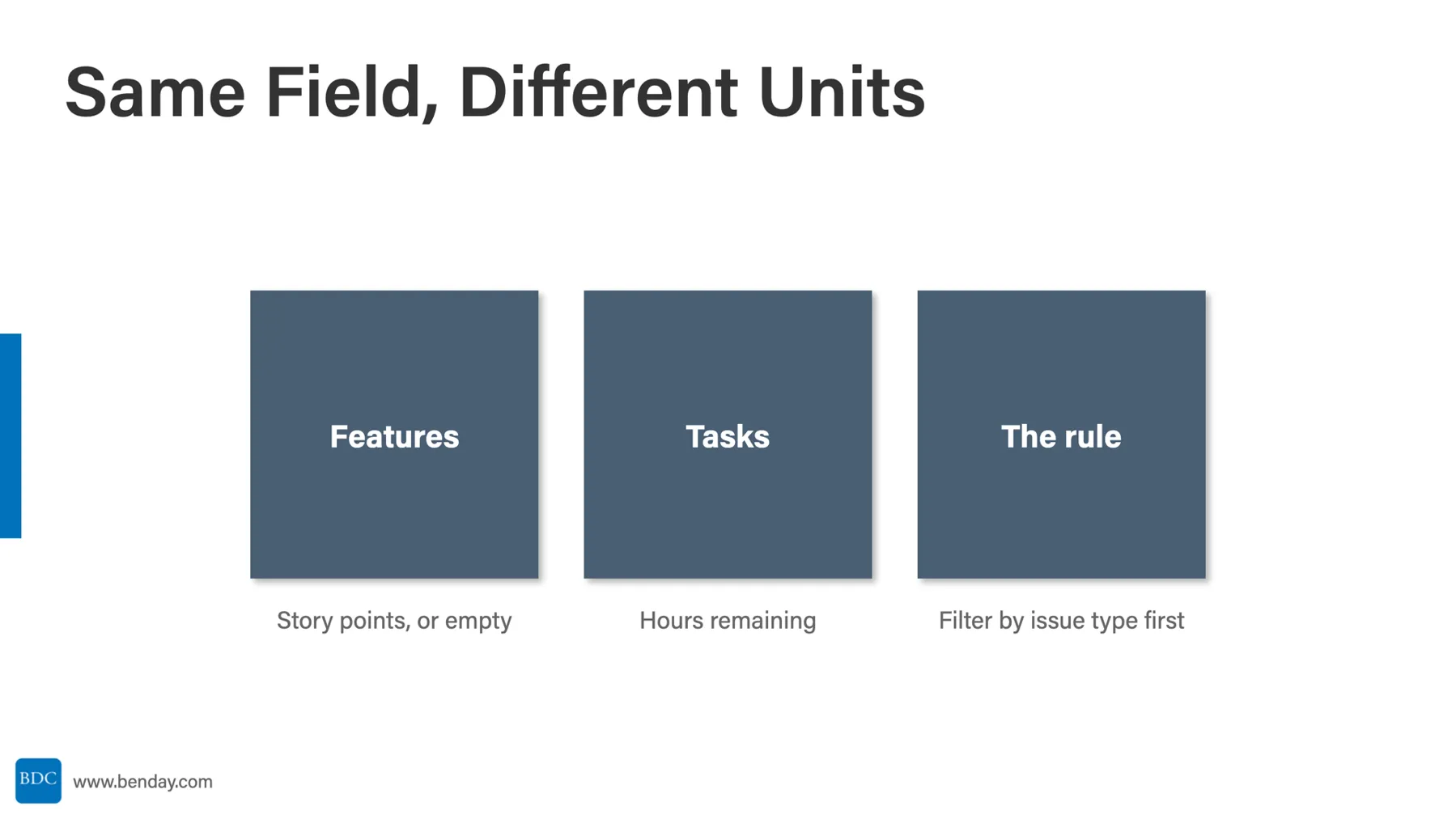
On features, the Estimate field holds story points, or nothing at all. On tasks, that same Estimate field holds hours remaining.
This might seem a little weird, but it actually works out just fine. The field just wants a number, and either one is a number. Any analysis you do just needs to remember to filter by issue type first, so you're not adding story points to hours.
Ok, back to the demo. Let's put some hours on these tasks.
One at a Time
Open the first logo task, Get SVG and PNG exports from the design agency, and put an estimate in. I'm going to say that's one hour.
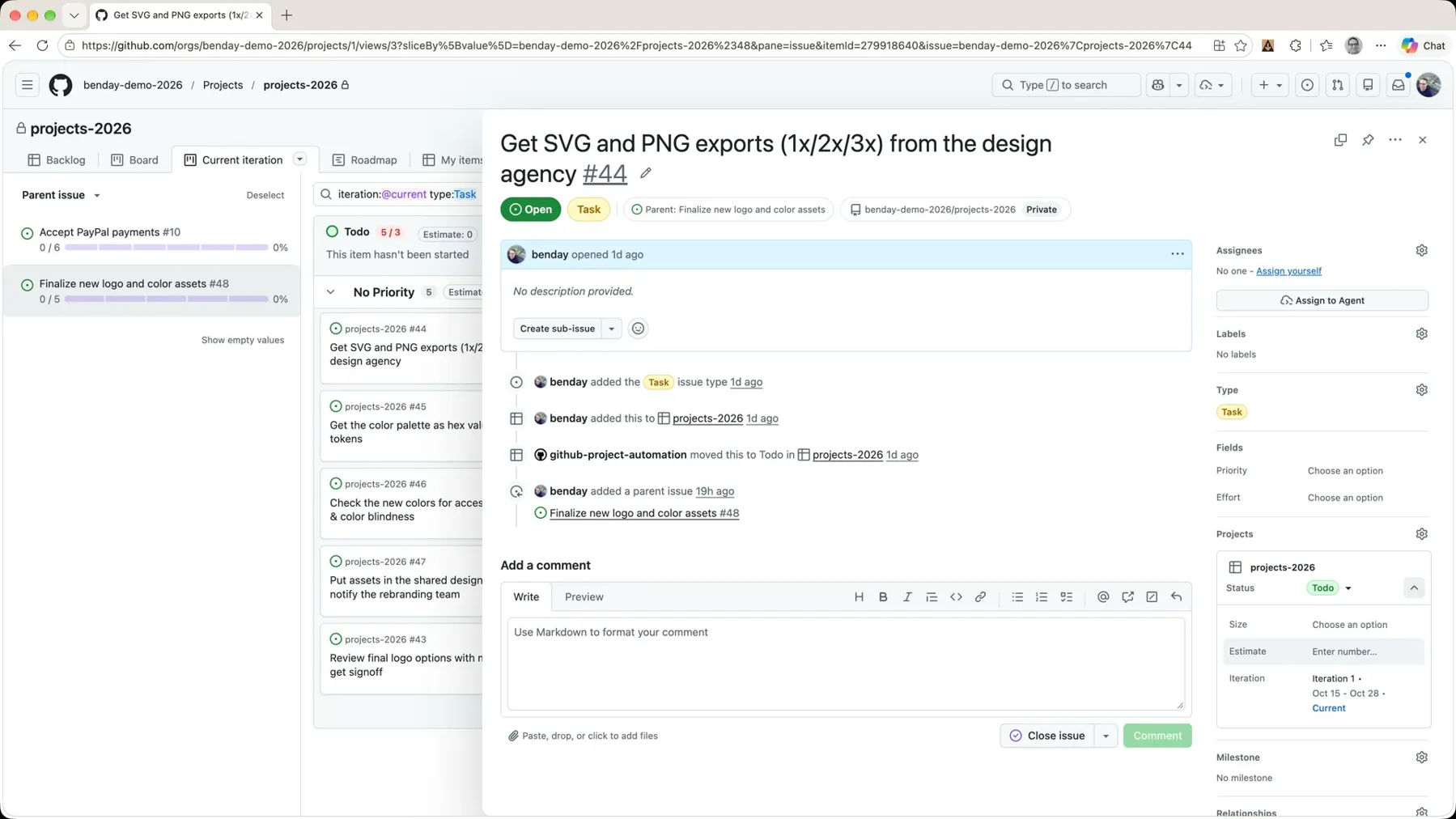 *Hours go in the same Estimate field, in the task's Projects box.*
Get the color palette: one hour. Check the new colors for accessibility: let's go eight on that one. And as I'm doing that, the Todo column header is showing me the total number of hours currently remaining in that status: ten. Put assets in the shared design folder got eight hours while GitHub hiccuped on me, and Review the final logo options with marketing, let's call that sixteen. Now the total is 34.
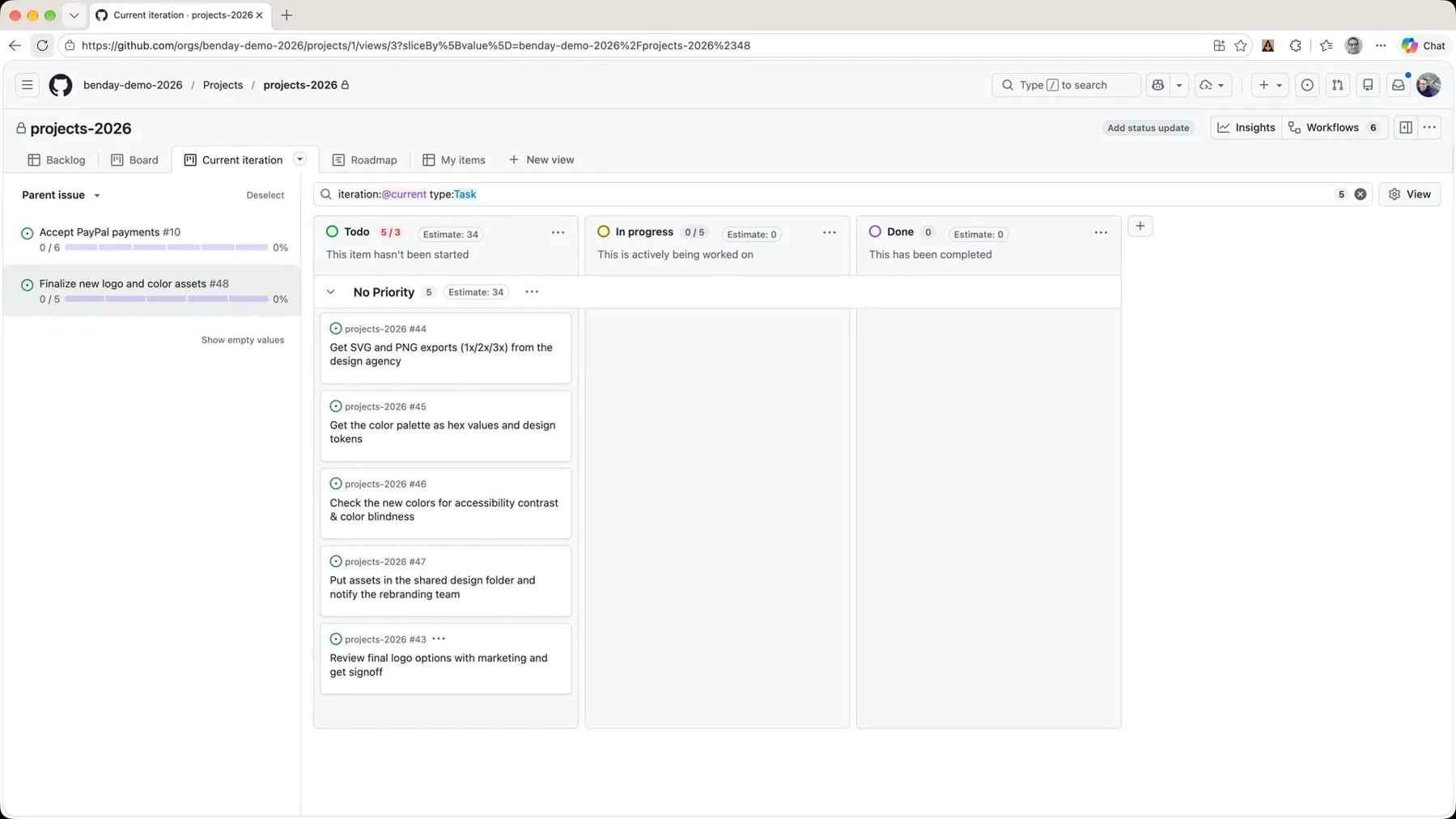 *34 hours of logo work in Todo.*
If I deselect the slice, the total should be the same, 34, because there are no estimates on the PayPal tasks yet. And select Accept PayPal payments and it says Estimate: 0.
Bulk Estimates in the Table
I'm going to do the PayPal tasks a little faster, by briefly switching this view over to Table (View → Table). I hid a couple of columns I didn't need, and now there's an Estimate column right there in the grid.
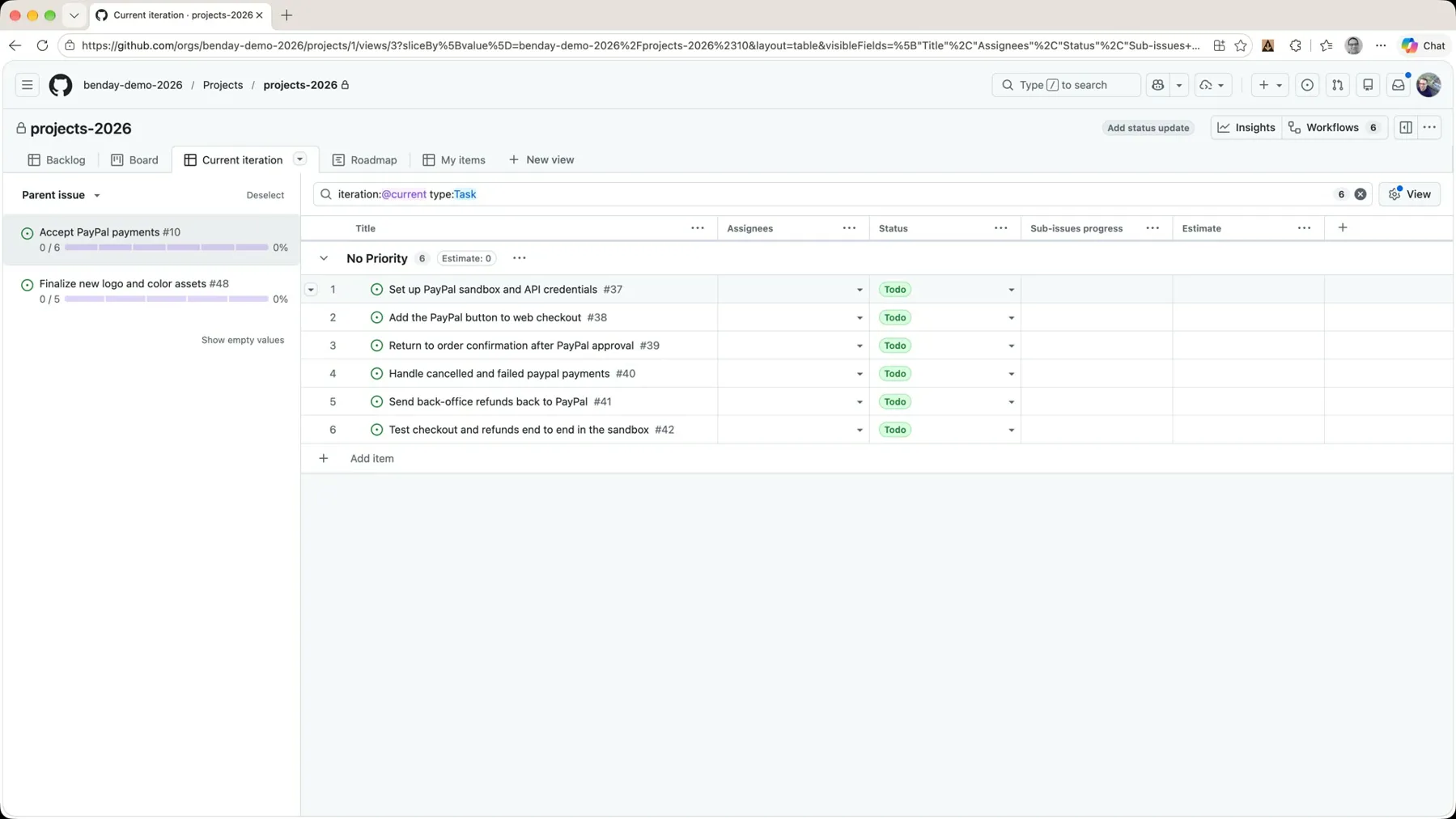 *Switch to the table layout for a minute and the estimates are a column.*
Drop an 8 in the first cell, grab the fill handle, drag it down. Bulk update completed: six tasks at eight hours each, 48 in the header.
Then switch back to Board. Actually, I just clicked Discard, since I didn't want to save the table layout on this view.
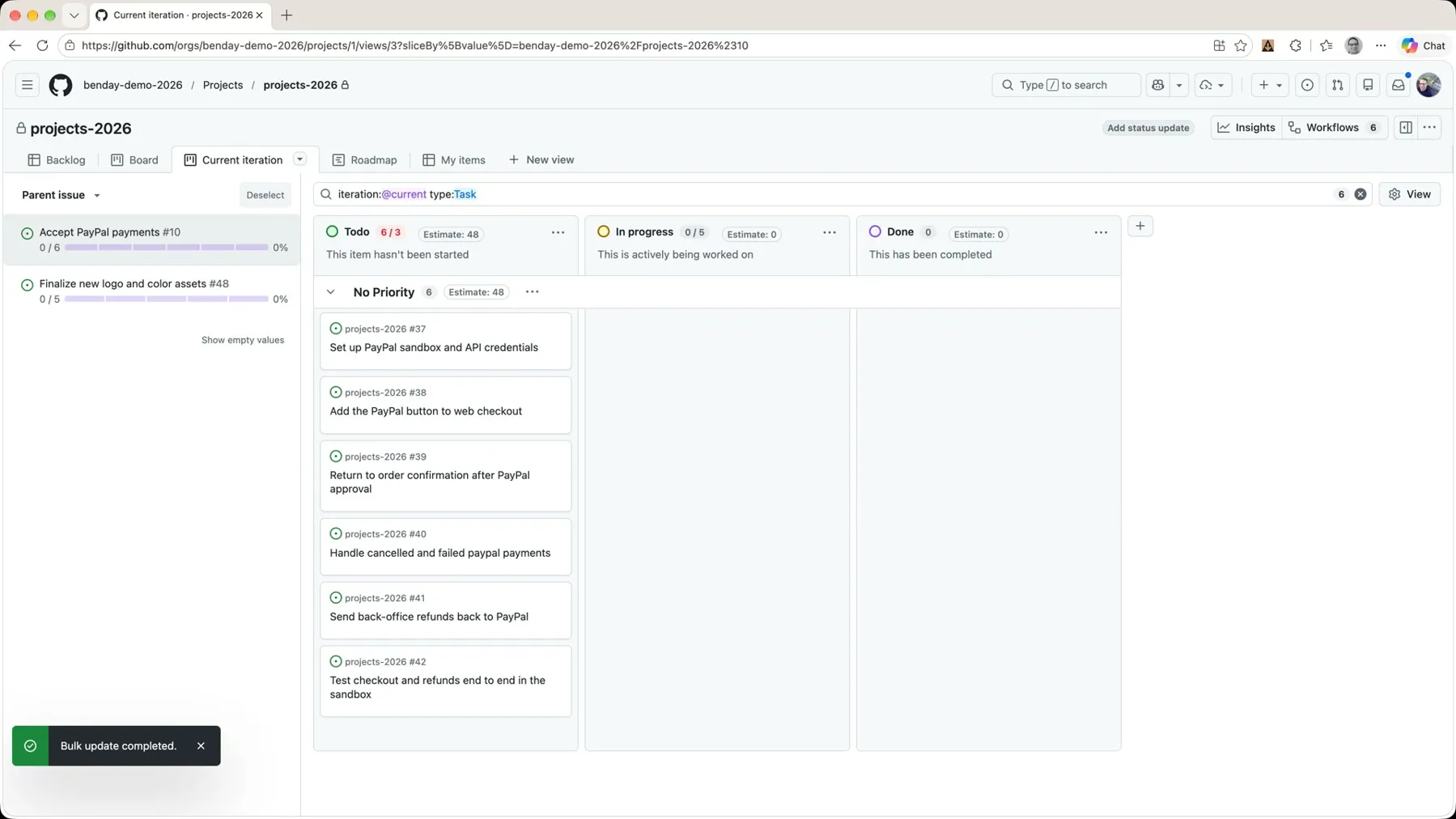 *Back on the board. 48 hours of PayPal work.*
Deselect the slice and you get the grand total: 82 hours of stuff in Todo. Select the logo feature, 34. Select PayPal, 48.
Watching Progress Roll Up
Now here's the part I like. Drag a few PayPal tasks over to In progress. Let's say this one's in progress, and this one, and this one too.
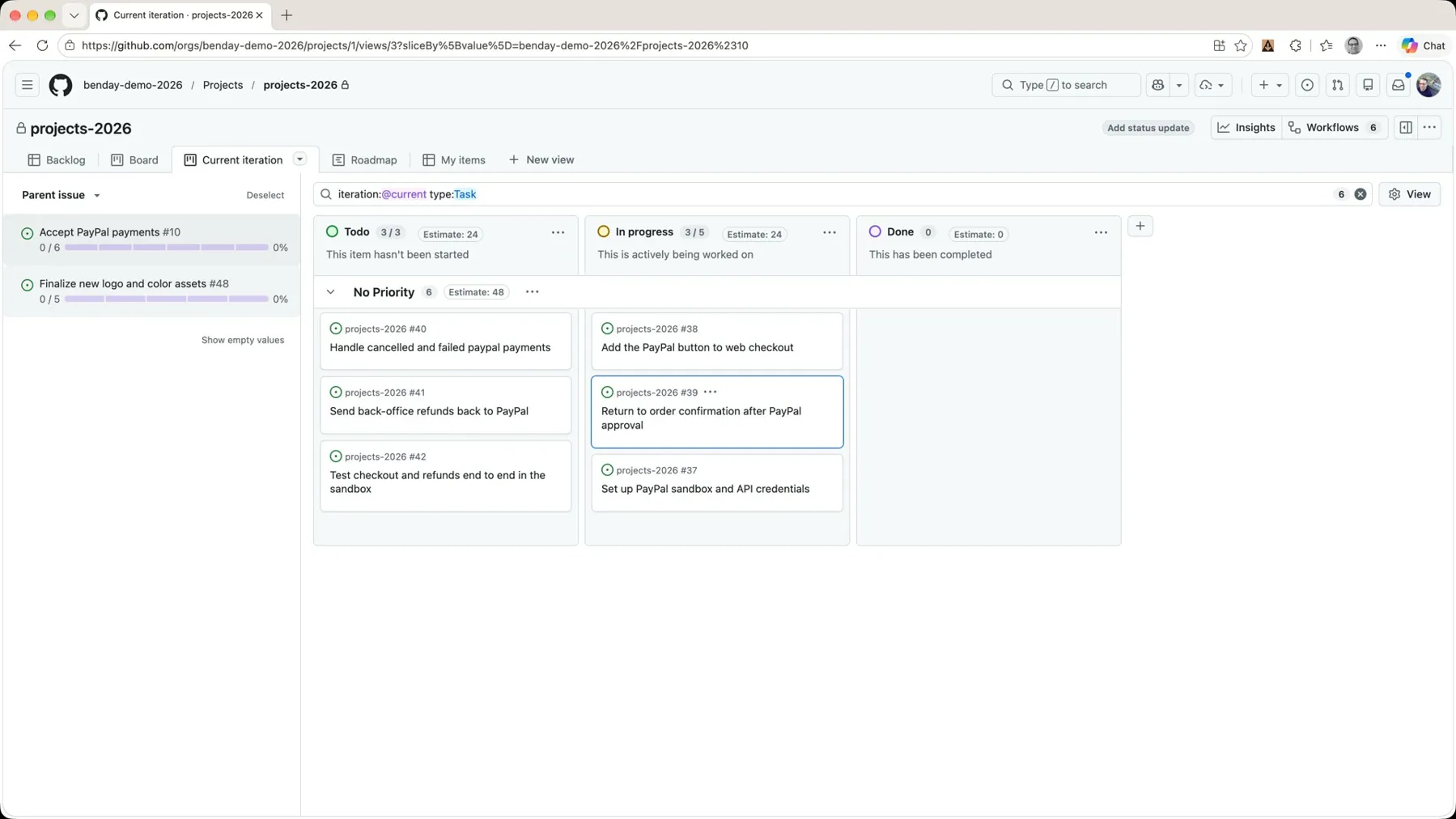 *The hours move with the cards. 24 in Todo, 24 in progress.*
The column headers follow the cards: 24 hours in Todo, 24 in progress. Switch to the logo feature in the slice panel: zero in progress, 34 waiting to go.
Then move a few of the PayPal tasks to Done. And as they land there, the slice panel on the left updates: 3 / 6, 50%.
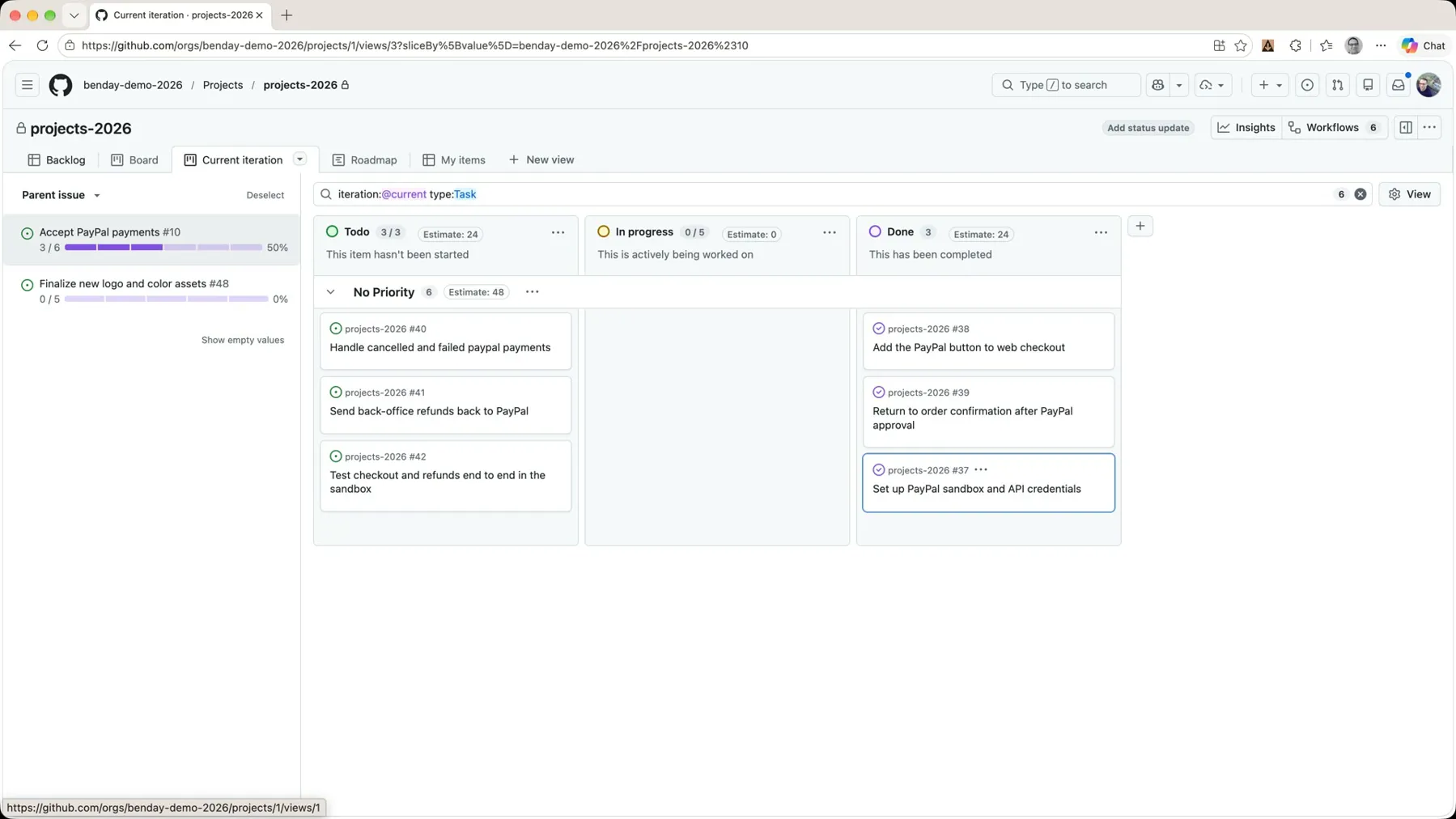 *Three of six done. The progress bar on the feature fills up as its tasks finish.*
This is kind of nice when you're on the backlog view, too. Collapse the feature and you get a quick read on roughly where everything in the current iteration stands. The Sub-issues progress column says 3/6, 50% on PayPal.
Back on the board, put the rest of the PayPal tasks into Done, and the backlog says 6 / 6.
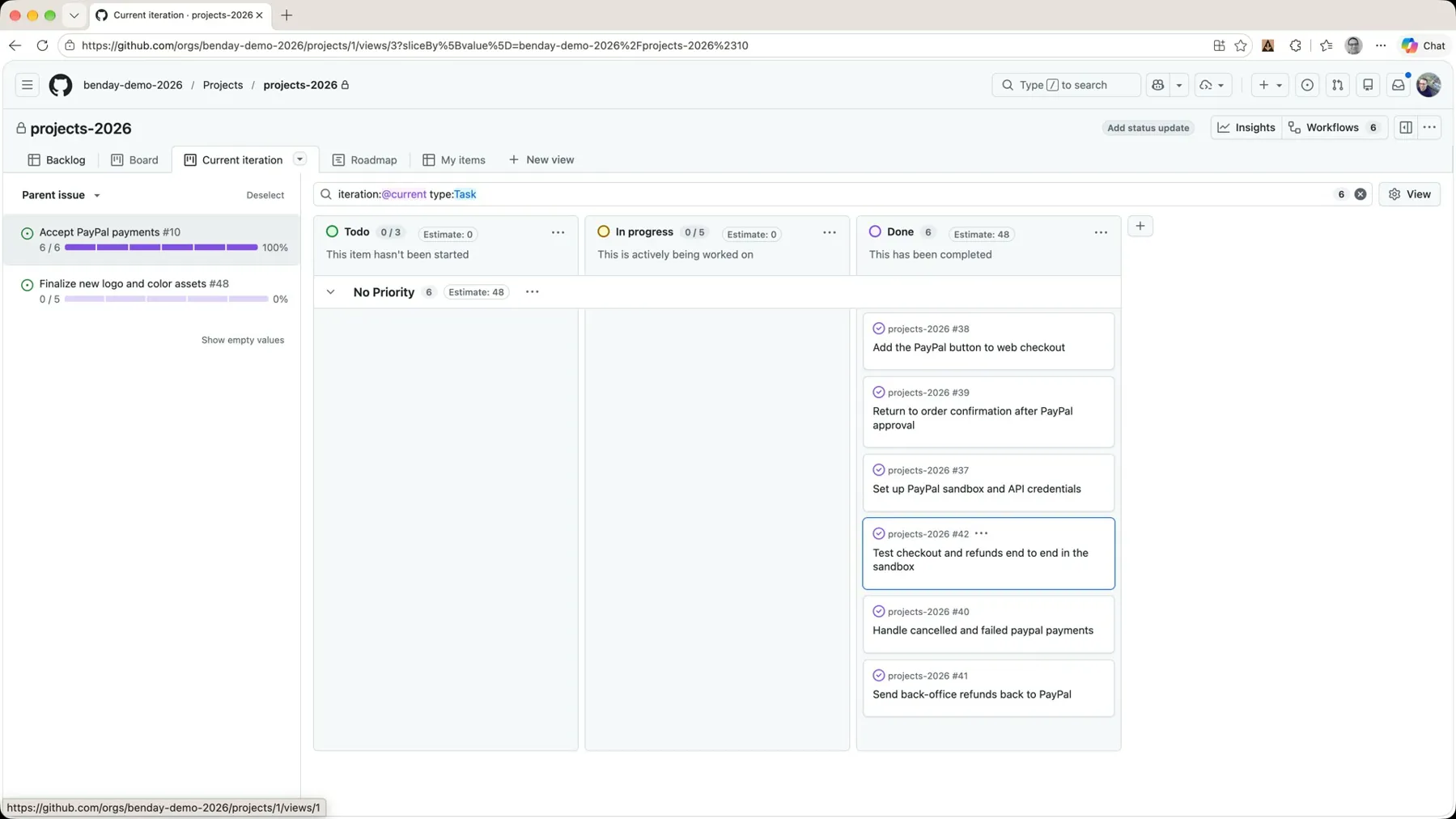 *All six tasks done. 100%.*
At this point we could probably say this feature has been completed. So mark its Status as Done.
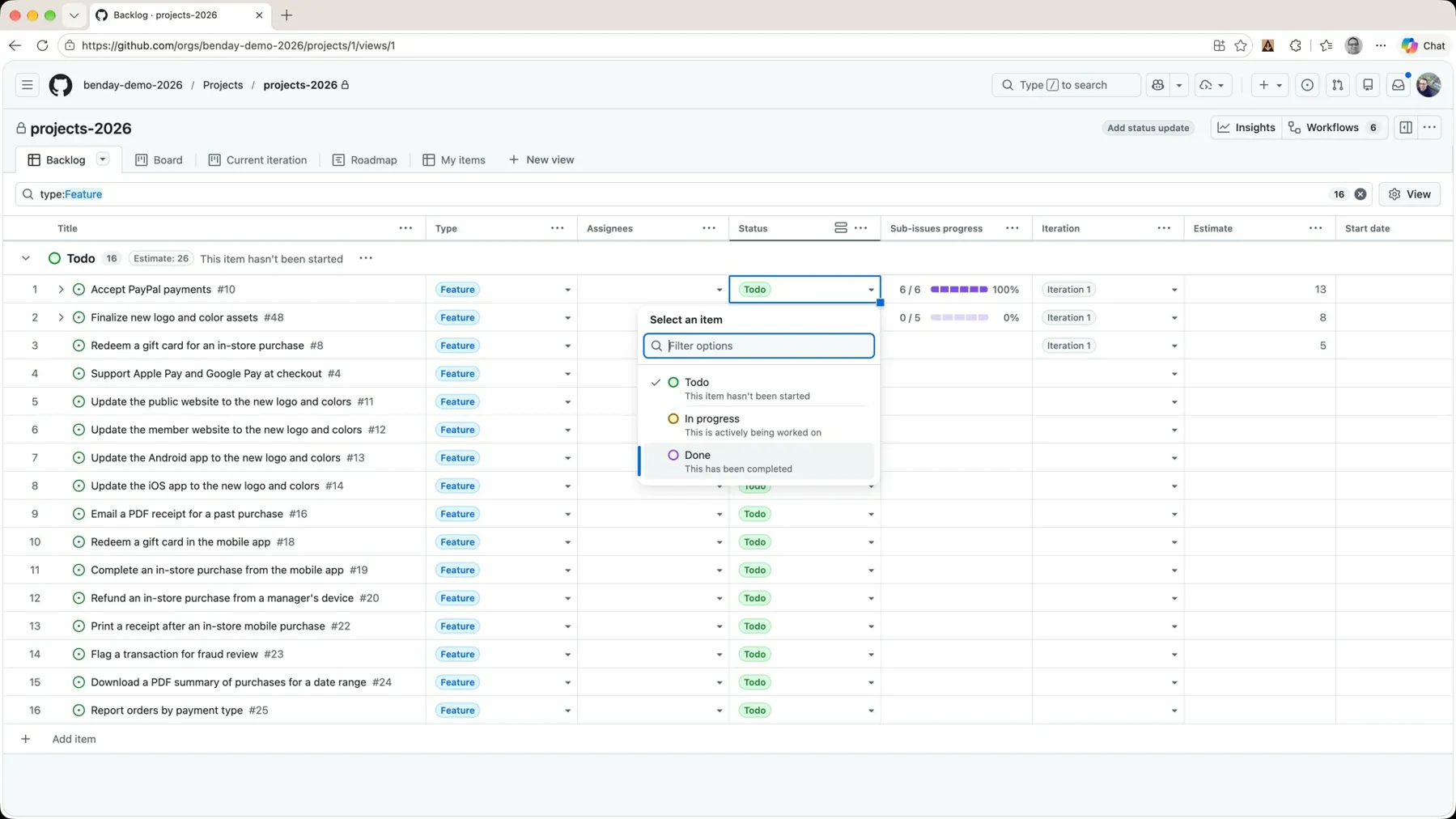 *The tasks are done, so the feature is done.*
That moves it down to the Done group at the bottom of the backlog. Back on the board, deselect the slice and look at the whole thing: eleven tasks, six of them done, 48 hours in Done and 34 still in Todo.
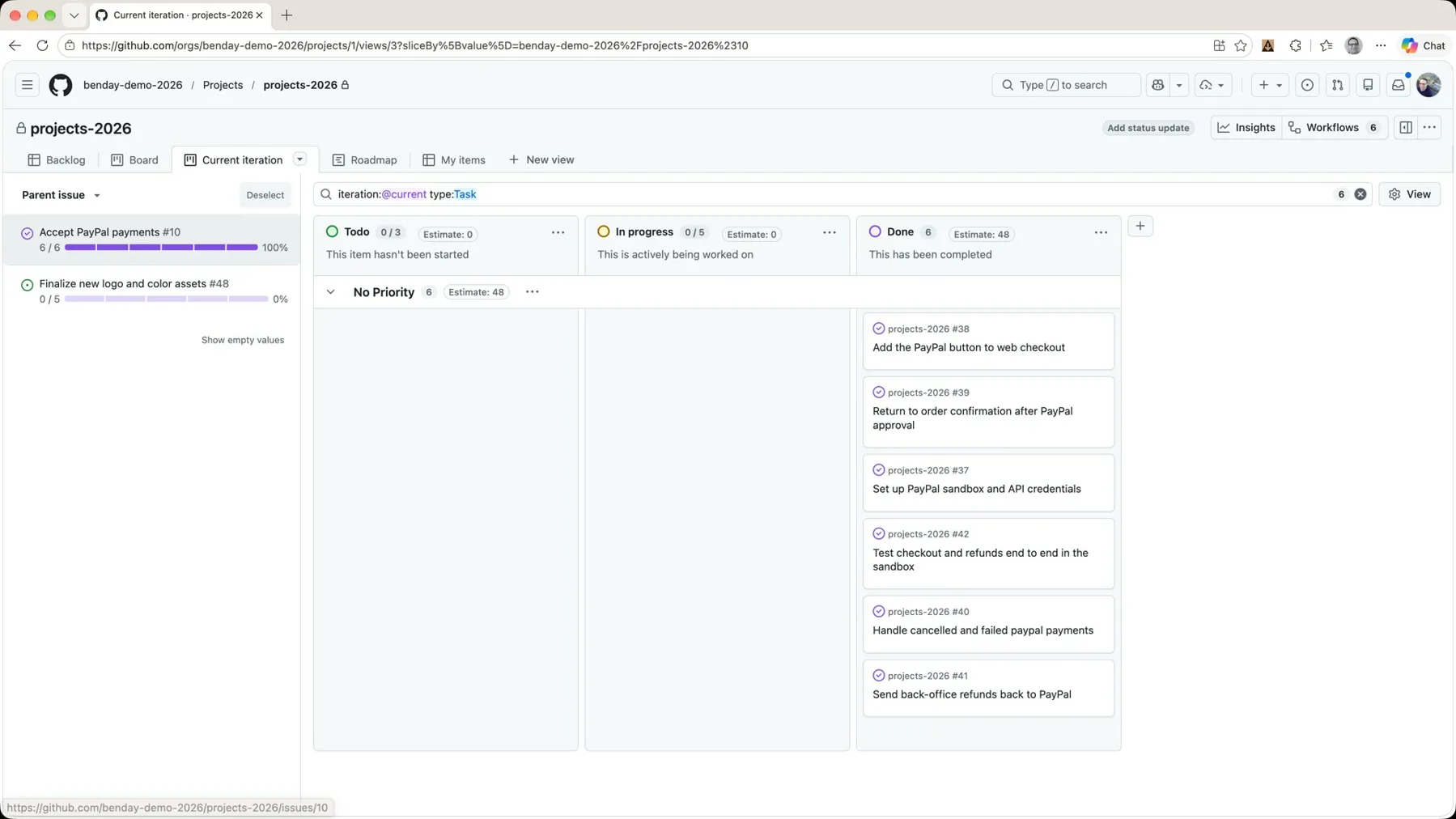 *The whole sprint on one board.*
Daily Scrum and Product Owner Views
This board right here is basically what you'd use to run your daily scrum, your daily standup, whatever you're calling that thing. The team looks at the work that's in front of them and asks: how close are we to done? Are we on track for getting done? And then they discuss the work. No status reports. The board is the status.
And then there's the backlog view, which is how you monitor the sprint from the perspective of a product owner.
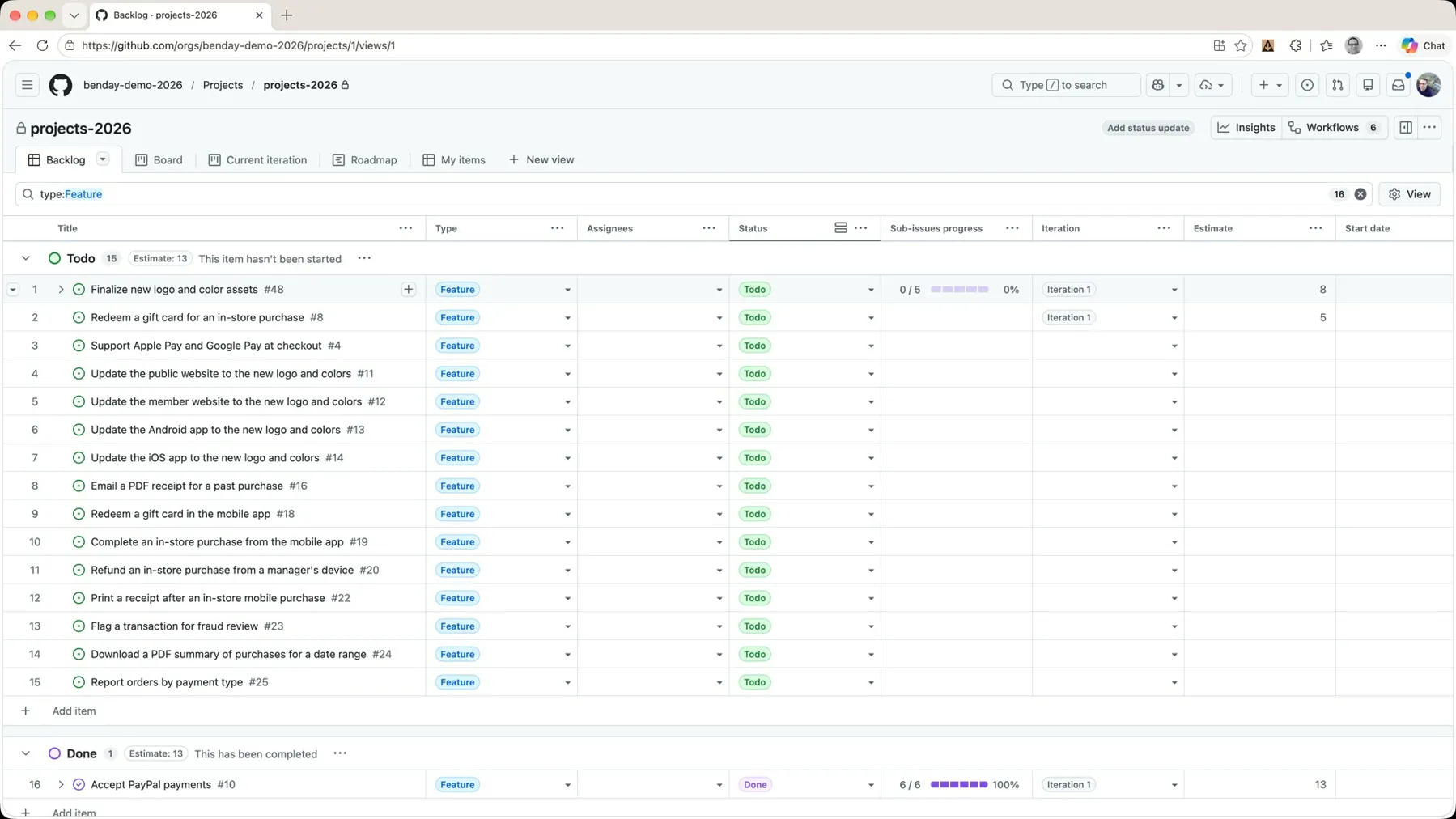 *The product owner's view: is the feature done or not? Drill in if you want to.*
The product owner, or whoever's sort of project-managing or product-ownering, mostly doesn't care about the tasks. They just want to know: is it done or not? The backlog view, with its sub-issue progress bars, gives them that high-level view. And if they want to drill in, they can expand the feature.
Same sprint, two lenses. (That's the lens, not a container idea from Part 2 again.)
Recap
So that's the tracking side of the sprint.
- We built a task board that shows just the sprint's tasks, sliced by their parent feature, and saved it.
- We hit the Show hierarchy toggle, so you don't lose ten minutes to it like I did.
- We added tasks to a second feature straight from the backlog, and filled the iteration down to them.
- We put hours on the tasks, one at a time and in bulk through the table view, and watched the column headers total them per feature and per status.
- We watched the progress roll up from the tasks to the feature, on the board and on the backlog.
That's the second of the three questions, what are we working on right now?, answered without a meeting.
Next time: a few more things you can do with this board, and a shorter daily team meeting.
Shameless Plug
This whole post was about "what are we working on right now?" Honest Cheetah takes the next question, are we on track?, and answers it with forecasting from your team's actual throughput. So, "when will it be done?" without a meeting. It also helps with the planning side (entering and managing requirements, AI-assisted backlog refinement and iteration planning), plus AI-assisted project coaching, QA testing tools, and importing your work items and test cases from Azure DevOps. Give it a try and let me know what you think.
-Ben
-- Looking for help adopting GitHub Projects for your team or your company? Need an assist getting going with GitHub Actions for automated builds and releases? Want to move your stuff over to GitHub from another service? We can help. Drop us a line at info@benday.com.
GitHub Projects in 2026: The Full Series
- Part 1: It Can Do Anything. That's the Problem.
- Part 2: Why Projects and Issues Feel Weird (and Why It Makes Sense)
- Part 3: Your First Project, From Draft Issues to Real Issues
- Part 4: Taming a Messy Backlog with Issue Types
- Part 5: Sprint Planning with Iterations and Sub-Issues
- Part 6: Tracking the Sprint with a Task Board, Hours and Progress (you are here)
Related:
- What's New in GitHub Projects & Issues (2026 Q4): what GitHub has shipped since the original series
- The 2025 Scrum with GitHub Projects series
- "Scrum Has Too Many Meetings." So Stop Doing Them.: what the daily scrum was actually for
- Flow Metrics Explained: throughput, cycle time, and forecasting without estimates
- The GitHub Projects in 2026 playlist on YouTube