This is Part 5 of 6 in the GitHub Projects in 2026 series.
← Previous: Part 4: Taming a Messy Backlog with Issue Types · Next: Part 6: Tracking the Sprint with a Task Board, Hours and Progress →
Shameless plug: Already running your team in GitHub Projects? Honest Cheetah adds AI-assisted backlog refinement and sprint planning, test management, and "when will it be done?" forecasting right inside GitHub, using the data you already have. It measures the system, not the people.
▶ Watch this video on YouTube (opens in a new tab)
Last time, we took a pile of thirty-three items and turned it into an actual backlog, with an issue type on everything. Now it's time to plan the next chunk of it.
We know what we're going to work on, roughly. So which features go into the next sprint, and what are the actual tasks that get them done? In GitHub Projects, that means iterations and sub-issues. That's what this post is about.
TL;DR
- Iterations live in the iteration field in the project's settings. GitHub creates three two-week iterations for you when you create the project, and adding the next one is one click.
- The Current iteration view is just a board with an
iteration:@currentfilter on it. - Sprint planning answers two questions. What are we going to do? That's features. How are we going to do it? That's tasks.
- Story points go in the Estimate field, and the column header totals them for the sprint. If you don't use story points, leave the estimate on your features empty.
- Tasks are sub-issues. The parent card gets a progress bar.
- A sub-issue doesn't inherit the parent's iteration. Set it, or the task is invisible on the sprint board.
Iterations and the Current Iteration View
Here's our backlog, and everything's got an issue type now: features, bugs, and a couple of tasks. I'm going to guess that a lot of you work in iterations. Maybe you call them sprints. That's the two-week window (or three, or four) where you decide what you're going to work on, plan it out, and then go execute on it.
Across the top of the project, there's a tab called Current iteration. Click it and you get a board. And up in the filter bar, there's the thing that makes it work: iteration:@current.
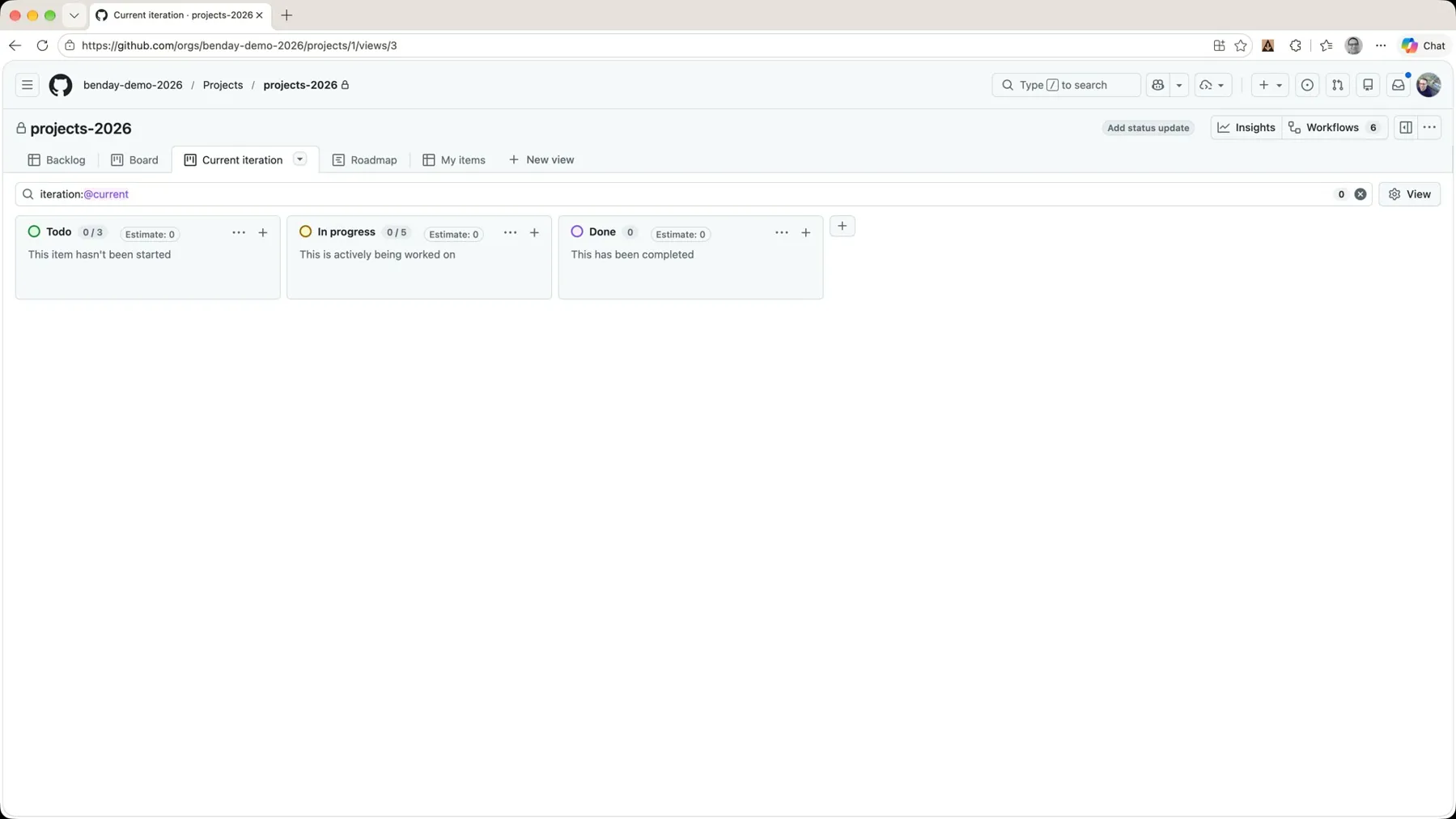 *The Current iteration view. It's a board with iteration:@current in the filter bar, and right now there's nothing in it.*
@current means "whatever iteration today's date falls in." Right now there's nothing in it. Zero items. So let's go see where that actually comes from.
Set Up the Iteration Field
To set up your iterations, or to see how they're already set up, go to the project's three-dot menu and choose Settings. Iteration is one of the fields on the project, so click Iteration in the Fields list.
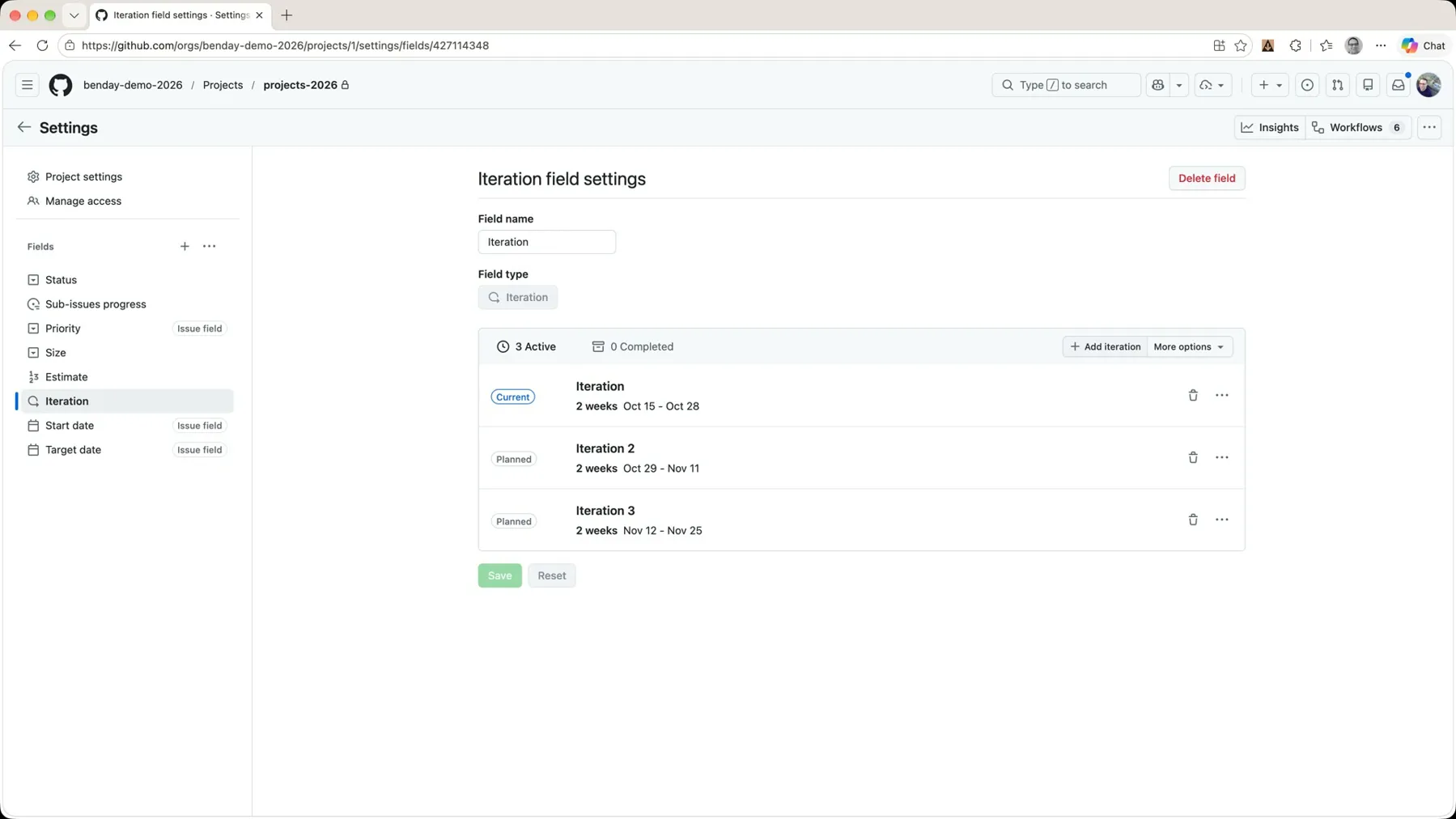 *Settings → Fields → Iteration. GitHub already created three iterations when the project was created.*
When I created this project on October 15th, it created three iterations for me and picked an iteration length of two weeks. So the current iteration is October 15th through the 28th. (Today, when I recorded this, happened to be October 22nd.)
If you want another one, click Add iteration. It's smart enough to pick another two-week iteration starting right after the last one. Click Save.
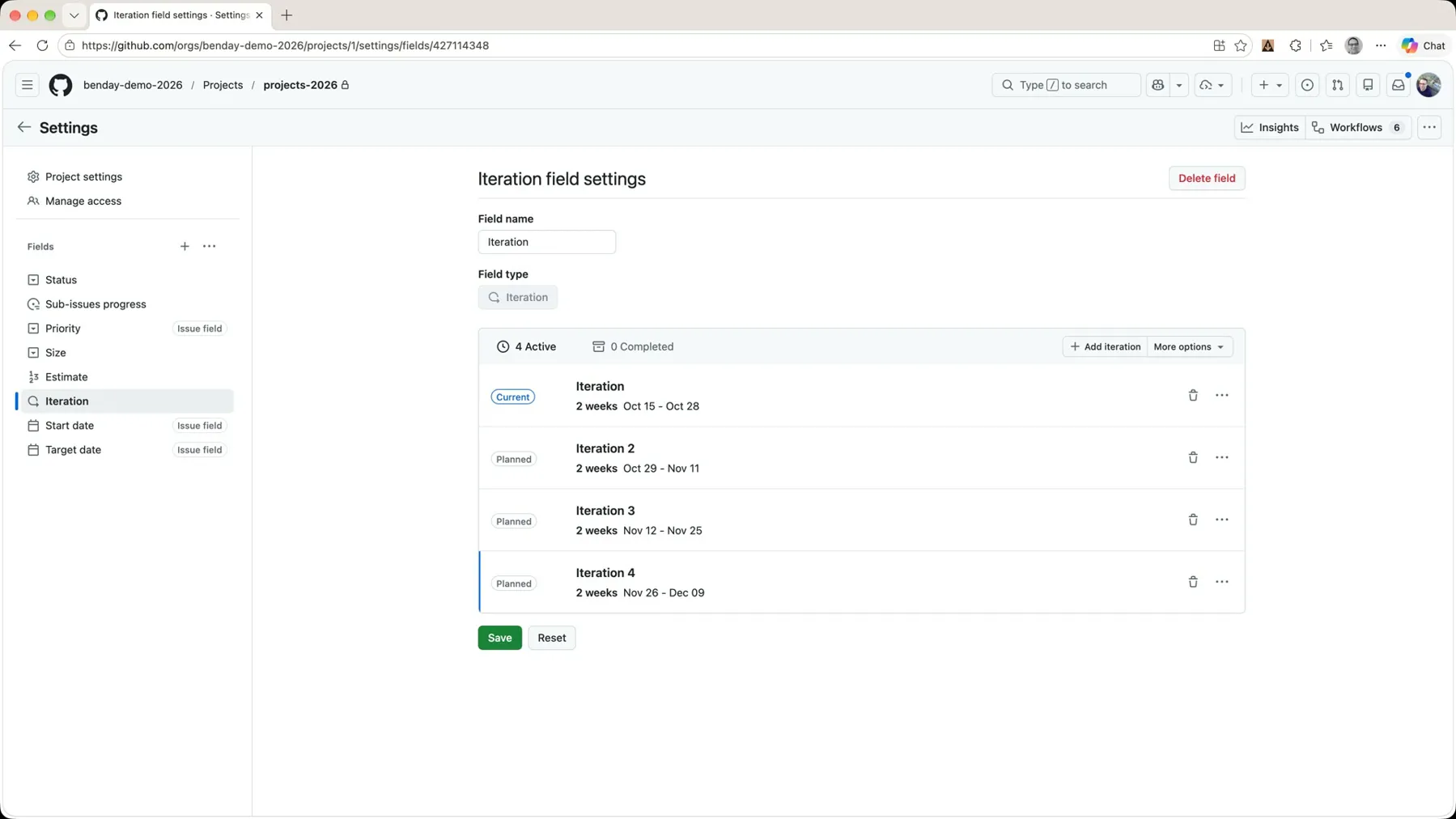 *Add iteration picks up right where the last one ended.*
Click More options and you can see what it's thinking: it knows it's a two-week iteration, you could change that to days if you want, and it shows you when your next iteration would start.
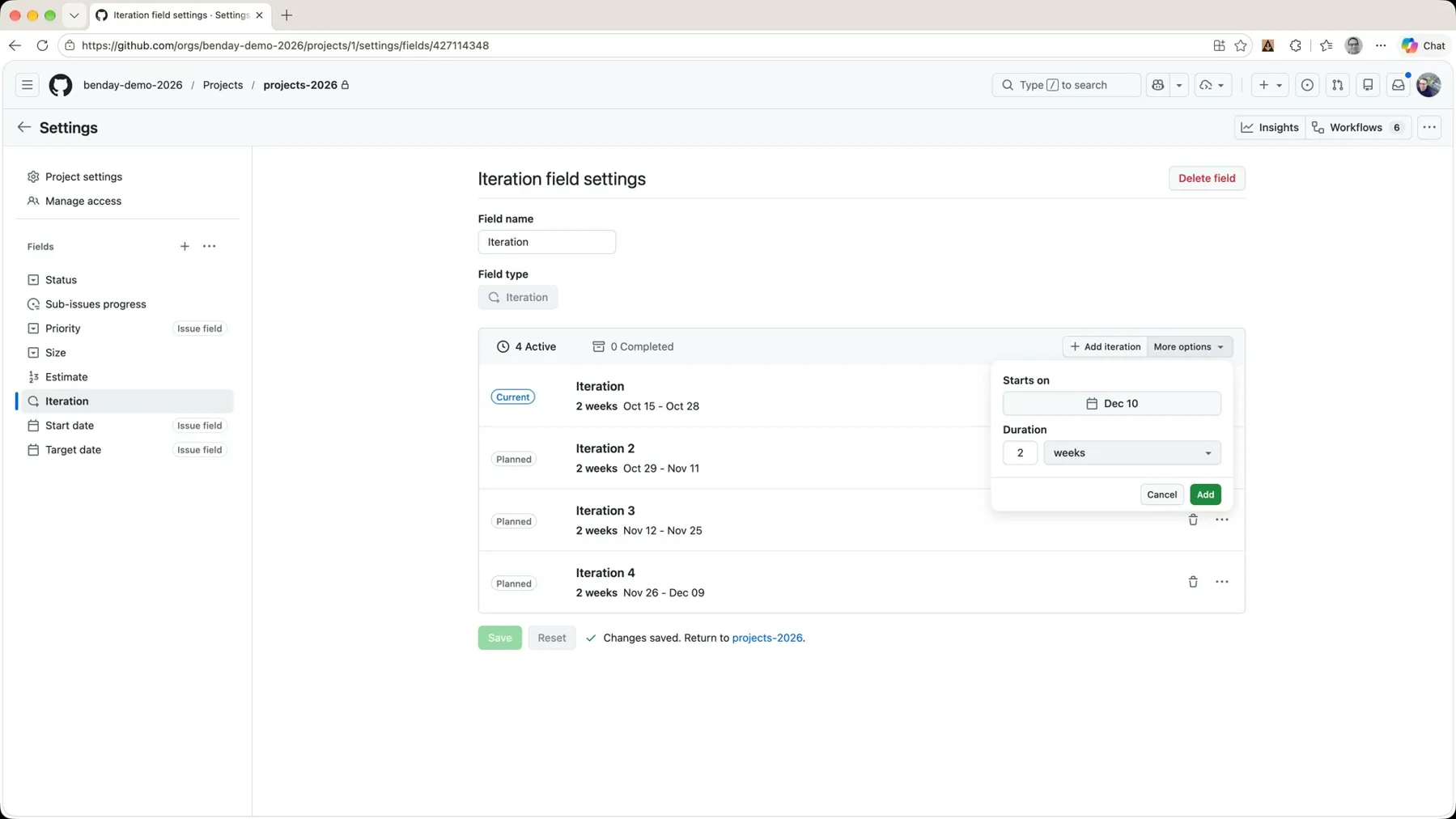 *More options: the iteration length and the next start date.*
I didn't change anything there. Back to the project.
Pick the Sprint Features
Back on the backlog, the Iteration column is empty. Nothing's been assigned to an iteration yet.
The first thing I'm going to do is change the filter to type:Feature. When you're doing iteration planning or sprint planning, you're generally picking features. The tasks come later.
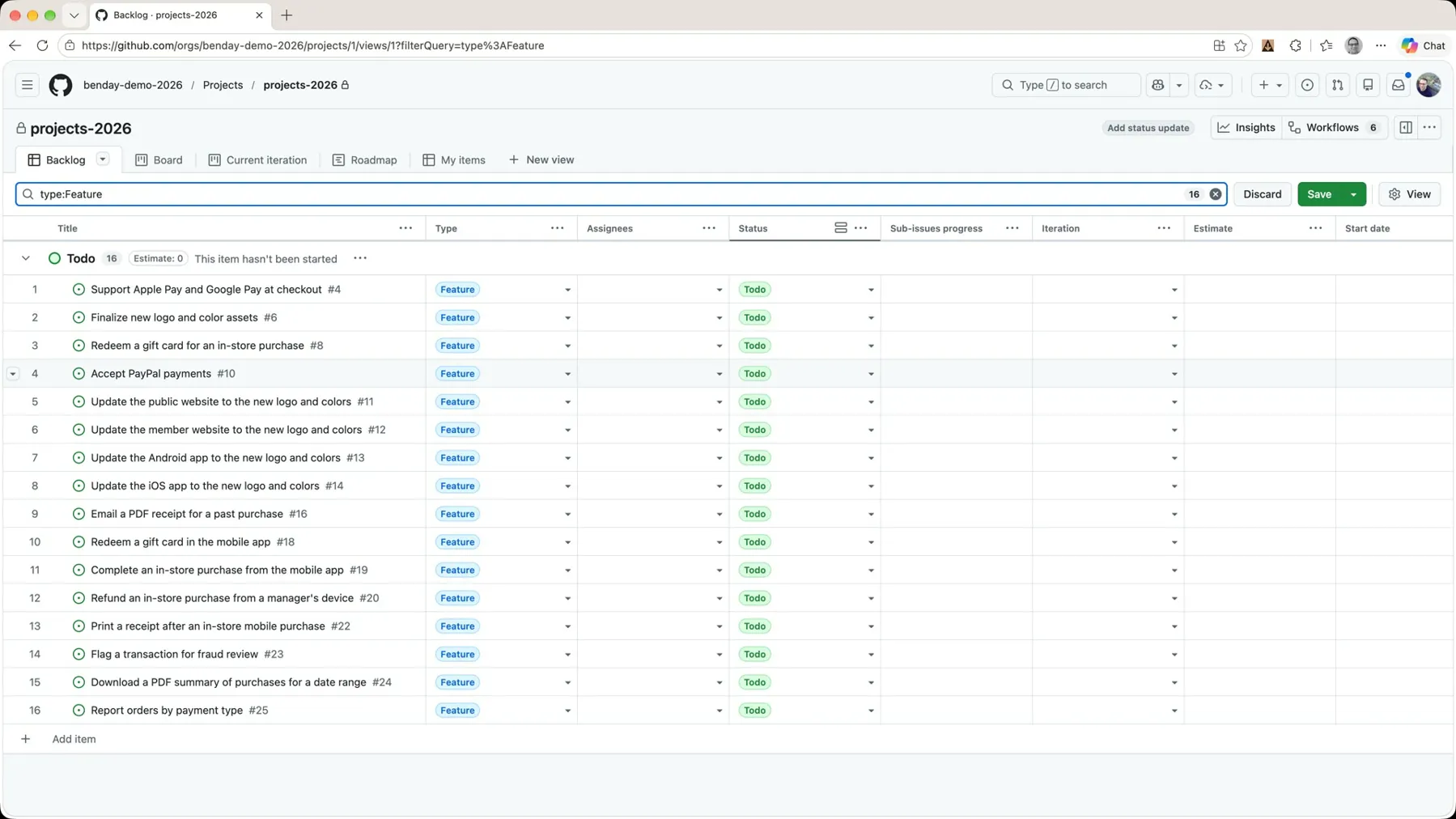 *Filter the backlog to features before you start picking.*
Let's say we're going to do the top handful of items on this backlog. Typically, when you're doing this, the team has one last discussion about priorities, and it's pretty common to need to switch a few things around. Let's say Accept PayPal payments needs to be the top priority, so I drag it up to the top. And for whatever reason, Support Apple Pay and Google Pay at checkout is lower priority now, so I move that one down. Now the list reflects the agreed-upon priority order: PayPal, then the new logo, then the gift card.
Now go over to the Iteration column on the top row and click the cell. You get the list of iterations, and the one that matches today's date has a little badge on it that says Current.
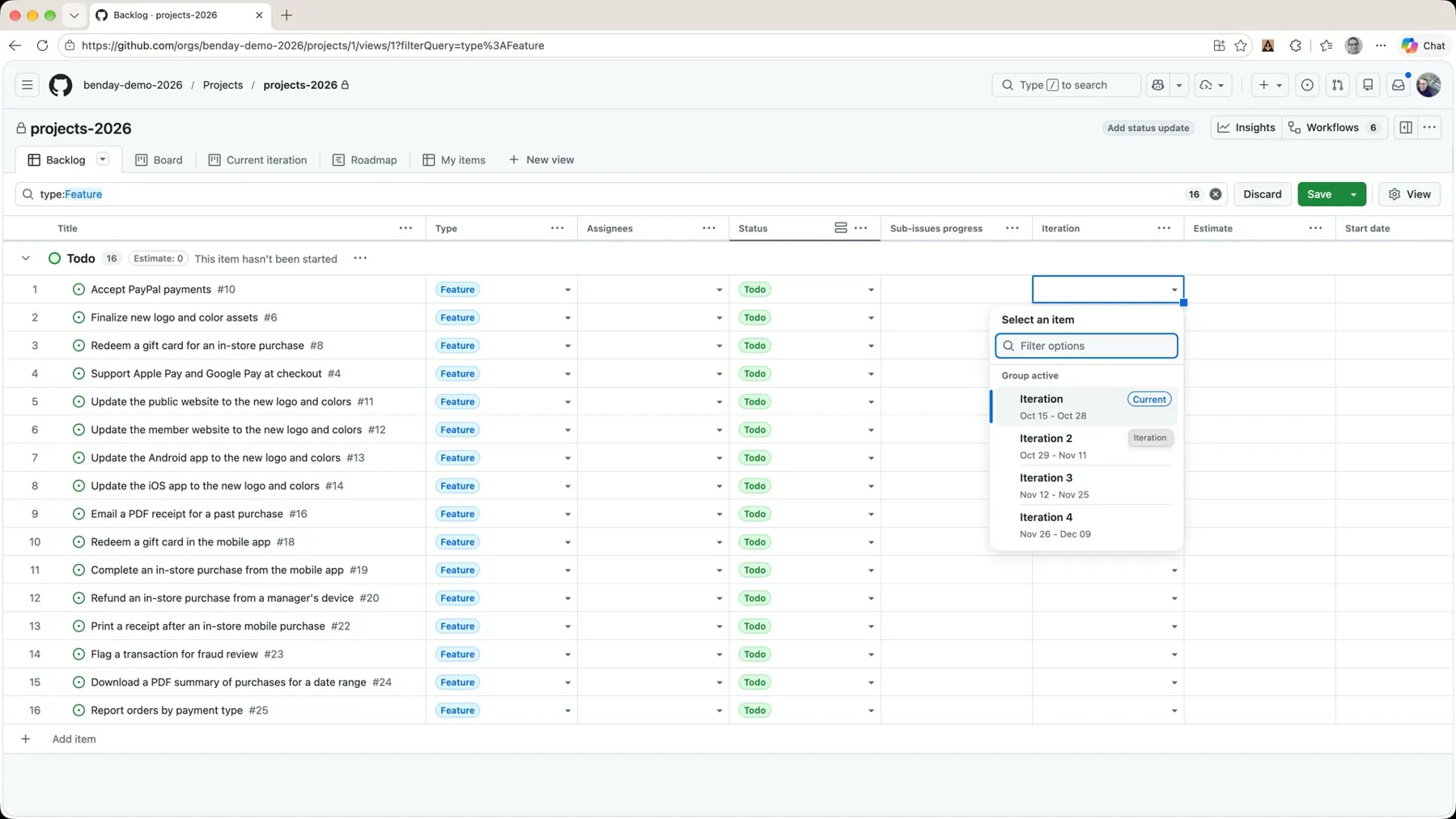 *The iteration picker. The one with the Current badge is the one we're working on.*
That's the one I want, so I pick it.
Rename the First Iteration
One slightly strange thing: the first iteration GitHub creates for you is just called "Iteration," rather than "Iteration 1." Isn't that just kind of wacky? So let's fix that. Back to Settings, Iteration field, click on the name, change it to Iteration 1, and save.
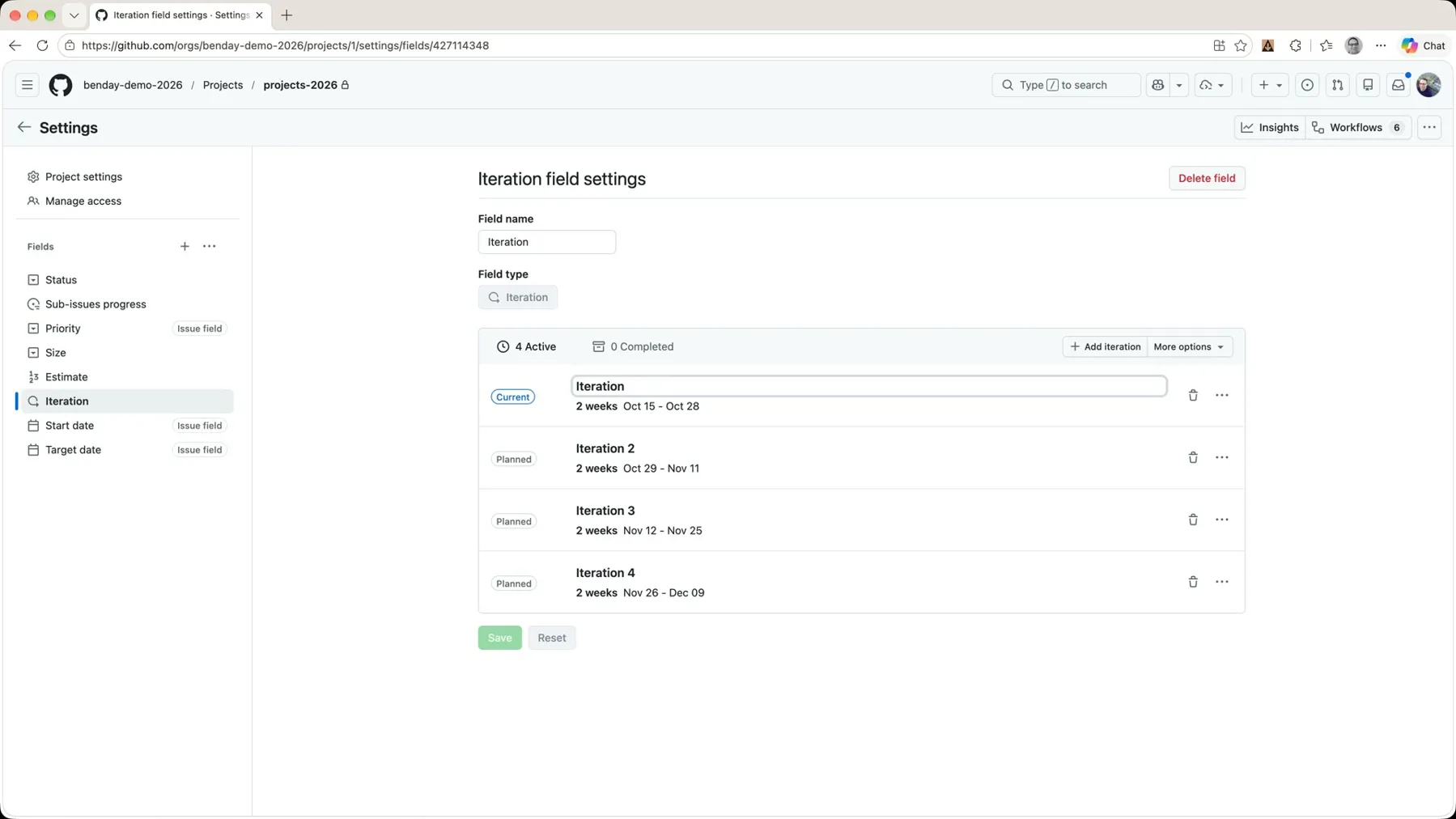 *Rename the first one to Iteration 1 so it matches the others.*
Back on the backlog, the cell now says Iteration 1. Great.
Put the Next Two In With the Fill Handle
Let's assume we want the next two features in Iteration 1 as well. Same trick as Part 4: grab the little fill handle in the corner of the cell and drag it down two rows. That triggers a bulk update, and now all three features are in Iteration 1.
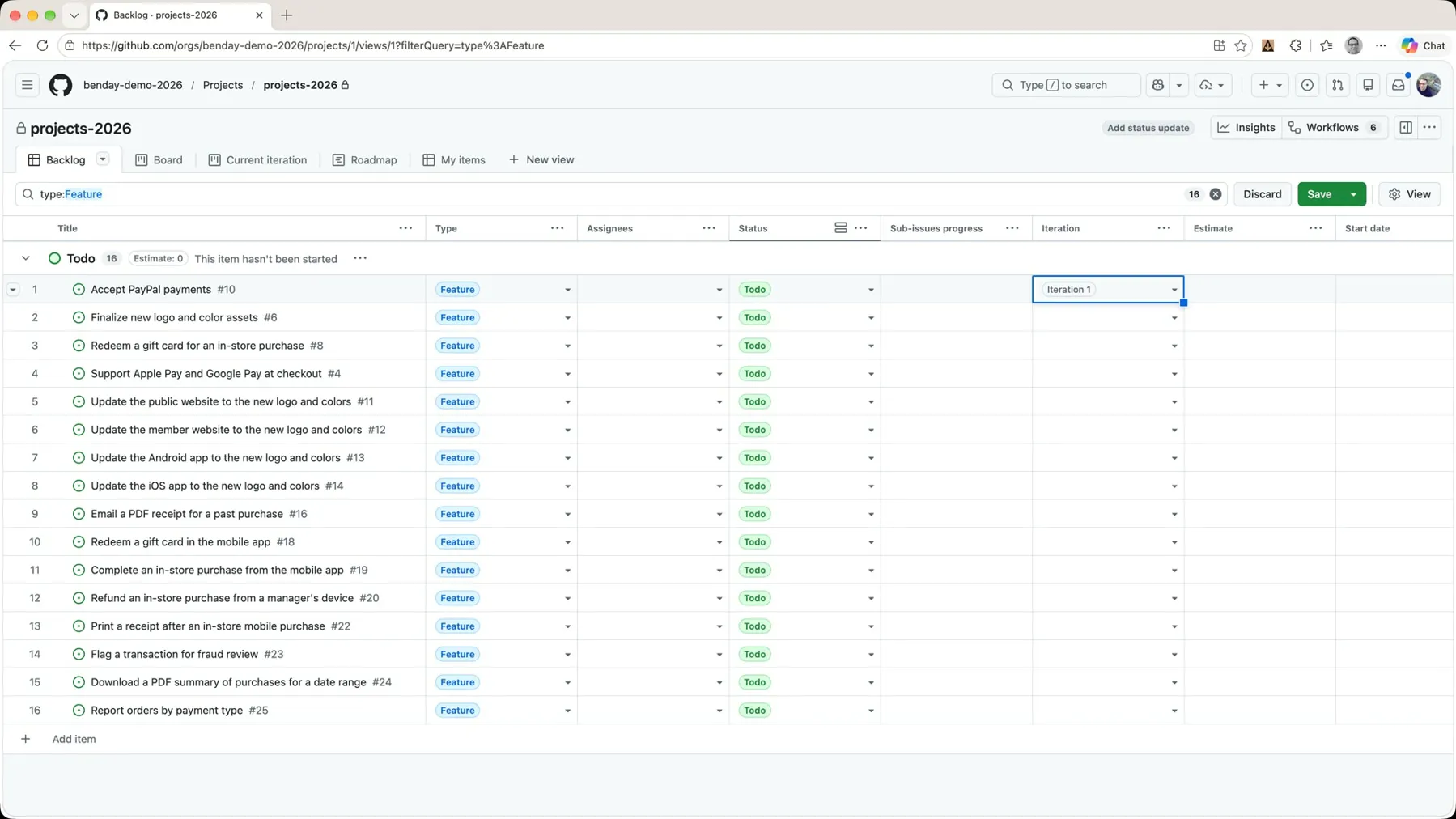 *Fill handle, drag down, bulk update. Three features in the sprint.*
Flip over to Current iteration and there they are: three features in Todo.
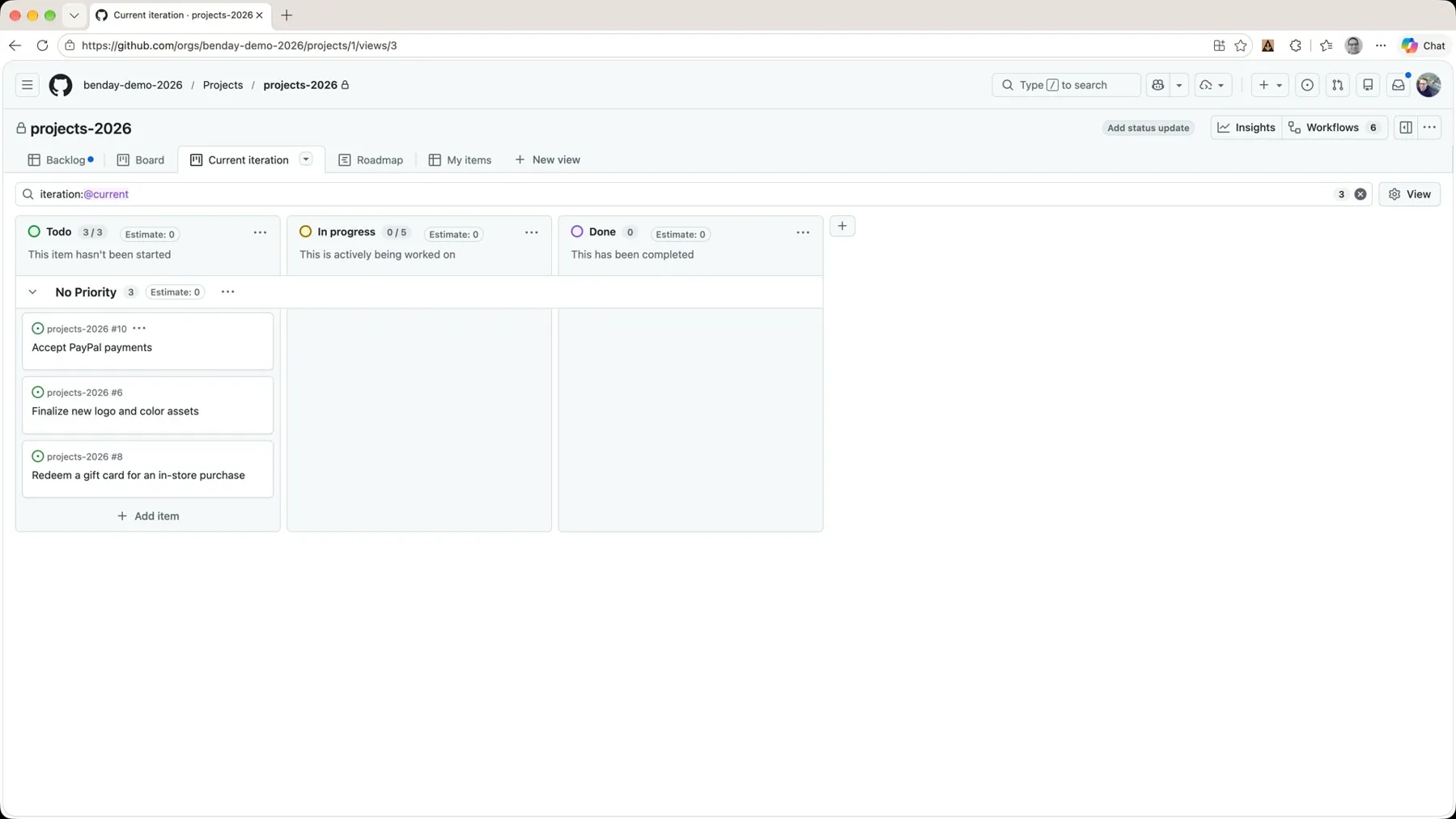 *The sprint has three features in it.*
There's no estimate on them and no detail, but if we open one up, the Projects box on the right shows Iteration 1 and an empty Estimate.
Story Points on Features
A quick word about estimates before we go any further.
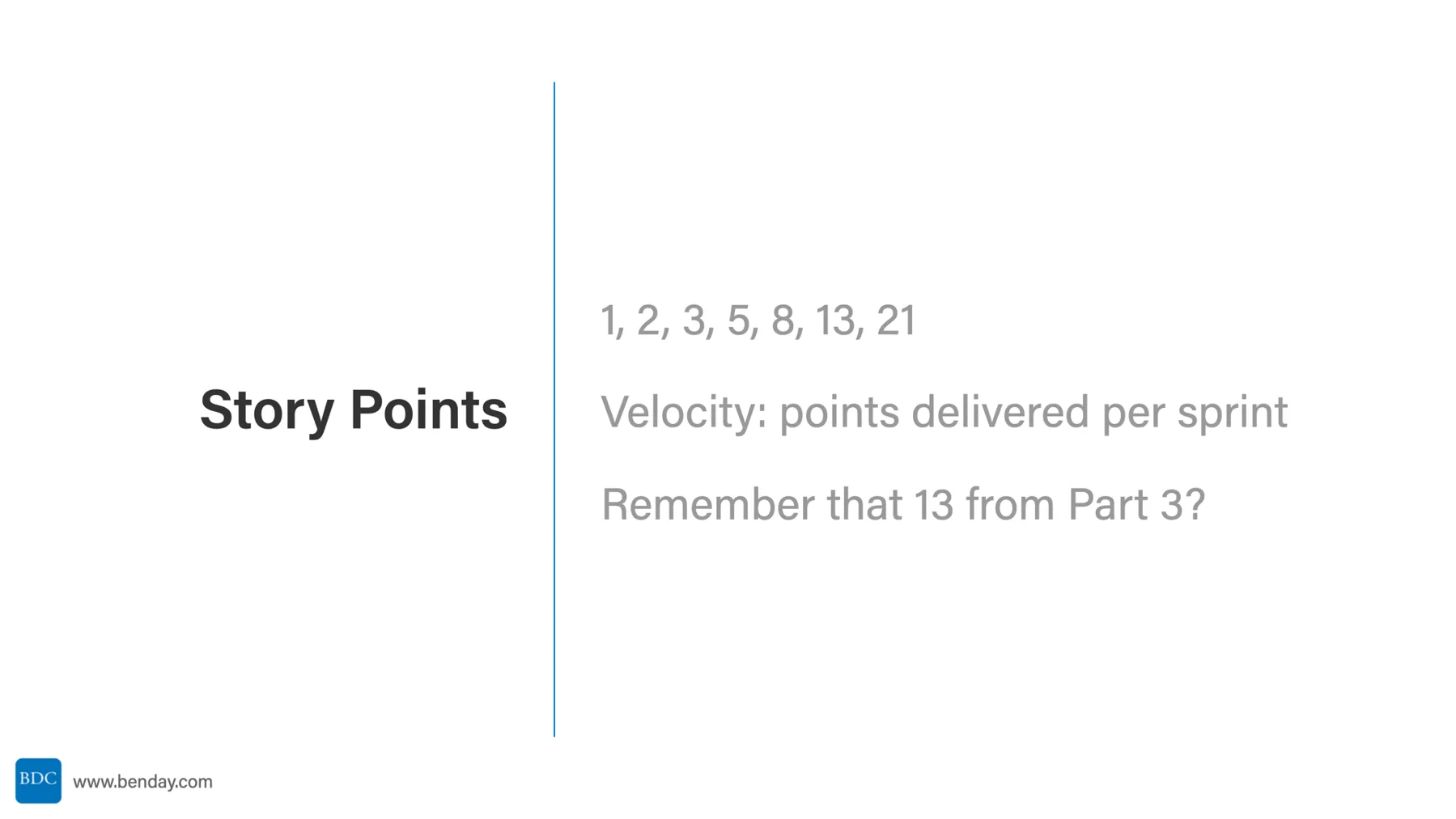
If you're estimating with story points, you're probably picking from the Fibonacci sequence: 1, 2, 3, 5, 8, 13, 21. And I'll bet a lot of you use story points for estimation and velocity for tracking how much got delivered. By the way, that 13 I typed into the Estimate field back in Part 3? That was a story point.
But I have to be honest with you about where I've ended up on all this.
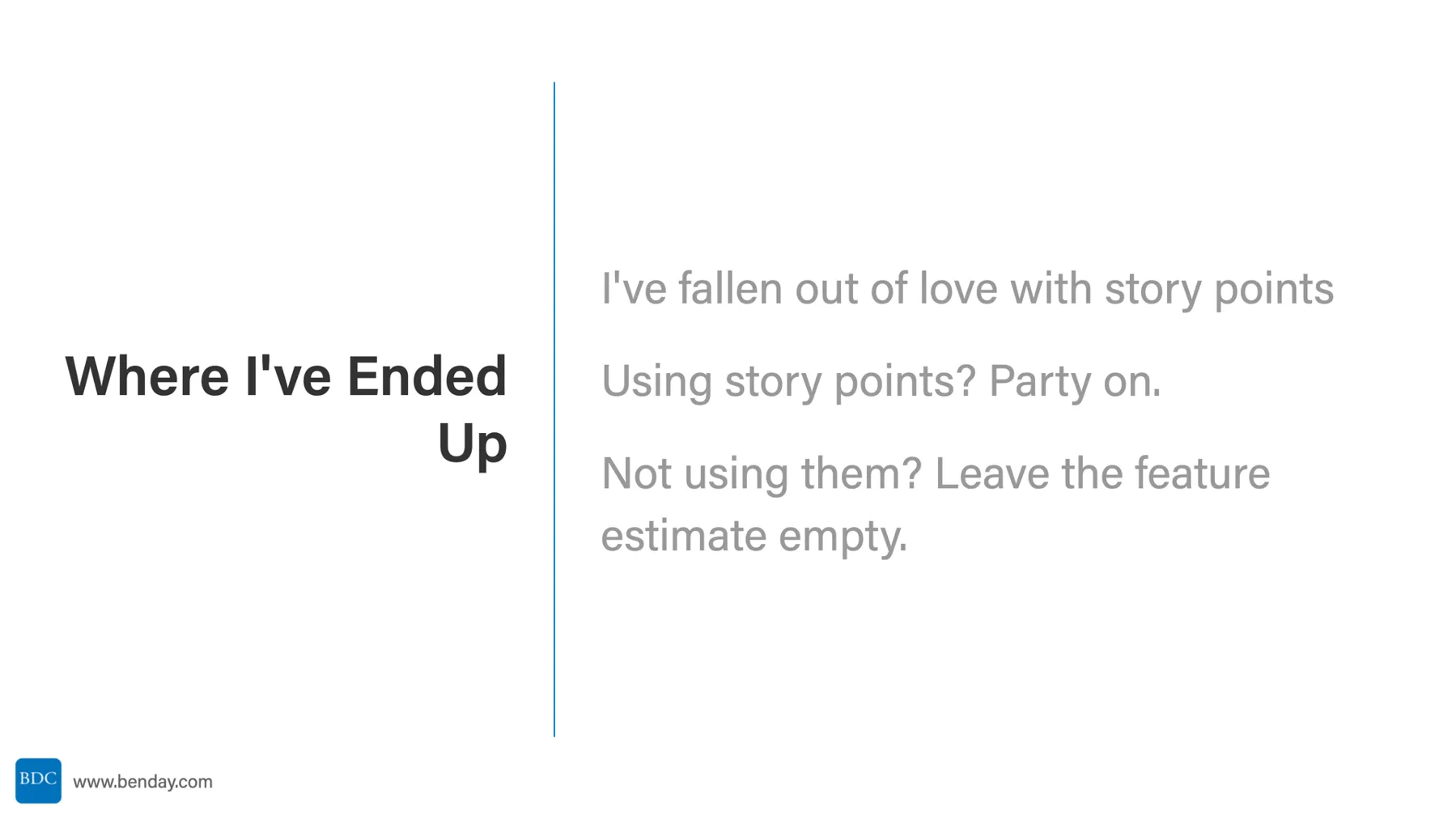
I've kind of fallen out of love with story points. These days I pretty much only do throughput and Monte Carlo forecasting, and that's a whole video on its own. (There's also a whole series on flow metrics if you want to go deeper.)
So if you're using story points, party on. It works just fine in GitHub Projects, and you'll see it in a second. And if you're not using story points, just leave the estimate on your features empty. Nothing bad happens.
Ok. That's enough philosophy. Back to the demo.
Putting Points on the Features
I'm probably not going to use Size. But if I'm doing story points, I'd pick a Fibonacci number, like 13, and put it in Estimate on the PayPal feature.
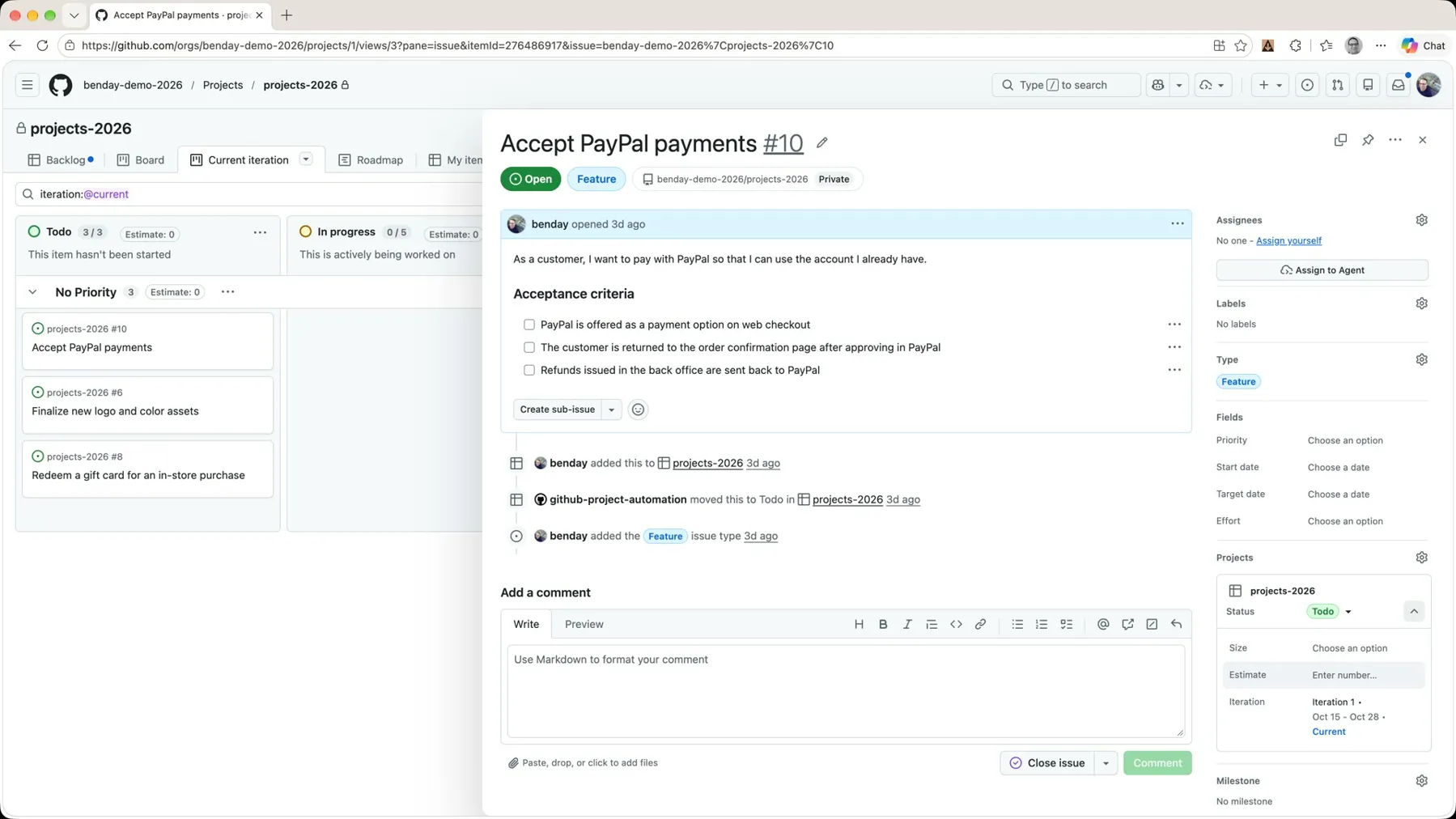 *The Estimate field in the issue panel's Projects box. Story points go here.*
Then Finalize the new logo gets an 8, and Redeem a gift card gets a 5.
Now, I don't necessarily love story point estimation, but it's an extremely common way to estimate your work. So if that's what your team uses, this is where the points go. And notice the column header on the board behind the panel: as you change the estimate values, the Estimate total on the Todo column updates. With all three done, it says 26.
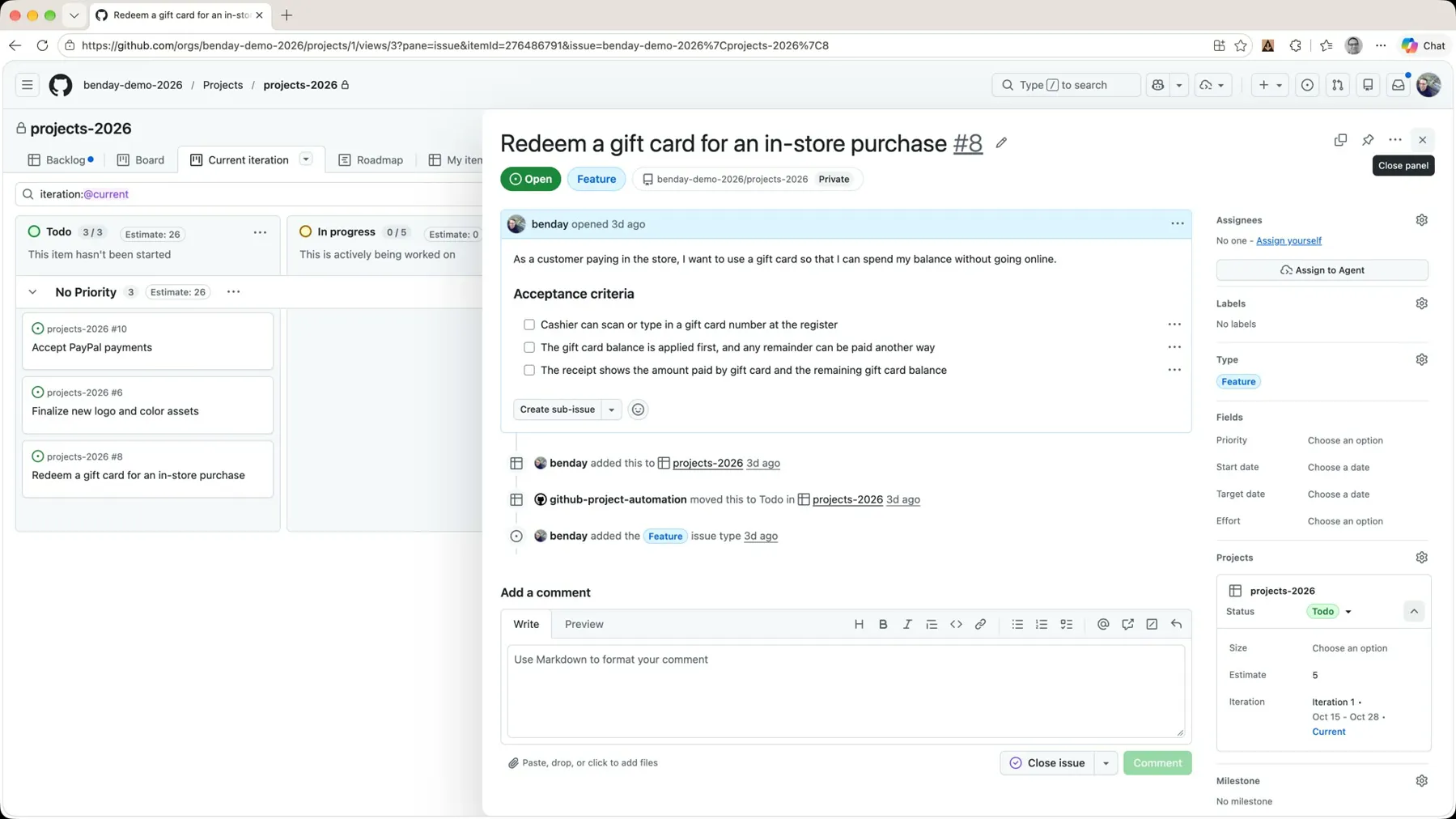 *The column header adds up the estimates for you. 13 + 8 + 5 = 26.*
So that's three features in the sprint, with estimates on them. And that's really only half of sprint planning.
Features Versus Tasks
If you're working in Scrum or something agile-ish, sprint planning is really about answering two questions.
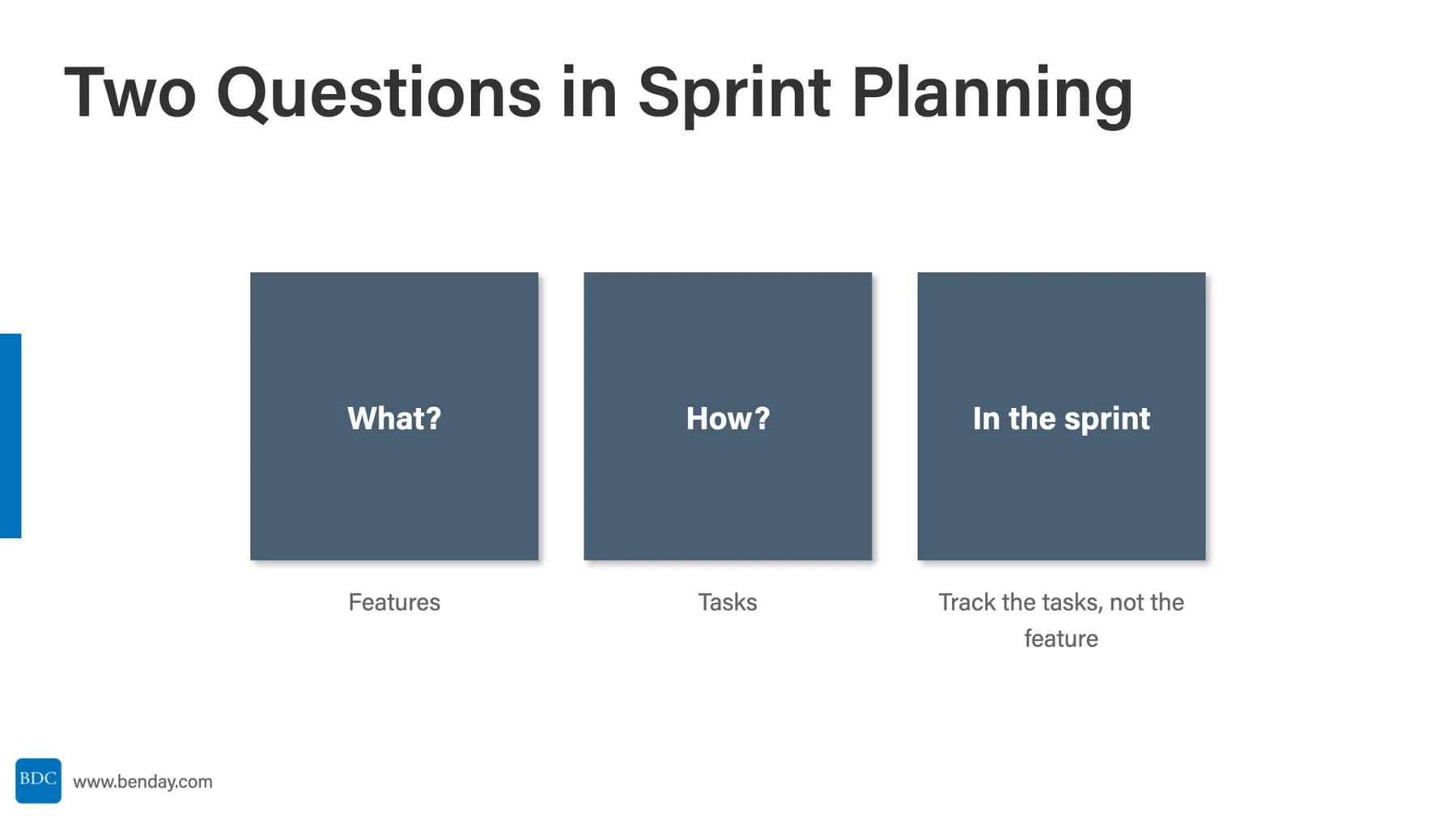
What are we going to do? That's your product backlog items, your user stories, your features, whatever you call those requirements. We just did that part. Three features are in Iteration 1.
How are we going to do it? This is the one you'd answer in some kind of planning meeting with the team, and it's generally represented by tasks. So what we want to do now is create tasks for each of those requirements.
Here's why that matters. When I'm executing inside of a sprint, I generally don't think about the status of the requirement. I'm thinking about the status of the tasks. The requirement is done when its tasks are done.
In GitHub Projects, the tasks under a feature are called sub-issues. So let's go make some.
Create Sub-Issues
Back on the board, open up Accept PayPal payments. Under the acceptance criteria, there's a button that says Create sub-issue.
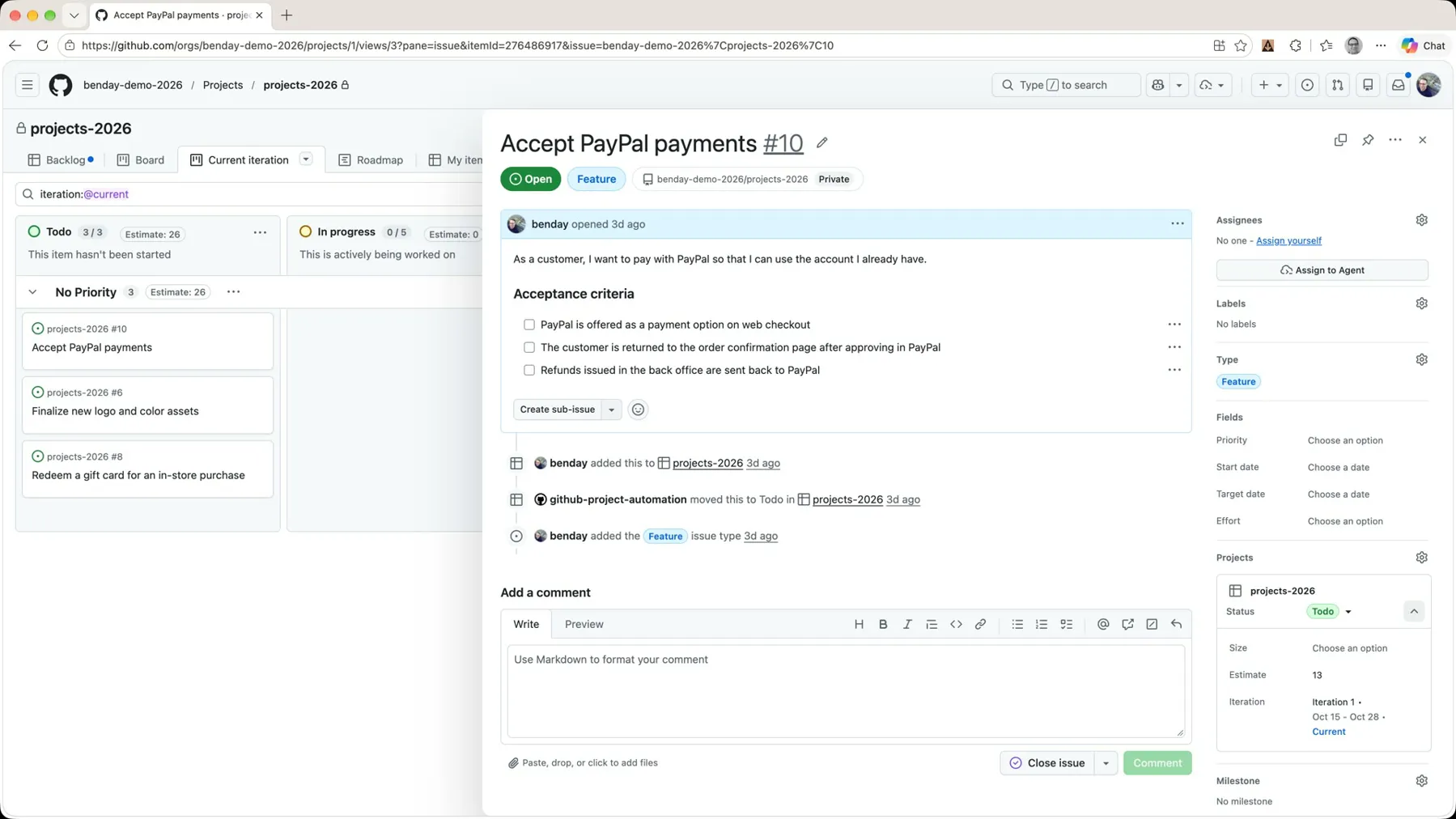 *Create sub-issue, add an existing issue, or draft with Copilot. We're doing it by hand.*
Pull the dropdown and you can create a sub-issue, add an existing issue, or draft with Copilot. I'm going to ignore the Copilot stuff and just create it manually.
That opens the Create new sub-issue dialog. Give it a title. The first thing we need to do is Set up PayPal sandbox and API credentials. You can give it a description if you want, but a lot of times a title is enough.
Down along the bottom there's a row of things: assignee, label, issue type, priority, project (it already picked up projects-2026), and milestone. The one I care about is issue type, and I'm picking Task.
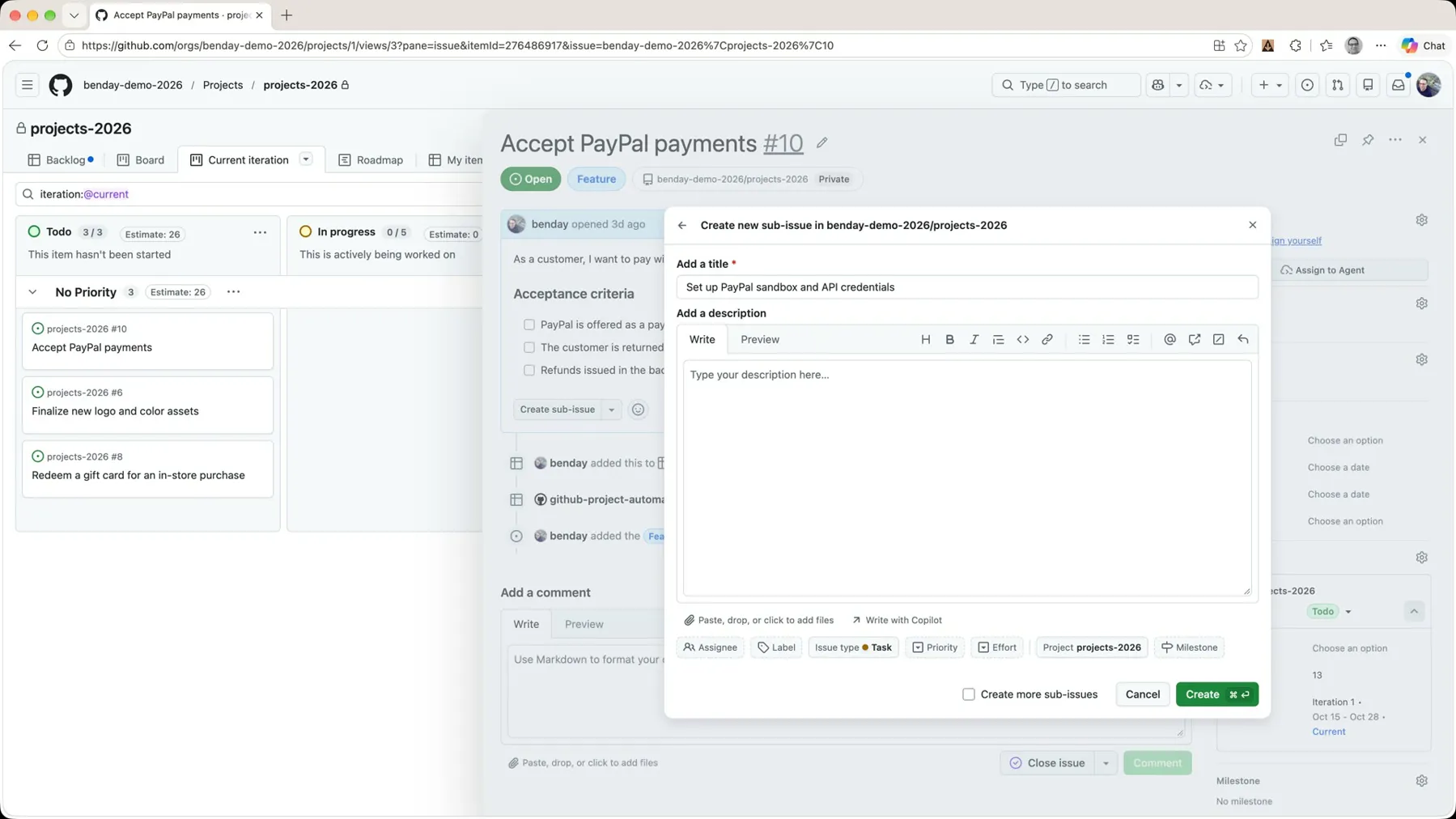 *The sub-issue dialog. Set the issue type to Task and check 'Create more sub-issues' before you click Create.*
Now, I could click Create right now. But I want to create several, so I check Create more sub-issues first. That preserves these settings (the type, the project) when I go to create the next one, and the dialog stays open.
Then I typed in the rest:
- Set up PayPal sandbox and API credentials
- Add the PayPal button to web checkout
- Return to order confirmation after PayPal approval
- Handle cancelled and failed PayPal payments
- Send back-office refunds back to PayPal
- Test checkout and refunds end to end in the sandbox
Six tasks in all. Close the dialog, and now you can see all six sub-issues listed right there on the parent, all tagged as tasks. They all got created in the repo we associated with this project back in Part 3.
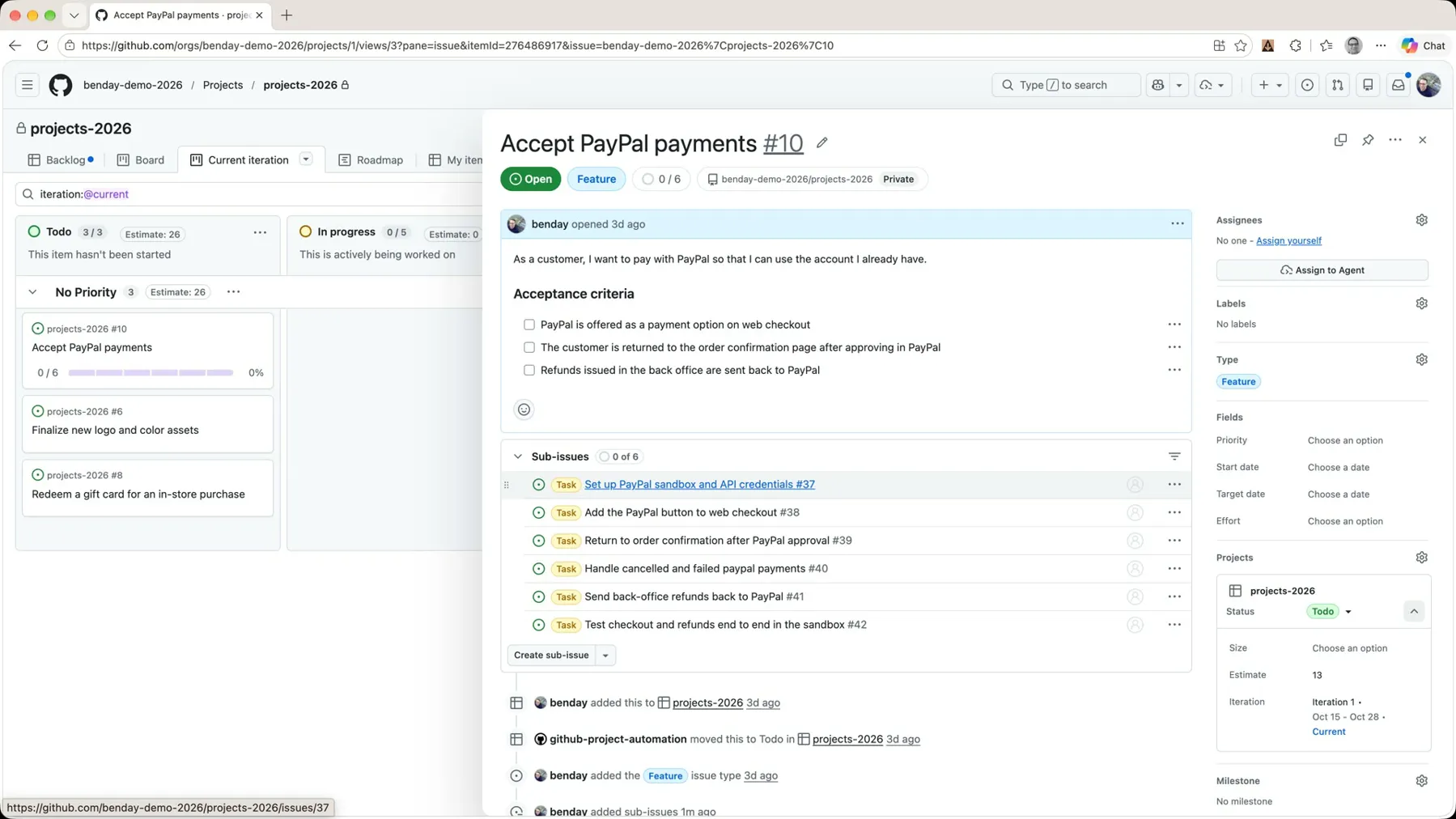 *Six sub-issues on the parent. 0 of 6 done.*
Click into one of them and you can see it from the other direction: the Parent badge up top says Accept PayPal payments, the parent is listed under Relationships, there's a Development section where you could create a branch for it, and the issue type is Task.
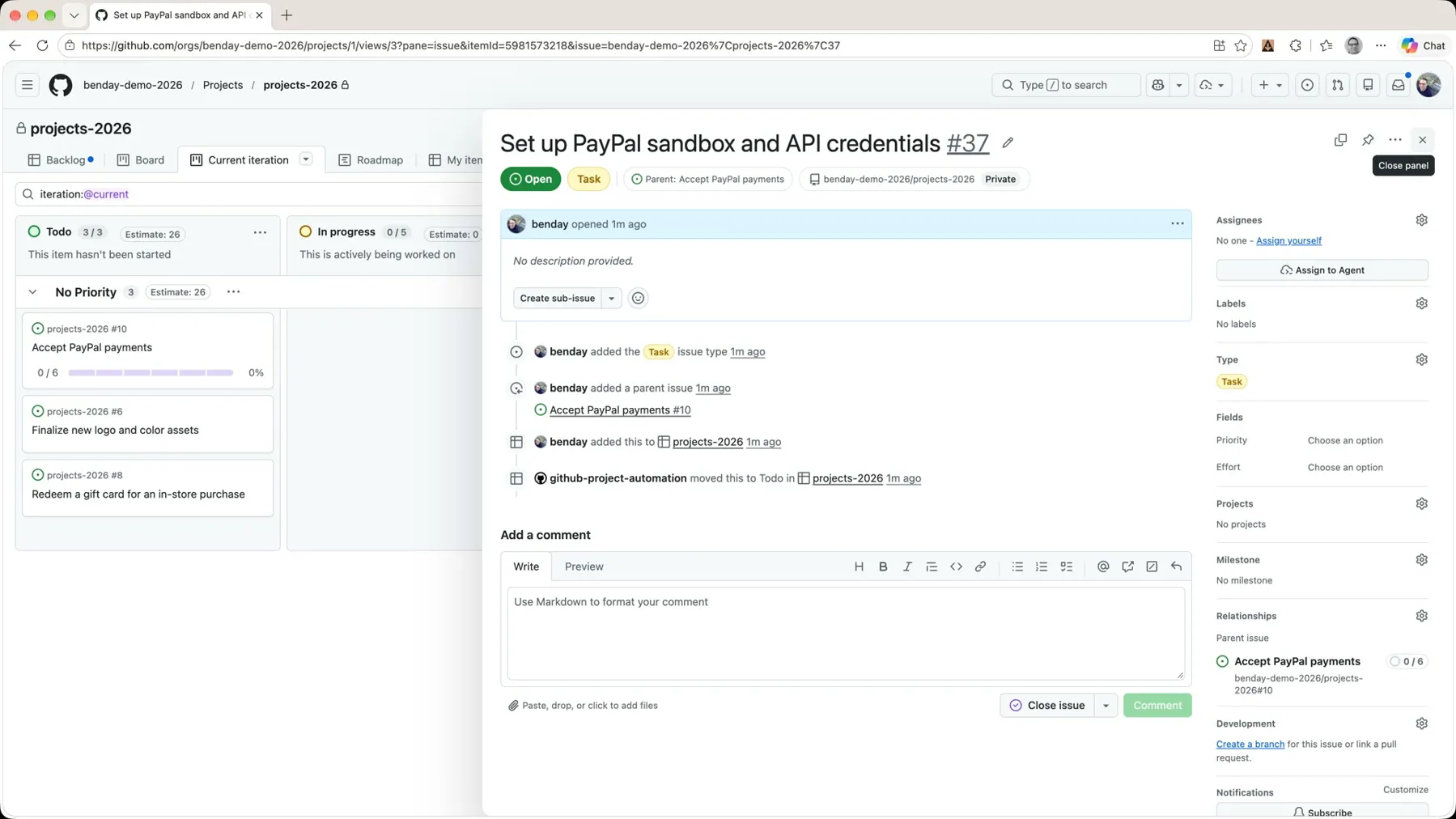 *From the task you can see the parent. From the parent you can see the tasks.*
Tasks Need the Iteration Too
Close that and look at the board. The PayPal card now has a progress bar on it: 0 / 6. None of the tasks are done yet, which is fair.
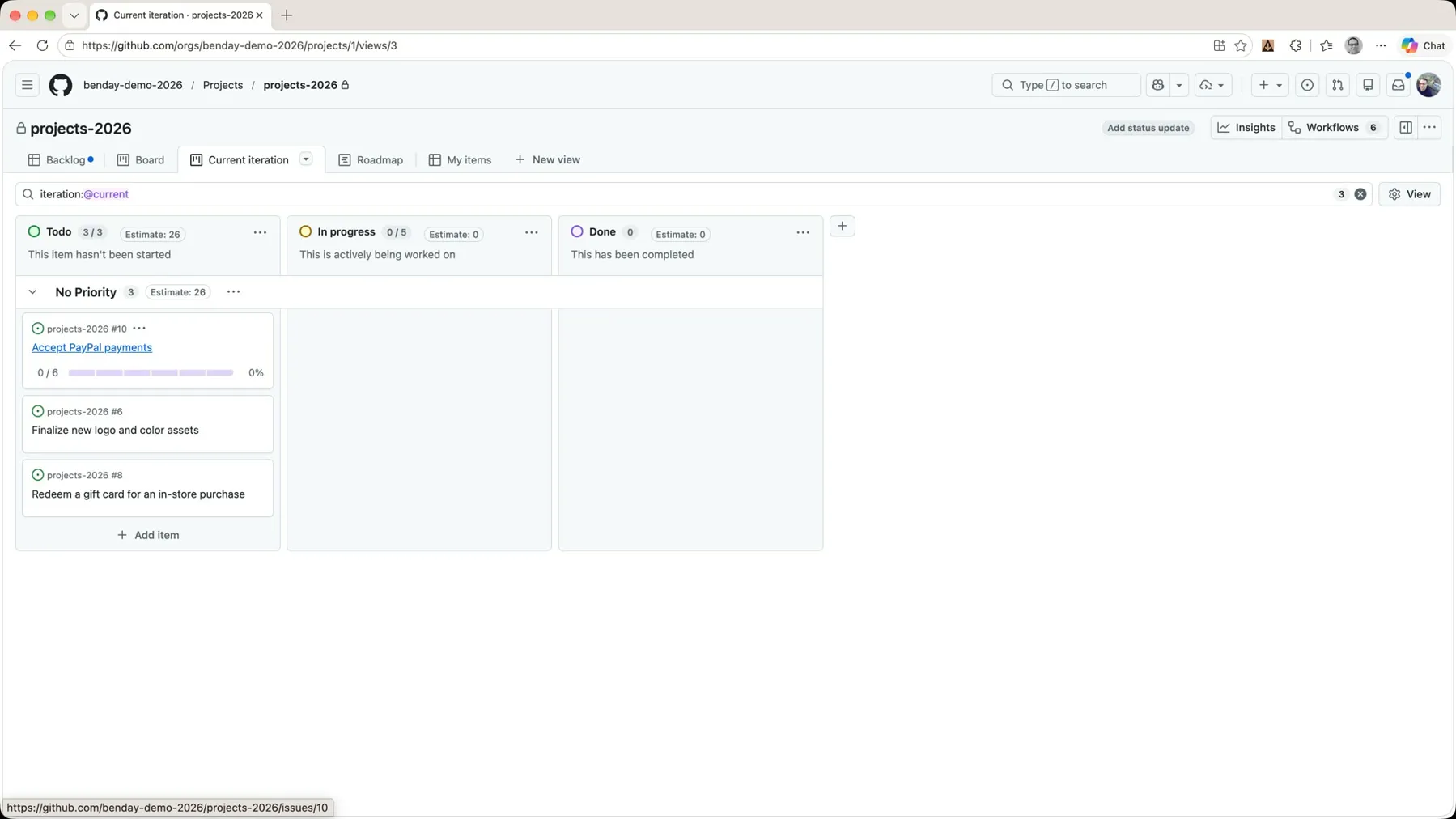 *The parent card gets a progress bar. But where are the tasks?*
But notice something else: those task issues aren't showing up on the board at all. Let's go look into this.
Open the parent, click into the first task, and look at the Projects box on the right. Iteration is not set. That's why it isn't on the current iteration board. The sub-issue did not inherit the iteration from its parent.
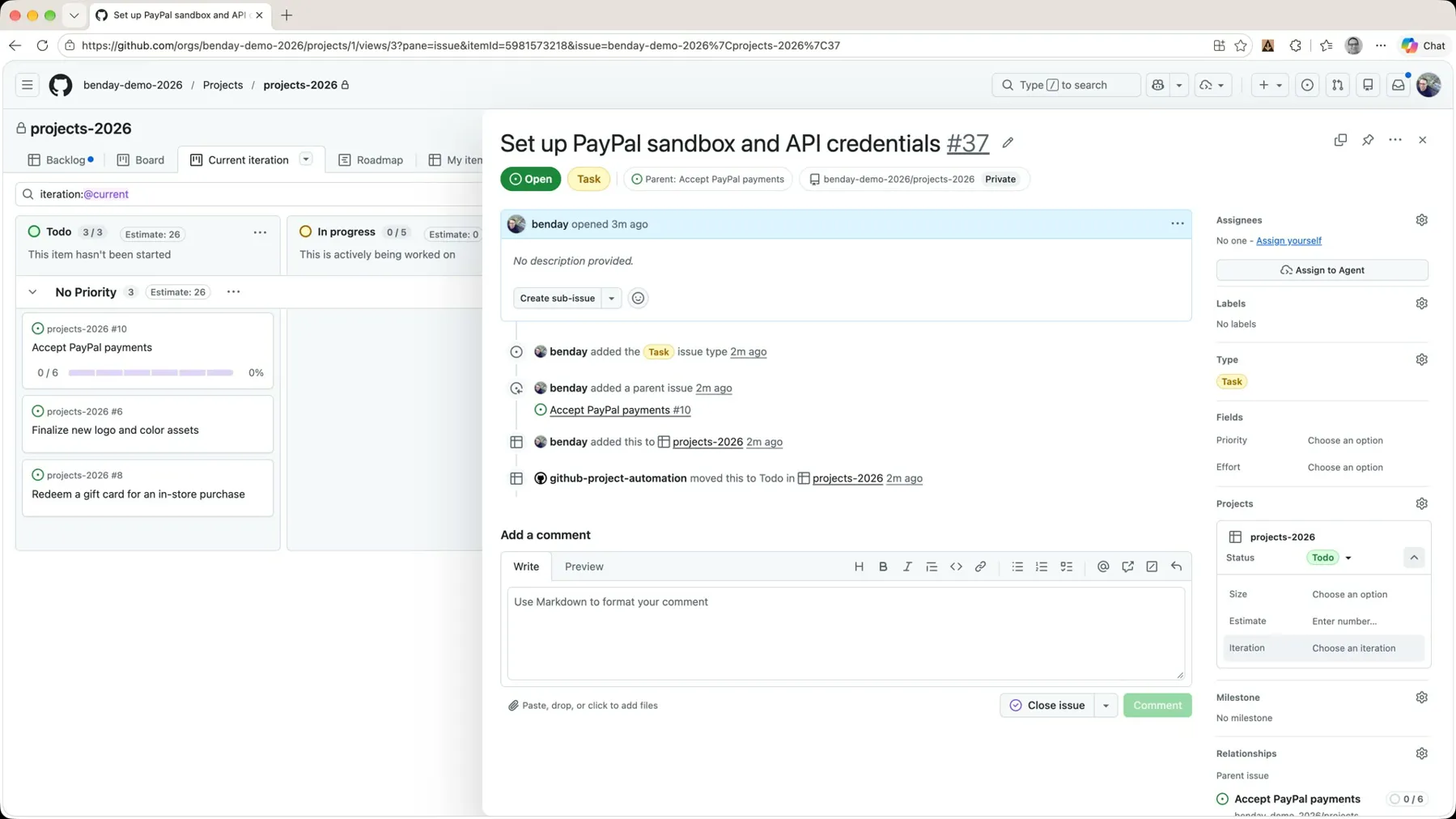 *The task has no iteration, so the iteration:@current filter hides it.*
I set it right there (Iteration 1) and closed the panel, and now the board shows four items: three features and one task. But I don't want to do that five more times, so back to the backlog, where I want to bulk-set that field.
On the backlog, expand Accept PayPal payments and it nests all six tasks underneath. Only the first one is in Iteration 1. Click that cell, grab the fill handle, and drag it down over the other five.
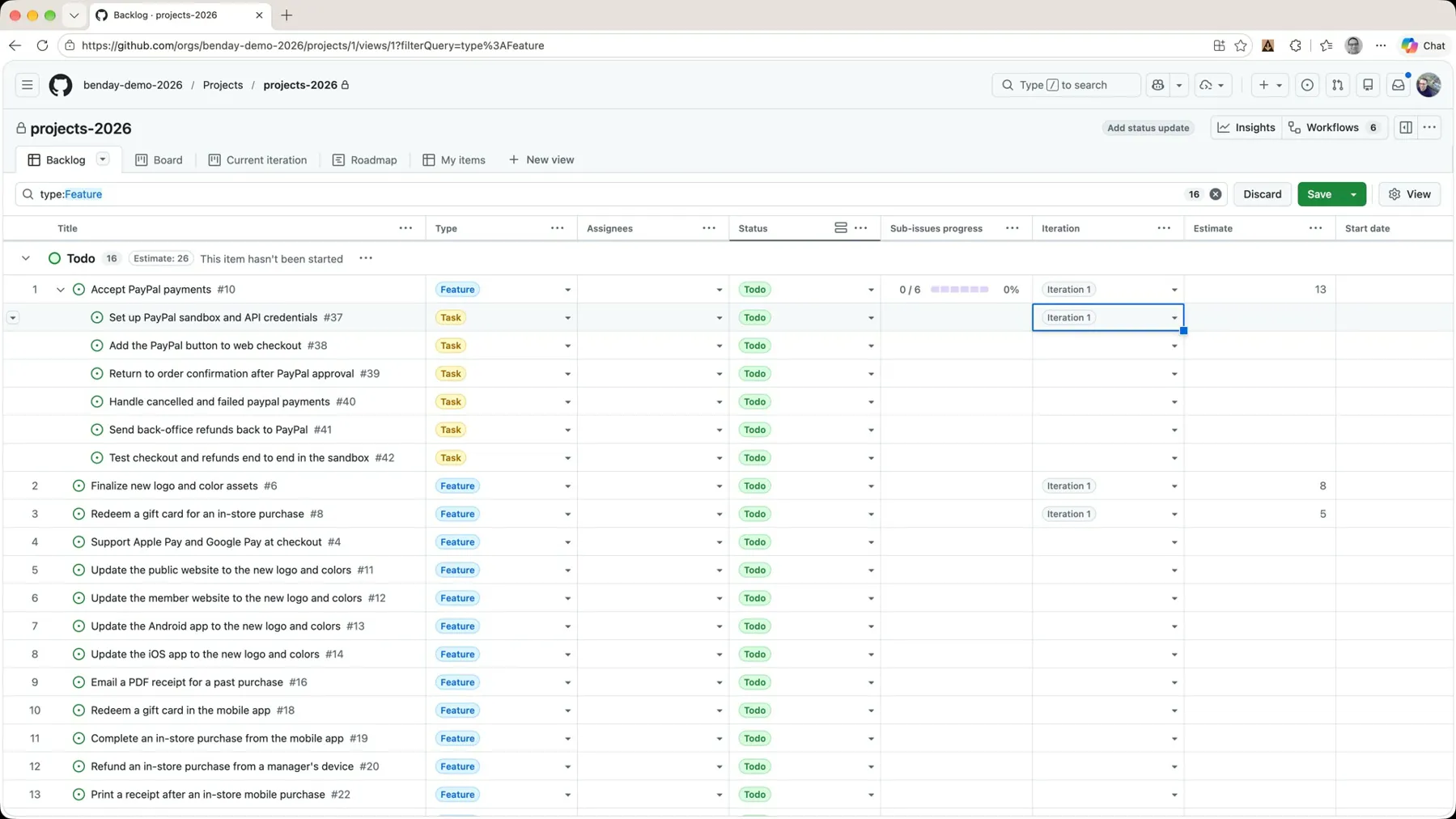 *Expand the feature, then fill the iteration down to its tasks.*
Back on Current iteration, the bulk update completes and now everything's there: the three features and the six PayPal tasks.
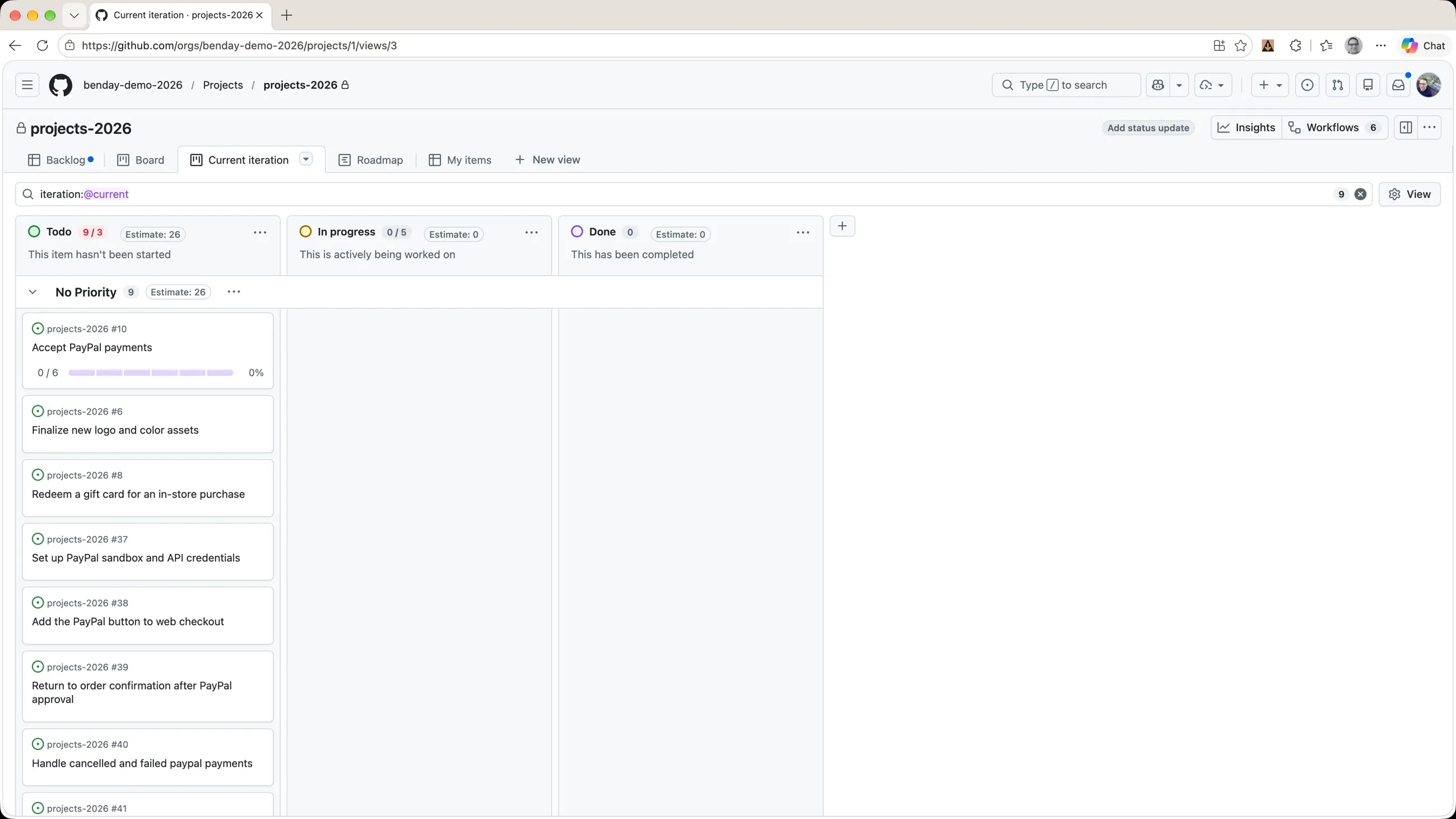 *Nine items in the sprint: three features and six tasks.*
I'll say this one more time because it's going to bite you: a sub-issue doesn't inherit the parent's iteration. Set it, or the task is invisible on the sprint board. (We'll hit it again in Part 6, and I've got a wish for GitHub about it.)
Recap
So that's sprint planning in GitHub Projects.
- We set up the iteration field: where the sprints live, how long they are, and how to add the next one.
- We filtered the backlog to features, had the last-minute priority conversation with drag and drop, and put the top three into the current iteration (with the fill handle for the bulk set).
- We put story points on the features in the Estimate field and watched the column header total them up.
- We broke the first feature into six tasks using sub-issues.
- And we made sure those tasks landed in the iteration, too.
Next time, we turn this into a board the team can actually run the sprint from, put hours on the tasks, and watch the progress roll up to the feature.
Shameless Plug
A lot of what you just watched me do by hand, Honest Cheetah helps you streamline: entering and managing requirements, AI-assisted backlog refinement, and AI-assisted iteration planning. It's also got the tools to answer the important questions like "when will it be done?", plus AI-assisted project coaching, QA testing tools, and the ability to import your work items and test cases from Azure DevOps. Give it a try and let me know what you think.
-Ben
-- Looking for help adopting GitHub Projects for your team or your company? Need an assist getting going with GitHub Actions for automated builds and releases? Want to move your stuff over to GitHub from another service? We can help. Drop us a line at info@benday.com.
GitHub Projects in 2026: The Full Series
- Part 1: It Can Do Anything. That's the Problem.
- Part 2: Why Projects and Issues Feel Weird (and Why It Makes Sense)
- Part 3: Your First Project, From Draft Issues to Real Issues
- Part 4: Taming a Messy Backlog with Issue Types
- Part 5: Sprint Planning with Iterations and Sub-Issues (you are here)
- Part 6: Tracking the Sprint with a Task Board, Hours and Progress
Related:
- What's New in GitHub Projects & Issues (2026 Q4): what GitHub has shipped since the original series
- The 2025 Scrum with GitHub Projects series
- Why Do Our Estimates Suck?: where I explain the "fallen out of love with story points" thing
- Flow Metrics Explained: throughput, cycle time, and forecasting without estimates
- The GitHub Projects in 2026 playlist on YouTube