This is Part 7 of 7 (so far) in the GitHub Projects in 2026 series.
← Previous: Part 6: Tracking the Sprint with a Task Board, Hours and Progress
Shameless plug: Already running your team in GitHub Projects? Honest Cheetah answers "are we on track?" for free, with forecasting from your real throughput and nothing to install. AI-assisted refinement and test management are on the paid plan. It measures the system, not the people.
▶ Watch this video on YouTube (opens in a new tab)
Last time, we built a task board for the sprint, put hours on the tasks, and watched the progress roll up to the features.
This time, it's the daily meeting. My guess is that your team is doing some kind of daily meeting, and the reason you do it is so that everybody understands the status of the work in front of them. What's in progress, what's planned. Situational awareness, basically. It's the second of the All-New Three Questions again: what are we working on right now? And who needs to know?
So in this post we'll set up the views for that, put a work in progress limit on the board, and walk the board the way you would in a daily standup. And then, since everyone asks, we'll talk about assigning things to people, and why I mostly don't.
TL;DR
- There are two kinds of status in a sprint: task status for the team and feature status for the product owner. Give each one its own view.
- Duplicate the Board view, rename it Board (Current), filter it to
iteration:@current type:Feature, and save it. - Set a WIP limit on In progress from the column menu. Go over it and the counter turns red. It's a warning, not a wall.
- Column limits are per view, so the feature board and the task board can have different ones.
- Turn on the Estimate field for the cards (View, then Fields) and you can walk the board: move the cards, update the hours remaining, zero out the finished ones.
- I mostly don't assign tasks to people. If you do:
no:assignee, Assign yourself, two people on one task, and slice by Assignees.
Two Kinds of Status
There are two kinds of situational awareness that you usually care about.
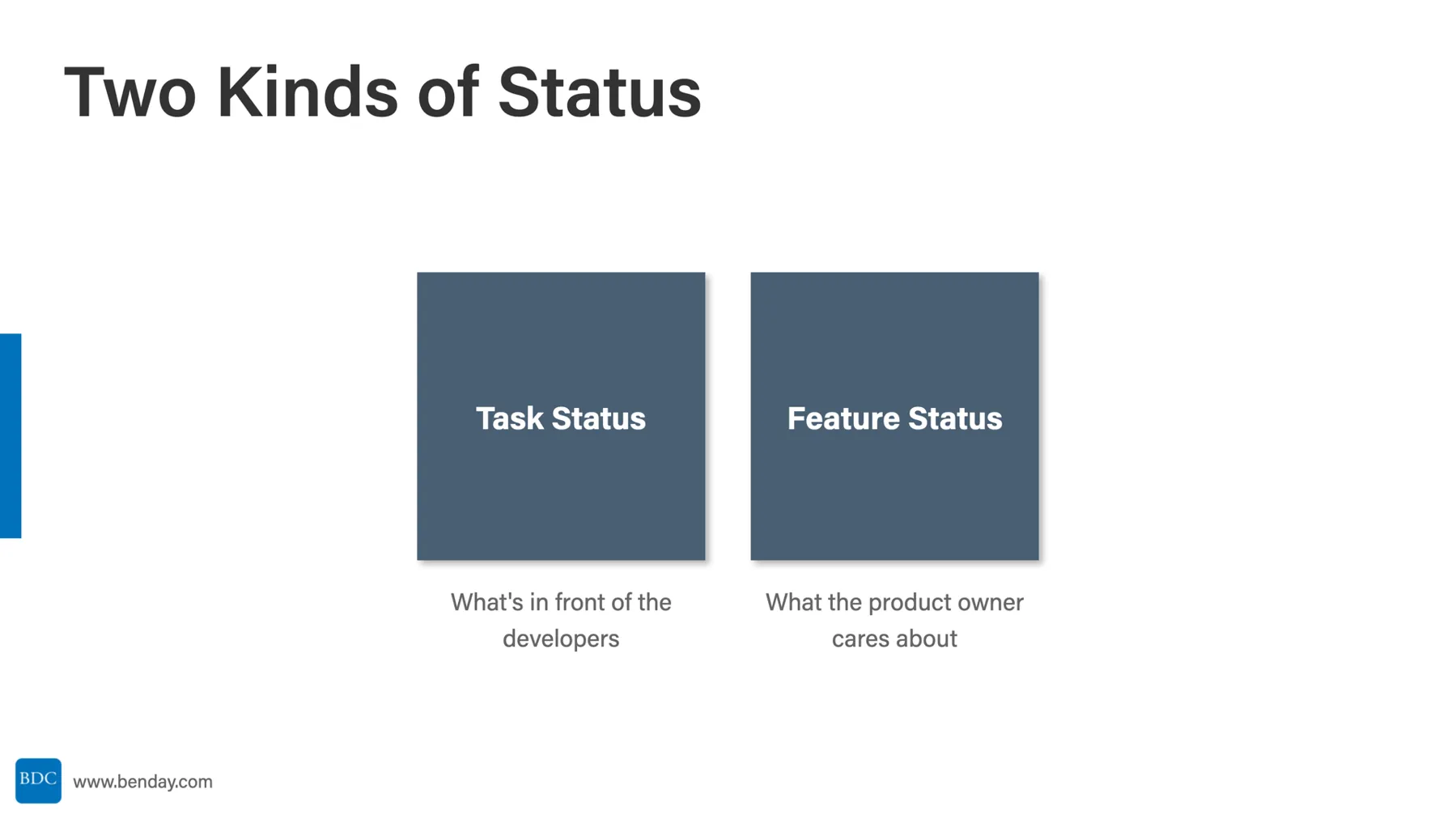
The first one is task status. What's in front of the developers right now? Which tasks are in progress, which ones are done, and what's up next. That's the team's view, and it's the one you'd actually look at during the daily meeting.
The other one is feature status, which is more of a project management, product owner kind of view. The product owner or project manager, a lot of times, just doesn't care about the tasks under a feature. They care about whether the requirement itself is to do, in progress, or done.
Here's where the demo project stands. The backlog has two features in the current iteration, which is now Iteration 2: Finalize new logo and color assets and Redeem a gift card for an in-store purchase. (I keep calling them requirements. I can't stop. They're Feature issue types.) Each one has five tasks under it.
The task side is easy, because we built it last time. It's the Current iteration tab, filtered on iteration:@current type:Task and sliced by parent issue. Click a feature in the panel on the left and you see the status of just that feature's tasks.
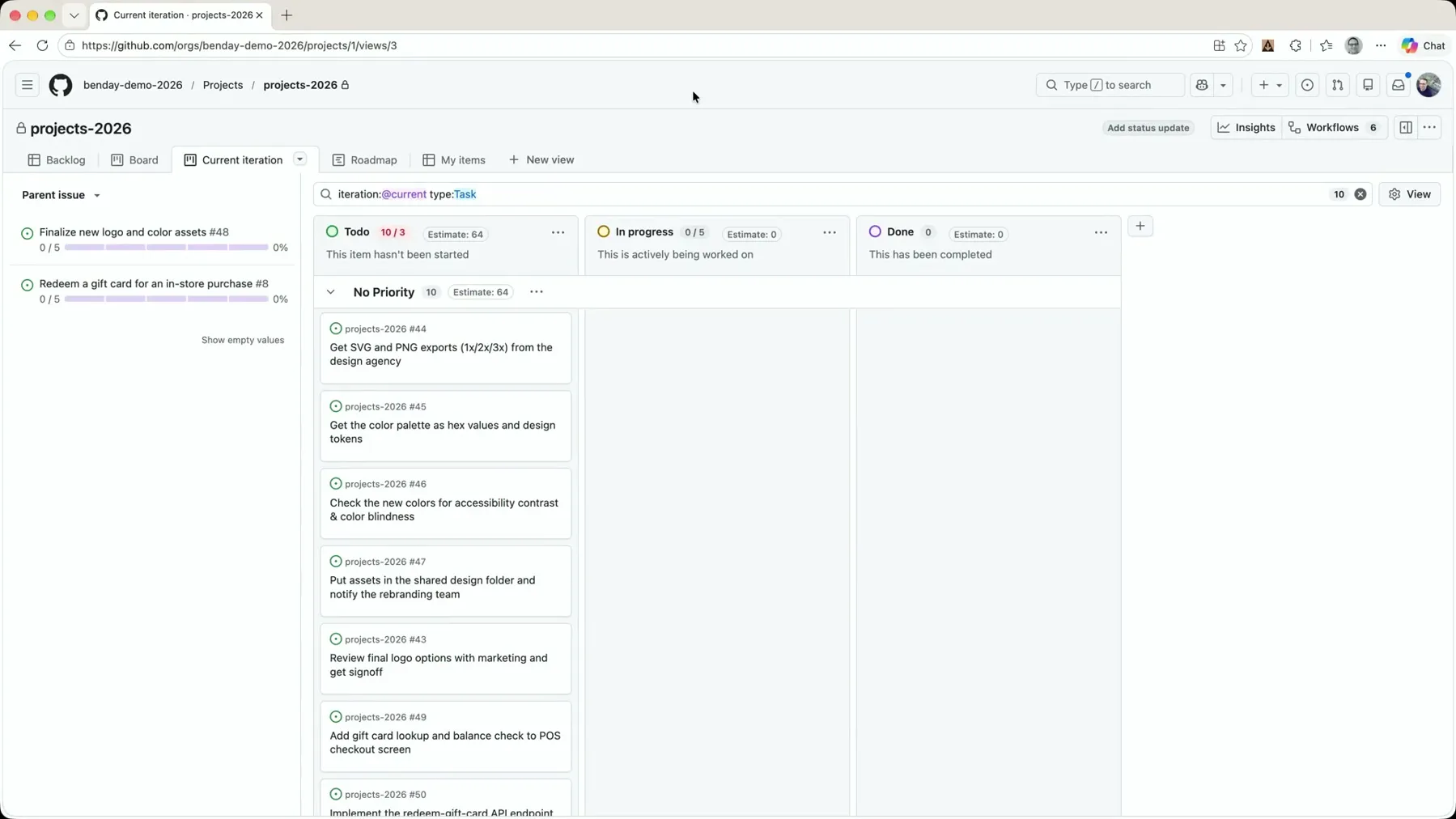
The task view from Part 6. This one's for the team.
A Board for the Current Iteration
The feature side is what you'd normally look at through the Board tab. So I clicked over to it.
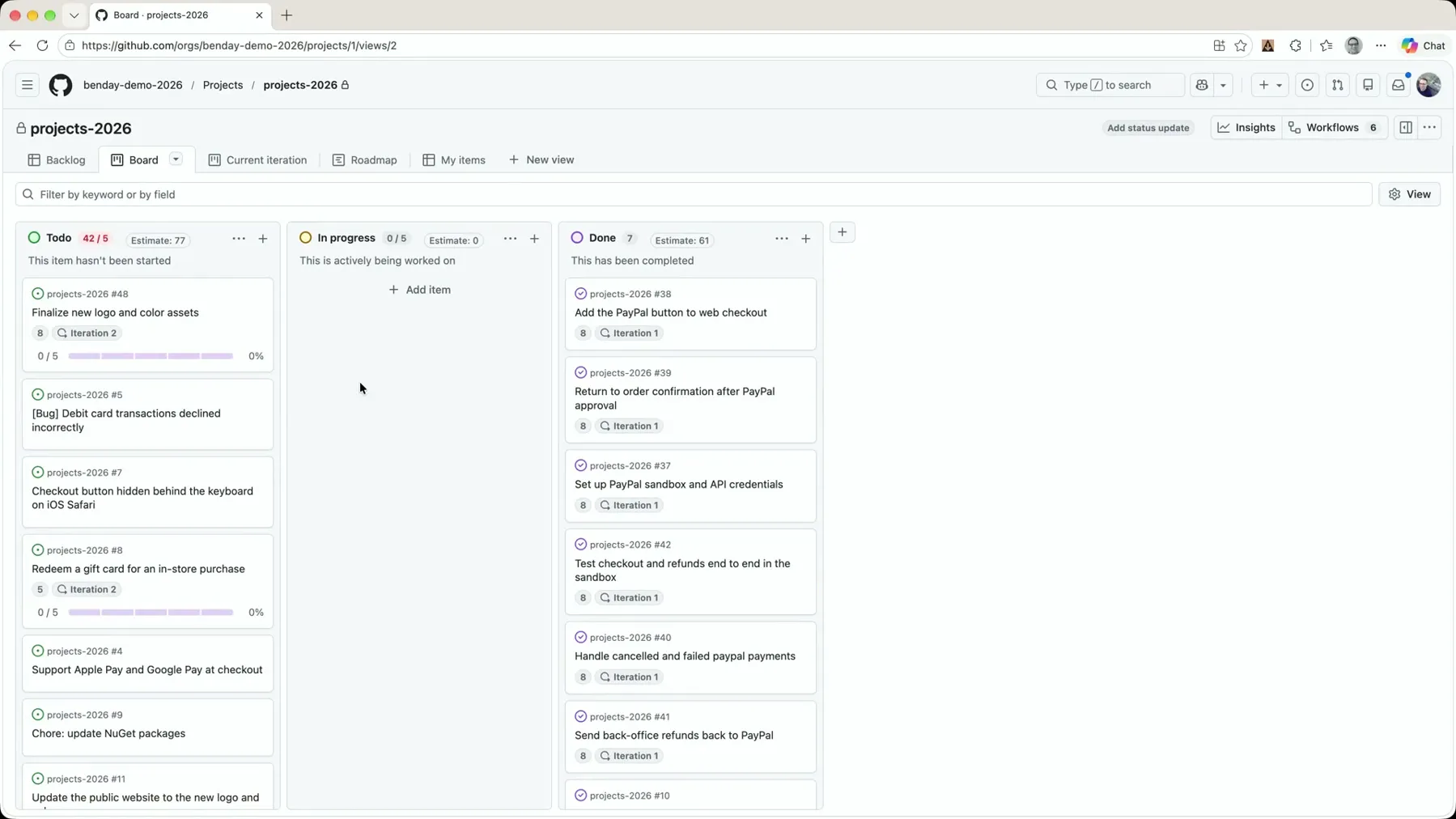
The Board tab. 42 things in Todo.
That tab has a lot of items on it, because it's not filtering by anything at all. I want to keep this view and make a copy that I can customize for the current iteration. So: open the Board tab's menu and choose Duplicate view.
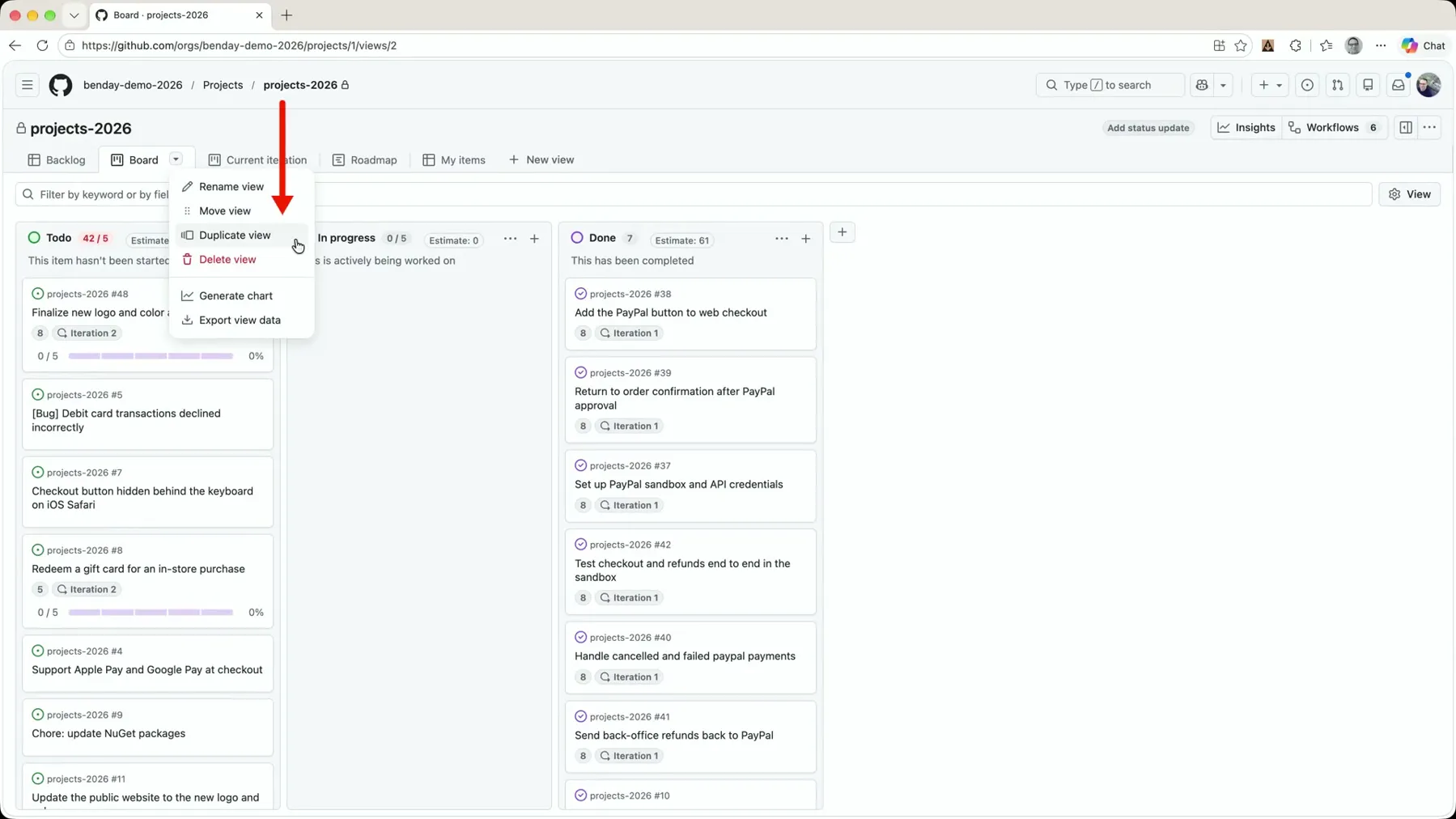
The tab's menu → Duplicate view.
The copy shows up at the end of the tabs with a placeholder name. Open its menu, choose Rename view, and call it Board (Current). Then I dragged it over to the left so it sits right next to the original Board tab.
The customization is nearly the same one we did on the Current iteration tab. That one is iteration:@current type:Task, which gives you the developer, delivery focus. On the new board we want the same iteration, but the issue type is Feature: iteration:@current type:Feature. Then Save, so it sticks.
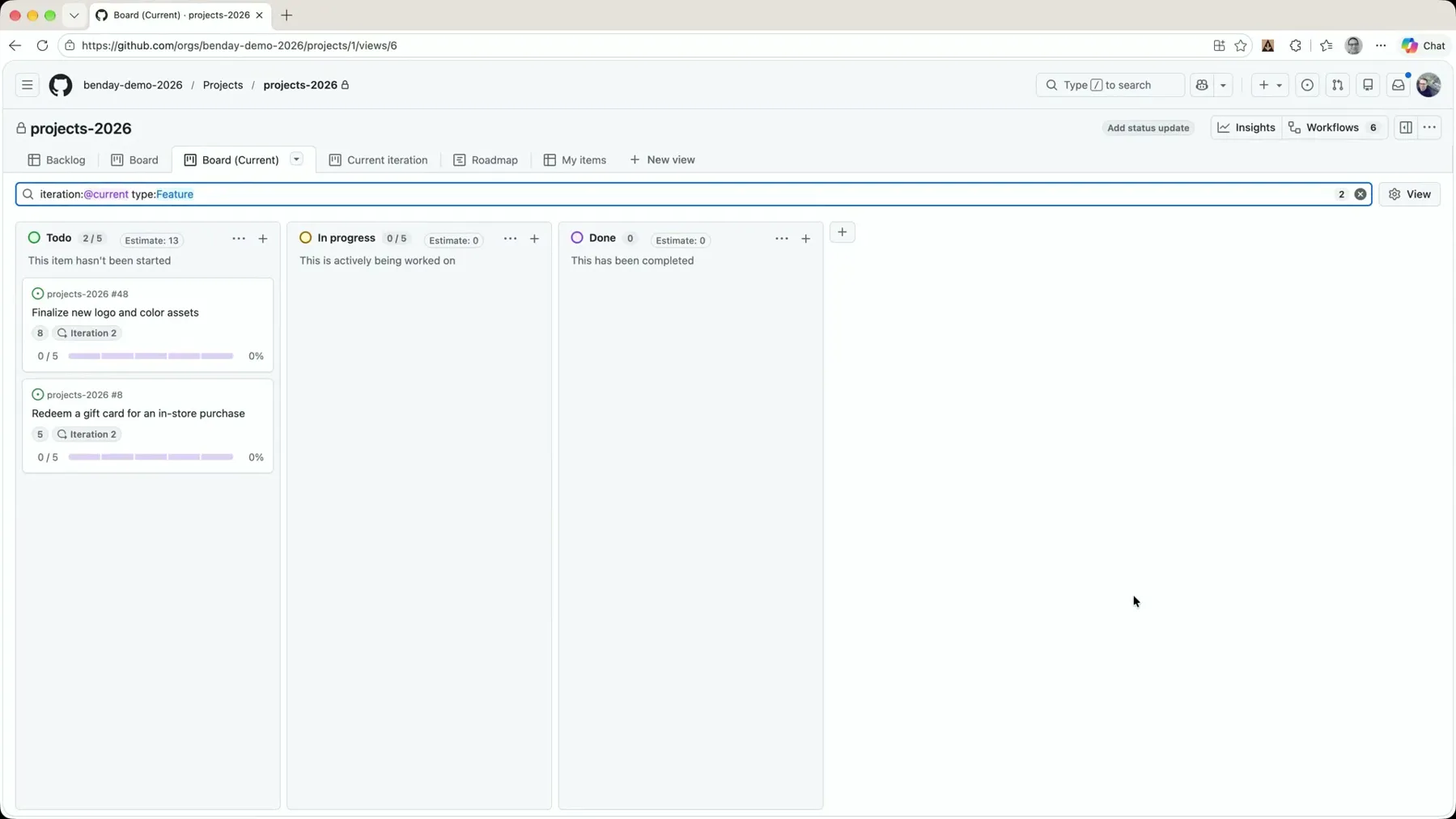
Board (Current). Two features, both in Todo.
That's the product owner's high level view of where the requirements in the current iteration stand. Right now, both of them are in to do.
Now pretend it's one of the first days of the iteration and the team decides, yep, we're going to start on the logo feature. Drag it over to In progress.
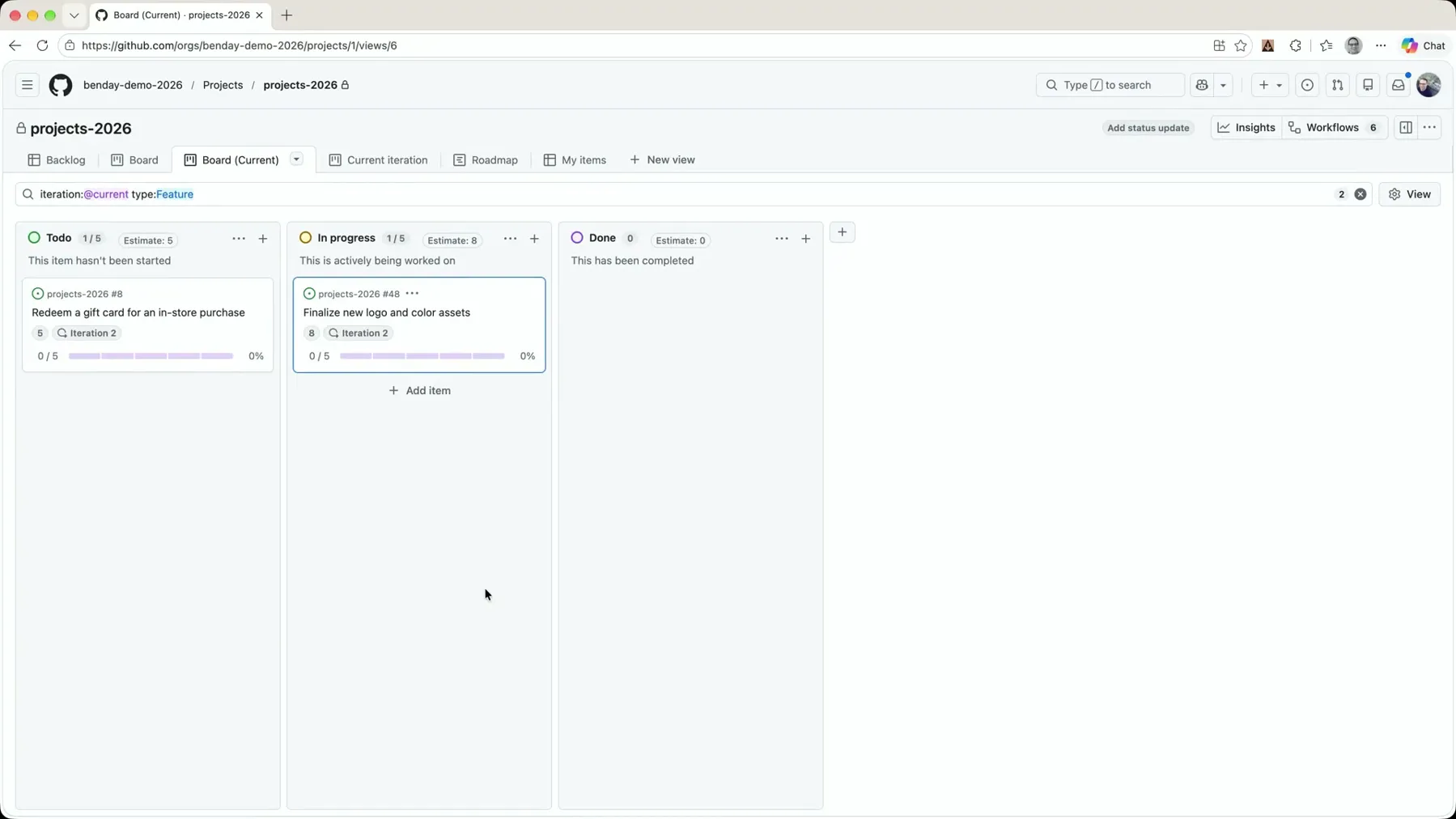
One feature in progress. Notice the 1 / 5 on the column headers.
That sets the Status on the feature to In progress. So this board is what's happening on the project right now, from a requirement perspective.
WIP Limits
You might have noticed those 1 / 5 things on the column headers. Those are work in progress limits. WIP limits. One item in the column, out of a maximum of five.
You change them from the column's menu, with Set limit.
A limit of five on Todo, I don't hate it. I don't think it's super great, I don't think it's right, I don't think it's wrong. It might be a little high for the number of things we'd decide to do in one iteration. I left it alone.
The one I really do care about is In progress. I want that to be one.
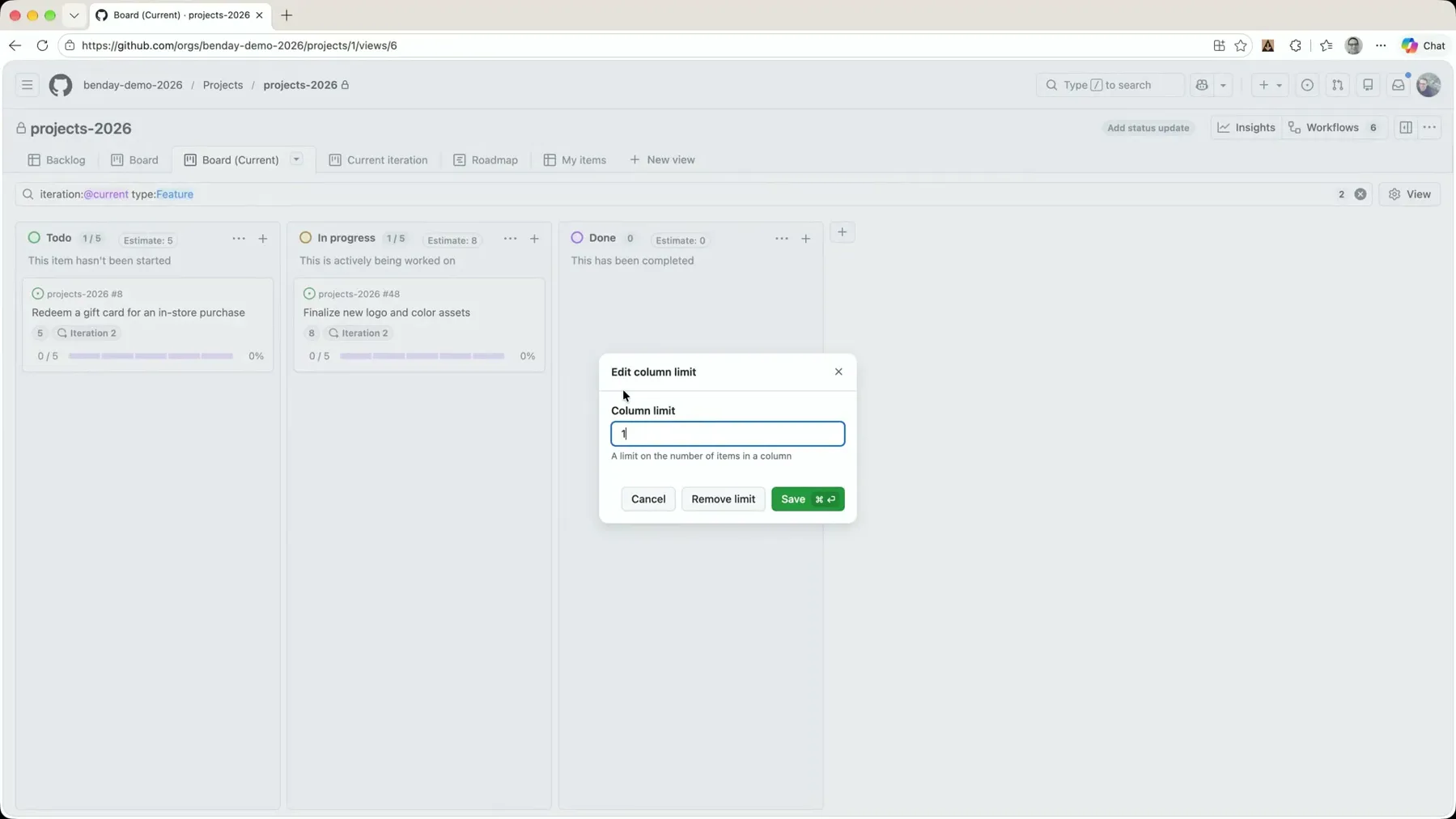
In progress column menu → Set limit → 1.
I want the team focused on delivering one requirement together at a time. Everything moves so much better that way.
So what happens when you break the rule? Drag the gift card feature into In progress as well.
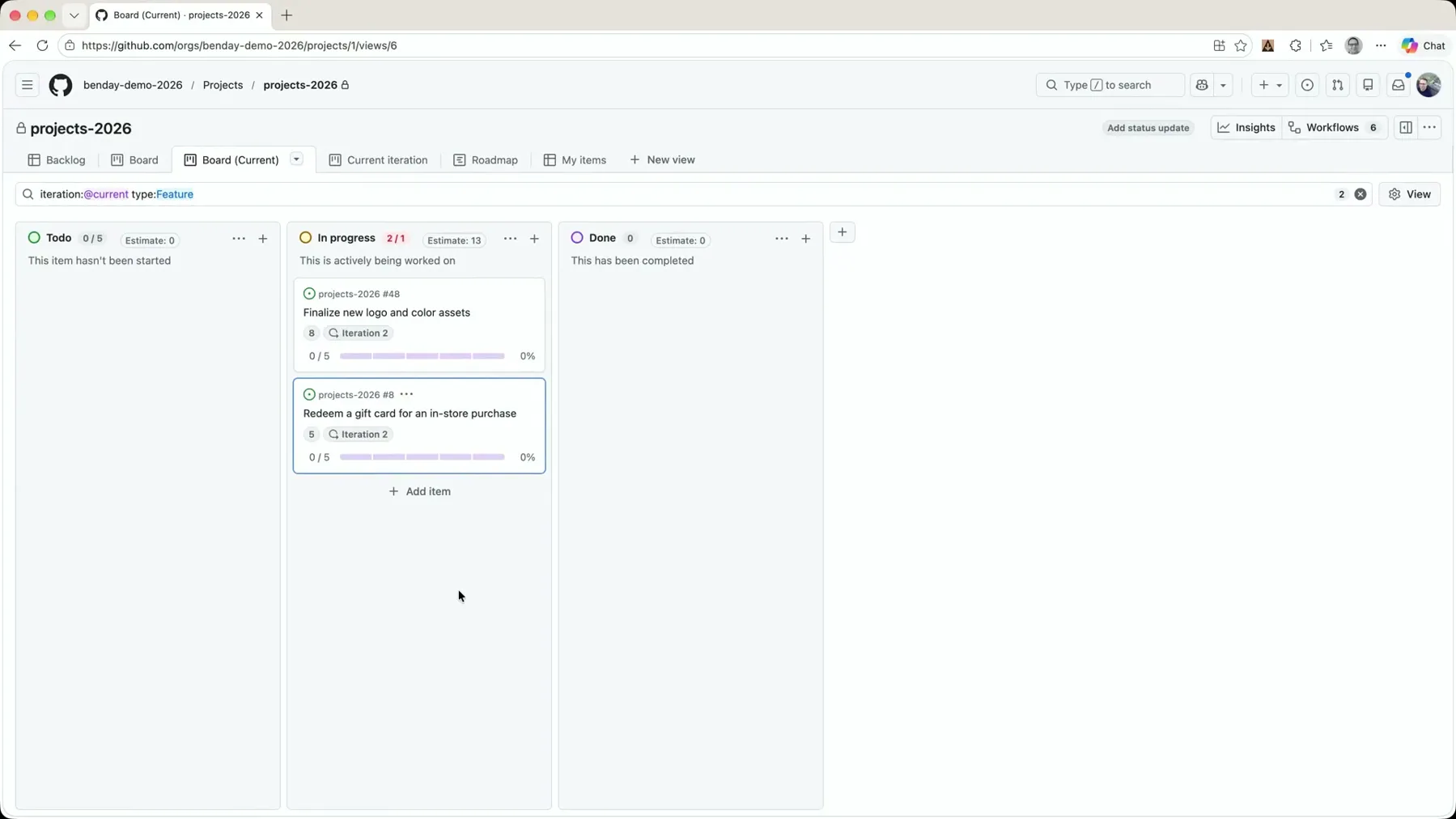
Two over one. GitHub lets you do it, and tells you about it.
It lights up. It says 2 / 1. I'm led to believe that it actually turns red, too. I'm super colorblind, so I can't really tell, but it has changed color somehow.
GitHub doesn't stop you from going over. It gives you a visual warning that, hey, there's too much stuff in progress. Then it's up to the team to do something about it. I dragged the gift card feature back to Todo.
Limits Are Per View
Over on the Current iteration tab, the task board has limits of its own. With the logo feature selected, the Todo column was saying 5 / 3. Five tasks, limit of three.
Thankfully, the limits are set on a per view basis. So on this view I opened the Todo column's menu, chose Set limit, and clicked Remove limit. I don't particularly care how many tasks are sitting in Todo. I do care about the ones in progress.
I left In progress at five here. Which, well, each of these features only has five tasks, so we're never going to light that one up.
Walking the Board
Now think about your daily team meeting. What are we going to do today? How are we doing towards delivery?
Let's say the team decides to start on a few of the logo tasks. Drag them into In progress, and the column header says Estimate: 10. Ten hours of remaining work in that column.
But you can't tell what the number is on each card. That's kind of annoying.
You can fix that. My first move was to open the dropdown on the Current iteration tab, which is totally the wrong place. I always do that. The right place is the View button over on the right, then Fields. Down at the bottom of the list, under Project fields, there's Estimate. Turn that on, and save the view so it's there next time.
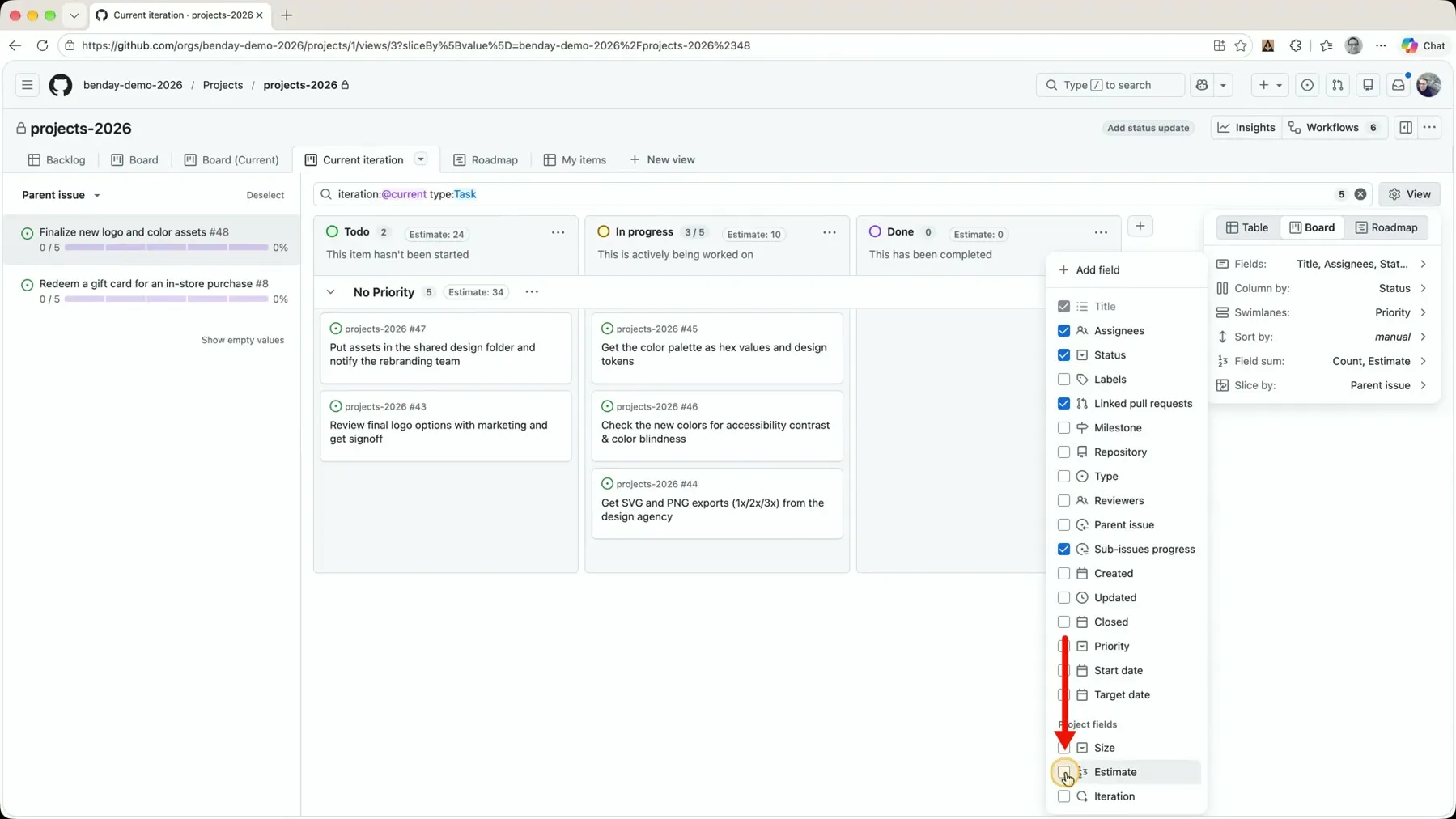
View → Fields → Estimate.
Now each card shows its own number. One hour remaining, eight hours remaining, one hour remaining.
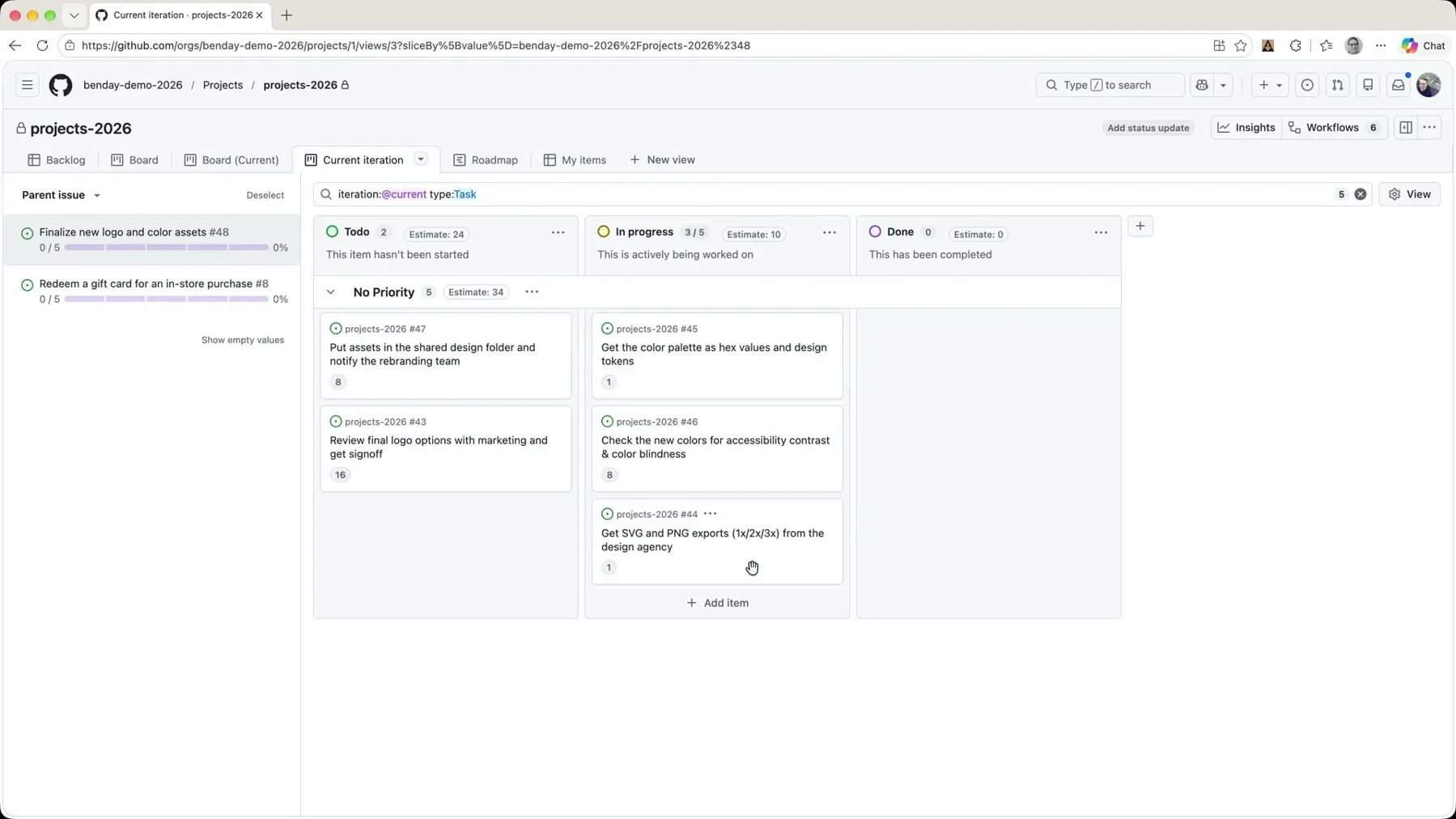
Hours remaining, on the cards.
One of the things you'll probably do in that meeting is talk through the board. Sometimes this technique gets called walking the board. Which ones did we work on yesterday? Did anyone work on these in-progress ones? Any changes to the remaining work?
Let's say yes: Check the new colors for accessibility contrast & color blindness is at eight, and that needs updating. You'd think you could click the eight on the card.
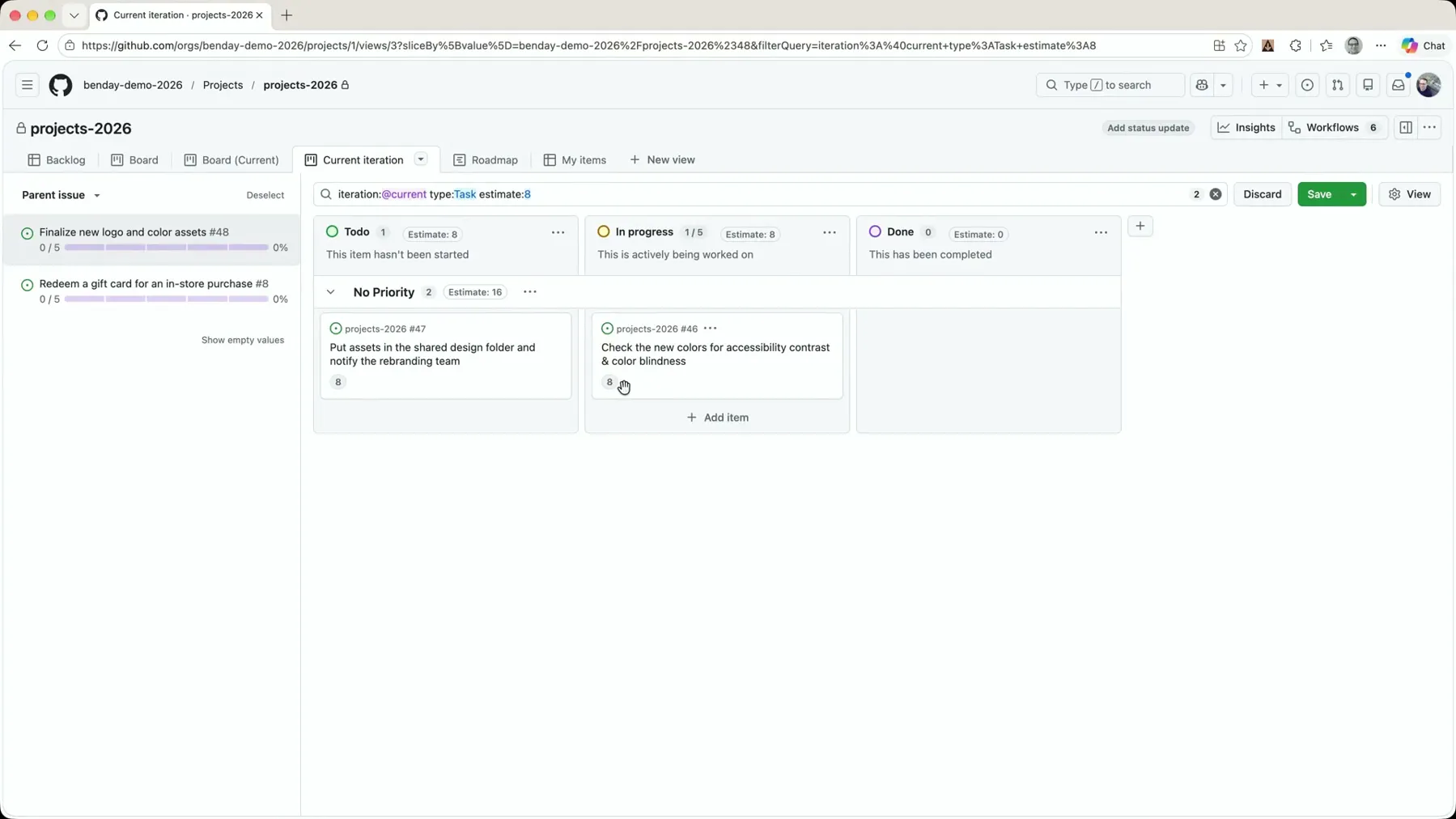
Click a value on a card and you get a filter, not an editor.
What that actually does is add estimate:8 to the filter up at the top, so the board only shows the things with eight hours remaining. That's kind of silly. I don't love that. Delete it from the filter bar to get everything back.
If you want to edit the estimate, you've got to go into the item itself. Open it, find the Estimate field in the Projects box, and type the new number. The team says there's about four hours left on that one, so it's a four.
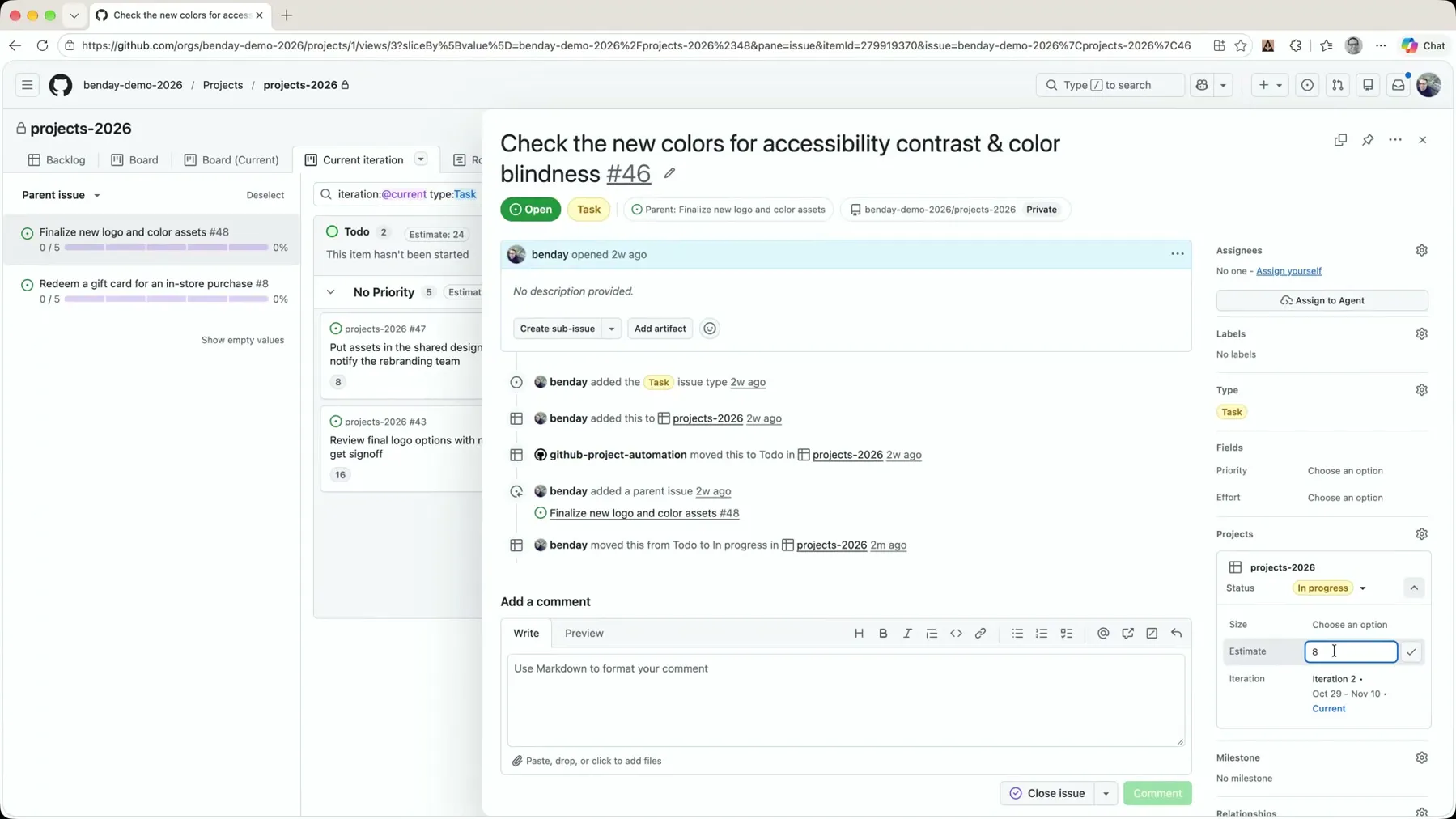
The hours get edited in the task itself.
Then you keep walking. Anything left on Get the color palette as hex values? Nope, that's done. Drag it to Done. Get SVG and PNG exports, done too.
One thing you'll notice: moving a card to Done doesn't touch its estimate. It's done, so you kind of want the hours remaining to be zero. If you're super picky about that (I am), open each one and set it to zero. Now the Done column says Estimate: 0.
And the last question: the other tasks that are still in Todo, are we going to work on those today? Yep. Drag them in. Do we feel good about those estimates, eight and sixteen? Yeah, good enough.
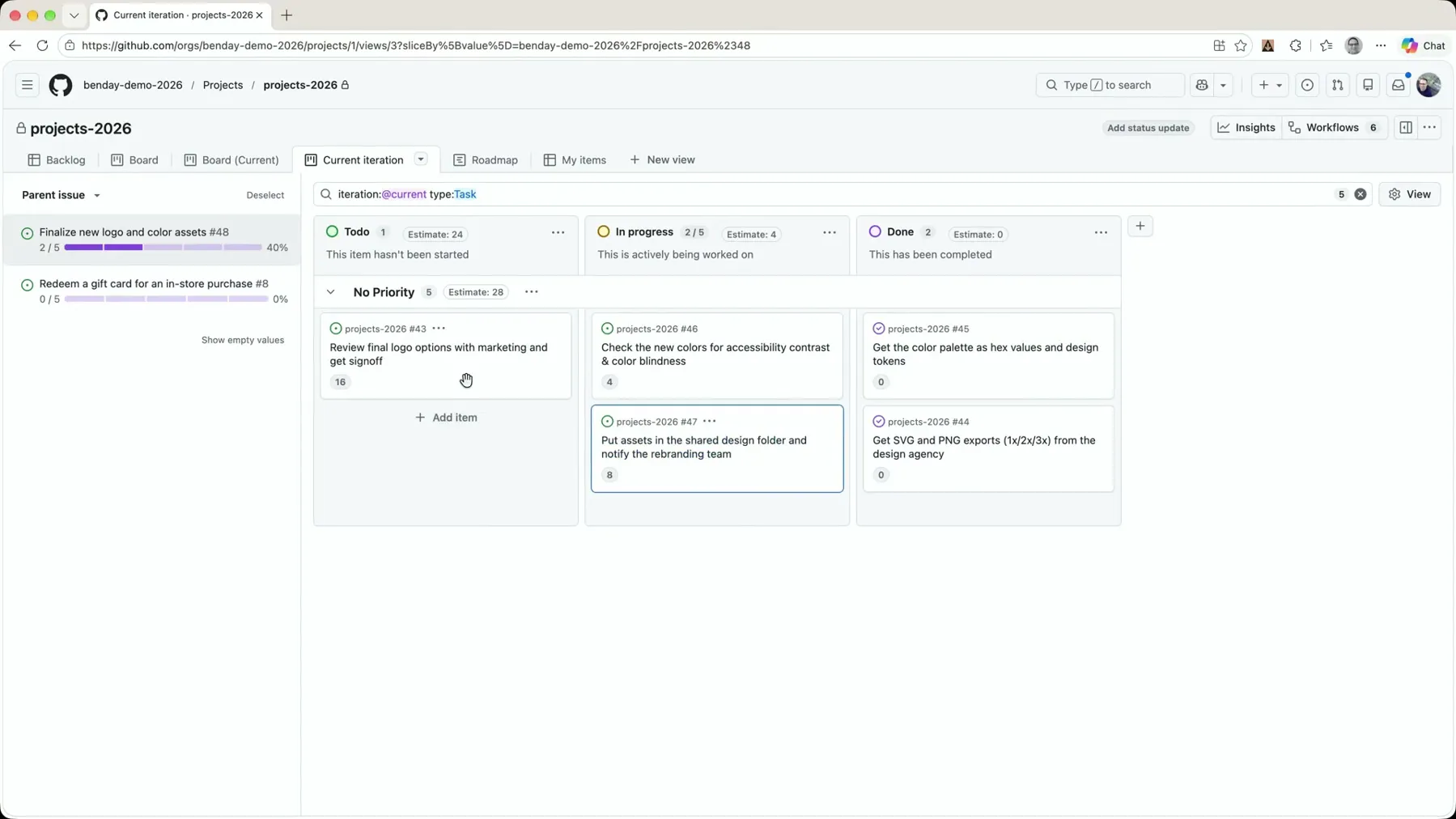
Partway through the walk. Two of five done, and the feature's progress bar has moved.
And that's the meeting. You've discussed what's happening on the team, and the board is up to date. It's short because the board already did most of the work. (If the daily meeting is a sore subject on your team, I wrote about what it was actually for.)
The slice panel now says two of five on the logo feature. And you get the same thing over on Board (Current).
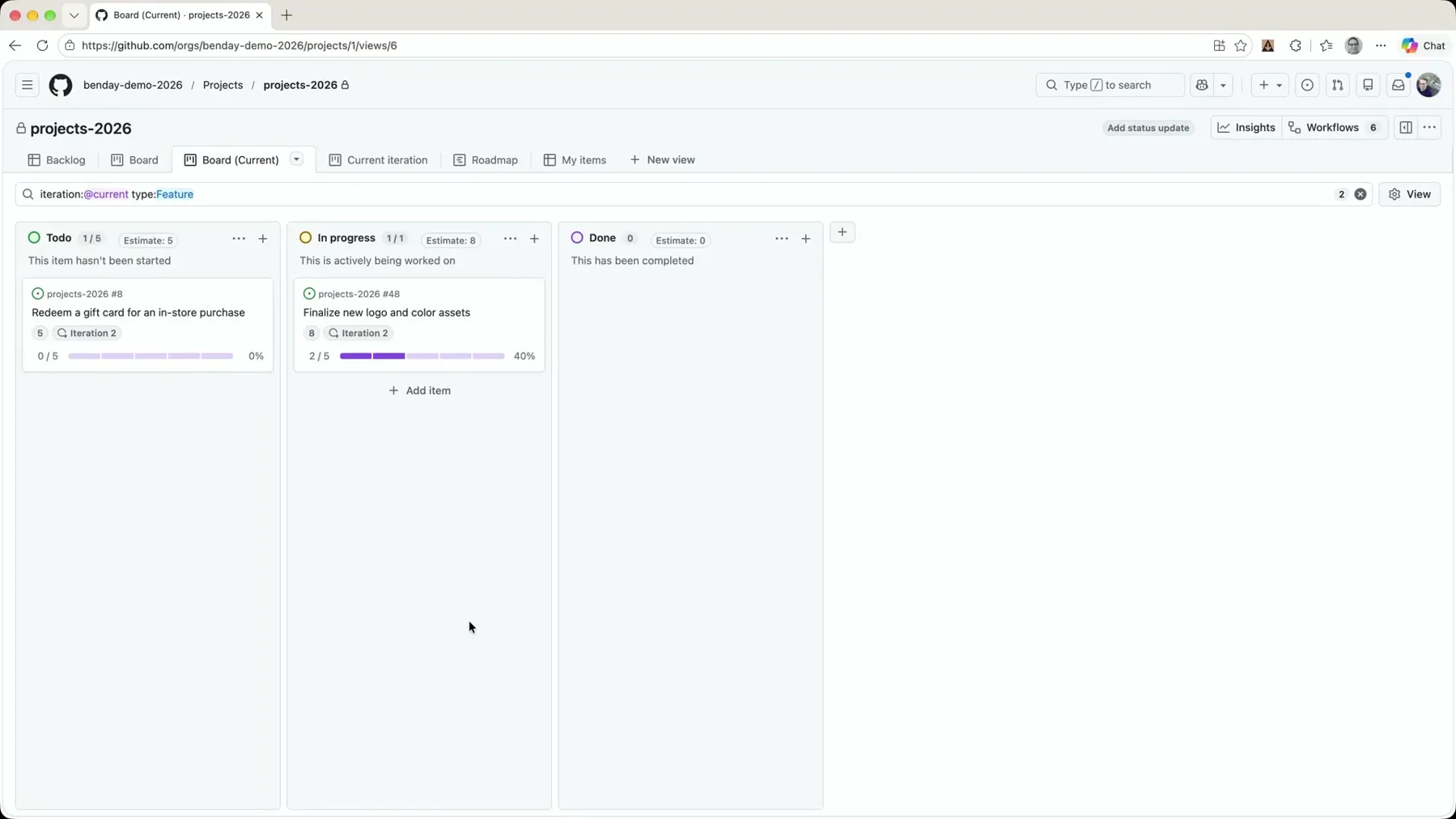
The product owner's board: 2 / 5, 40%.
This is nice for that project manager view. How's it going? Eh, two out of five tasks are done. You don't have to discuss what the tasks actually mean, but you know there's some progress being made.
Assigning Tasks to People
I have not talked at all about assigning things to people so far, and that's on purpose. I don't usually like to assign tasks to people. Or requirements, even.
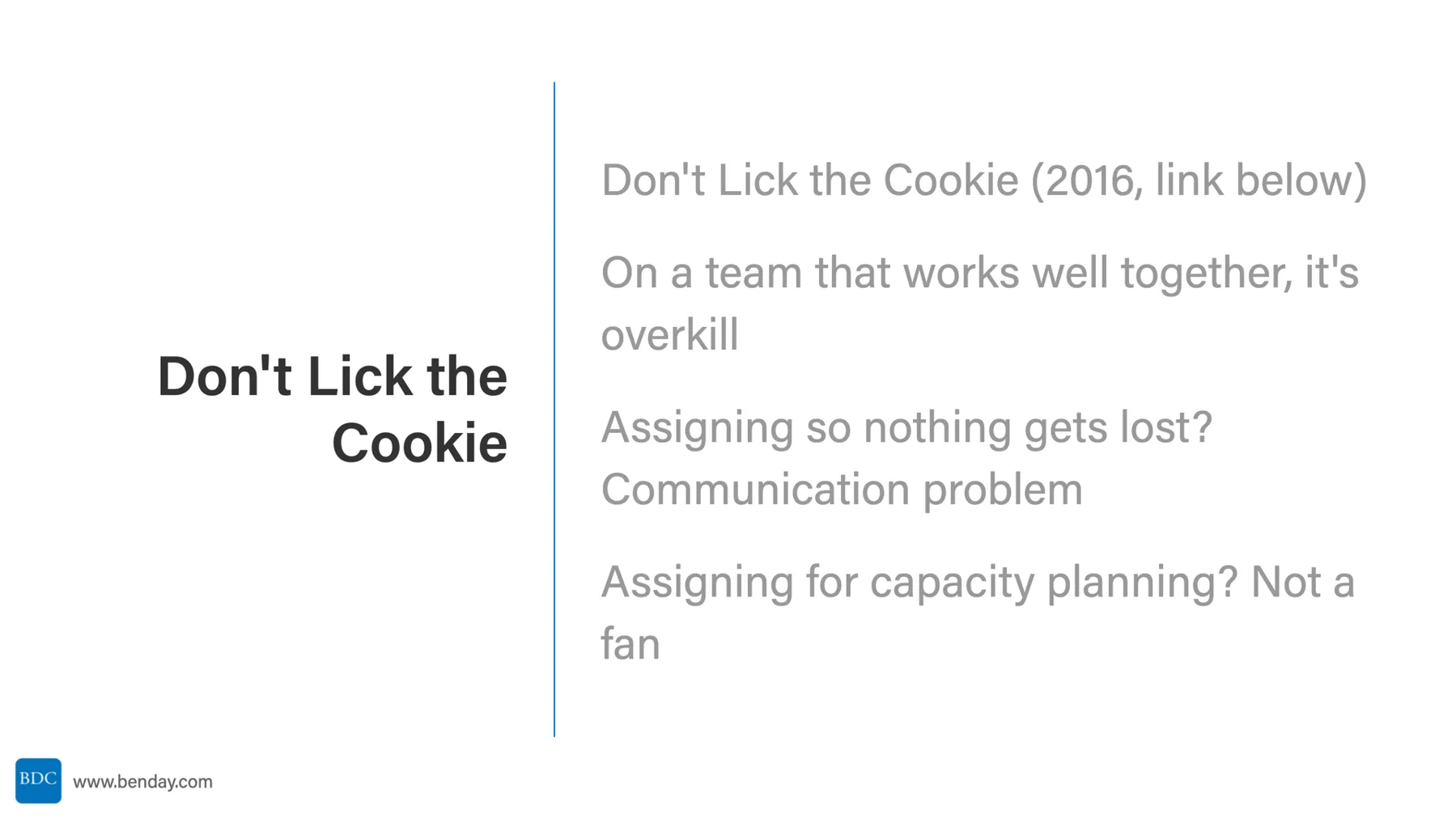
I wrote a blog post back in 2016 called Don't Lick the Cookie. I'm going to do an update on it at some point, on why I think assigning tasks equals licking cookies, and why that sounds gross. For right now, the short version:
- If you're assigning tasks on a team that's working really well together, that seems like overkill.
- If you have to assign tasks to make sure work doesn't get lost, that feels like a communication problem on your team.
- If you're doing it for capacity planning, to make sure everyone is busy enough, I don't love that either.
But let's assume for right now that assigning things to people is something we actually care to do.
Back in View, Fields, it turns out Assignees is already one of the visible fields on the cards. There's just nothing assigned.
If you care about getting things assigned, go to the filter bar and type assignee. You get options: No assignee, Has assignee, Me, or Exclude assignee.
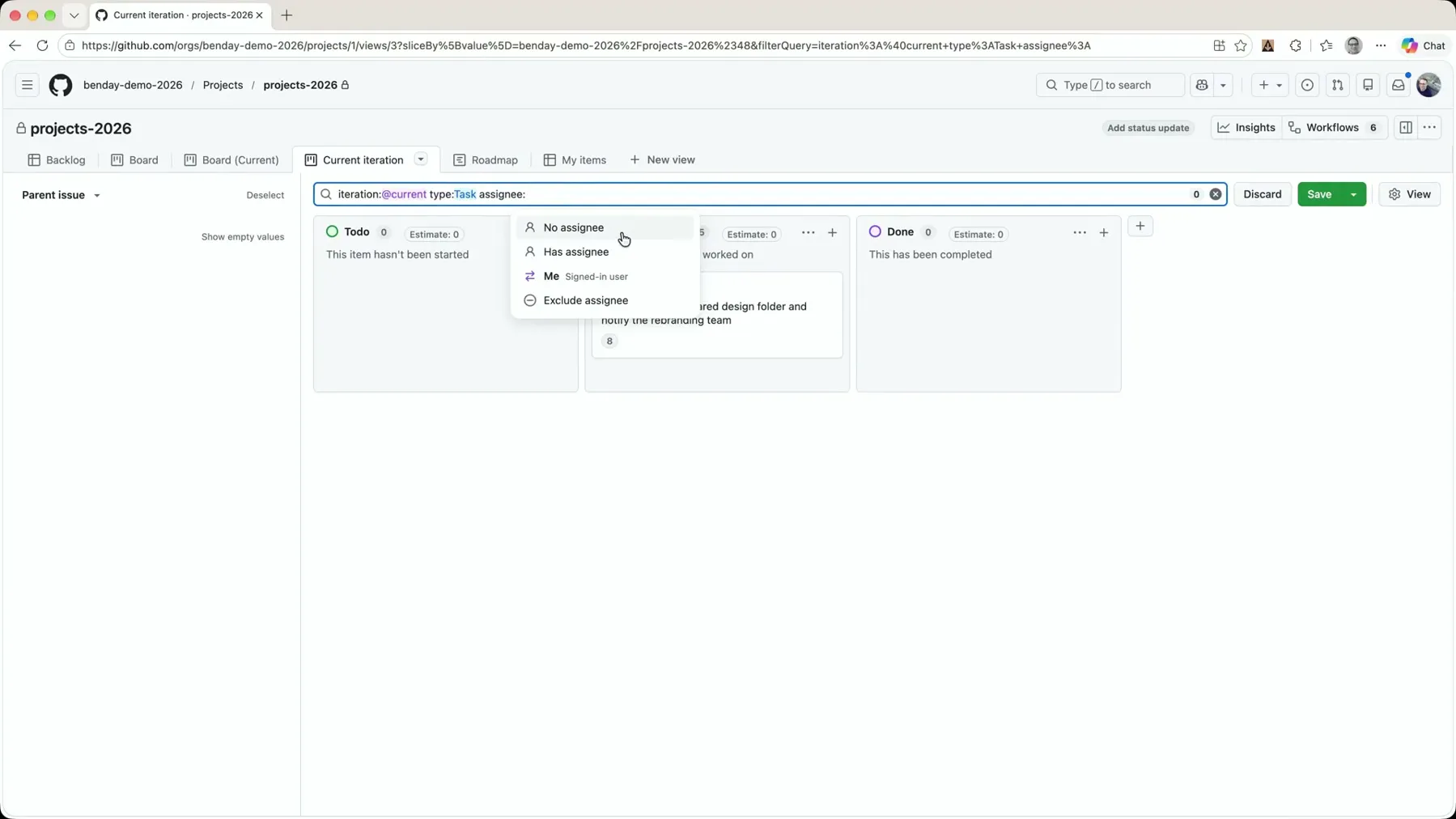
The assignee filter options.
I picked No assignee, which puts no:assignee in the filter, and every task is still there. Nobody is assigned to anything. Personally, I think that's fine.
Assign Yourself
If you do want to assign, open a task. Under Assignees it says "No one" with a nice little Assign yourself link right next to it. Click it, and it adds you.
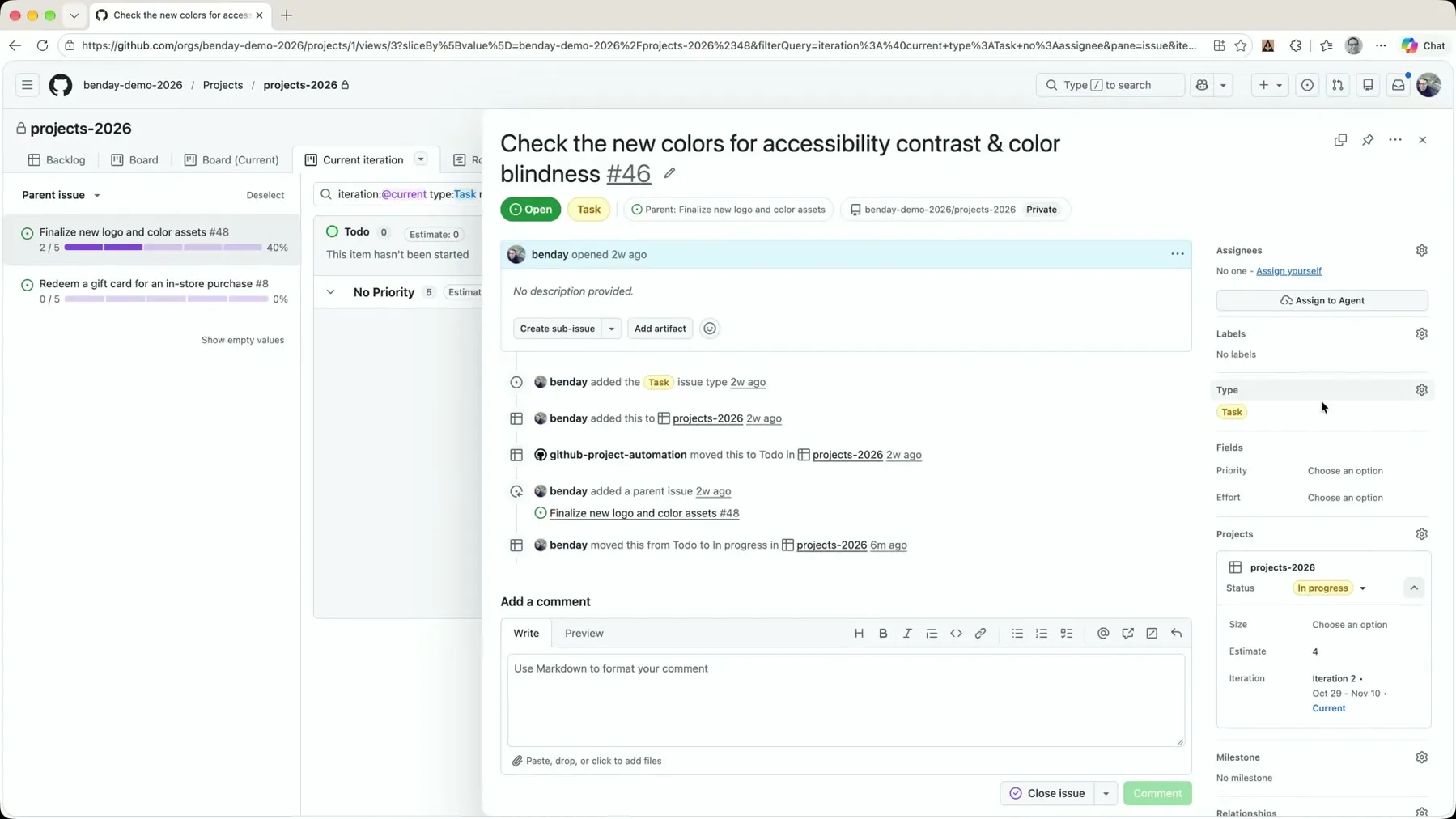
Assign yourself. And right below it, Assign to Agent.
That's the equivalent of picking the task up and saying, yeah, I'm going to work on this. There's also an Assign to Agent button right there, if you want to hand it to something like Copilot for implementation.
The gear icon next to Assignees gives you the full list. I can uncheck myself, and I happen to know that Pat Brizay is another person available in this org, so I can assign it to her instead.
Two People on One Task
There's one somewhat hidden feature in GitHub Issues and GitHub Projects that a lot of people just kind of miss, especially if you're coming from the Azure DevOps world. Multiple assignment. You can assign an issue to two people at once. So I can be on this task along with Pat. Which is kind of nice.
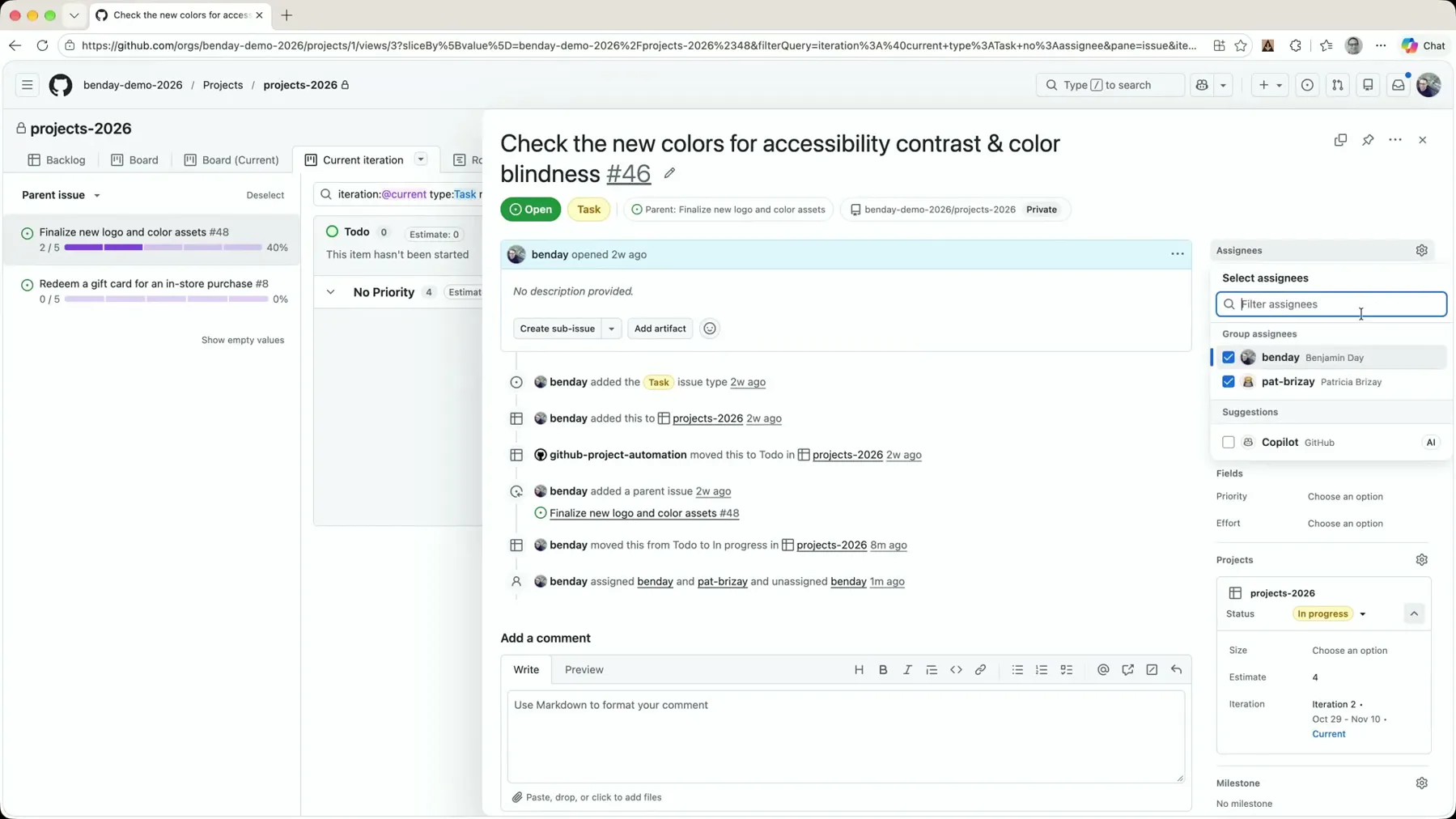
Two assignees checked. And Copilot, sitting in the list.
It's especially nice if I'm going to assign something to Copilot, which is right there in the same list. Assigning it to me and to Copilot gives me a way to know that this is the stuff I was working on with Copilot, so I can come back and check on it.
I assigned another task to myself and one more to Pat, then deleted the no:assignee filter. Now each card shows who it's assigned to, up in the corner. Hover over the avatar to see the name.
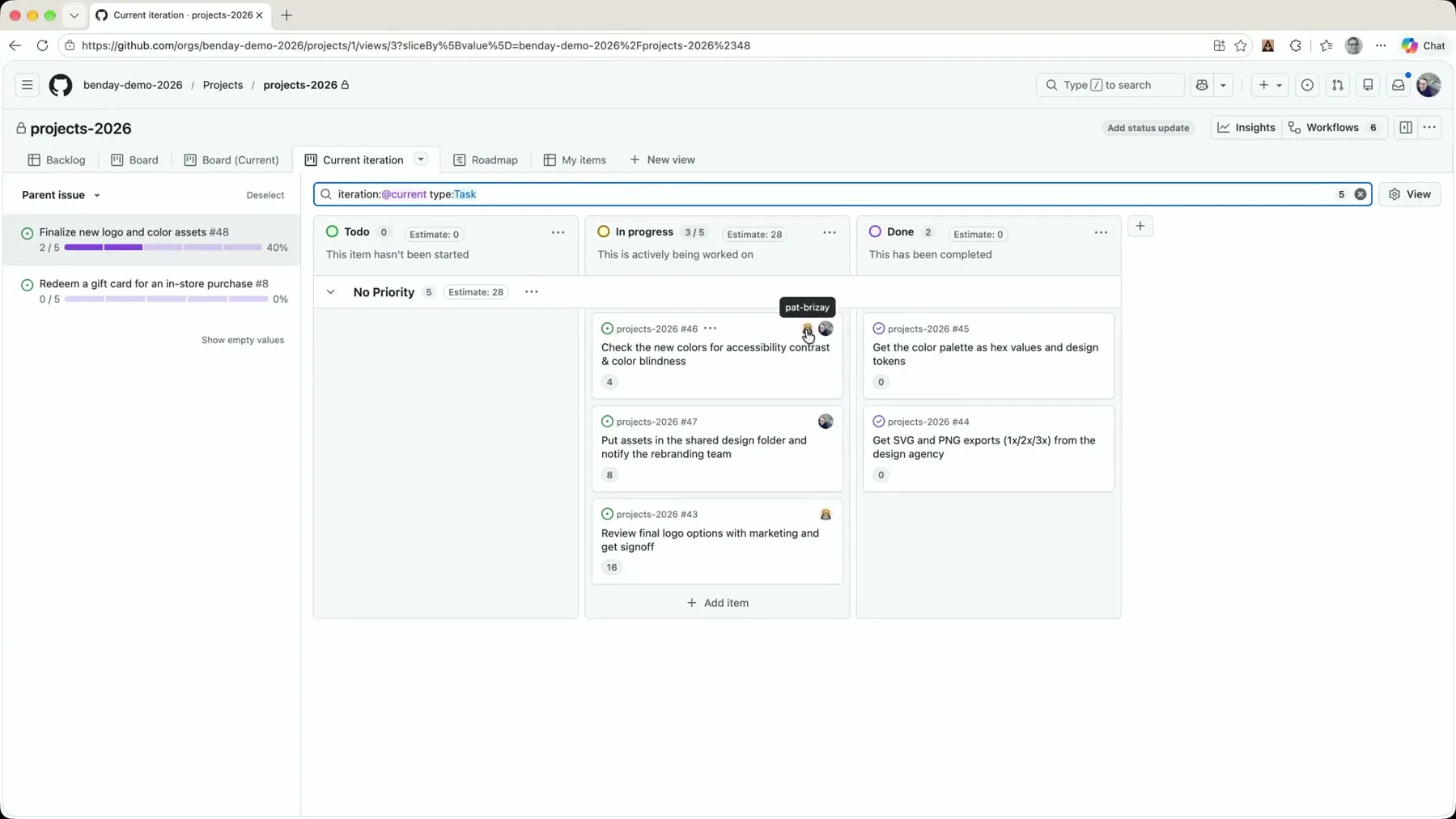
Avatars on the cards. Hover for the name.
Eagle-eyed observers might notice that Pat Brizay's name is actually a joke. If you get it, explain it in the comments on the video. It's not a great joke. It's just one of the things I keep myself entertained with.
Slice by Assignee
If you care about assigned tasks, you probably care about viewing the board by assignee. Change the slice at the top of the left panel from Parent issue to Assignees.
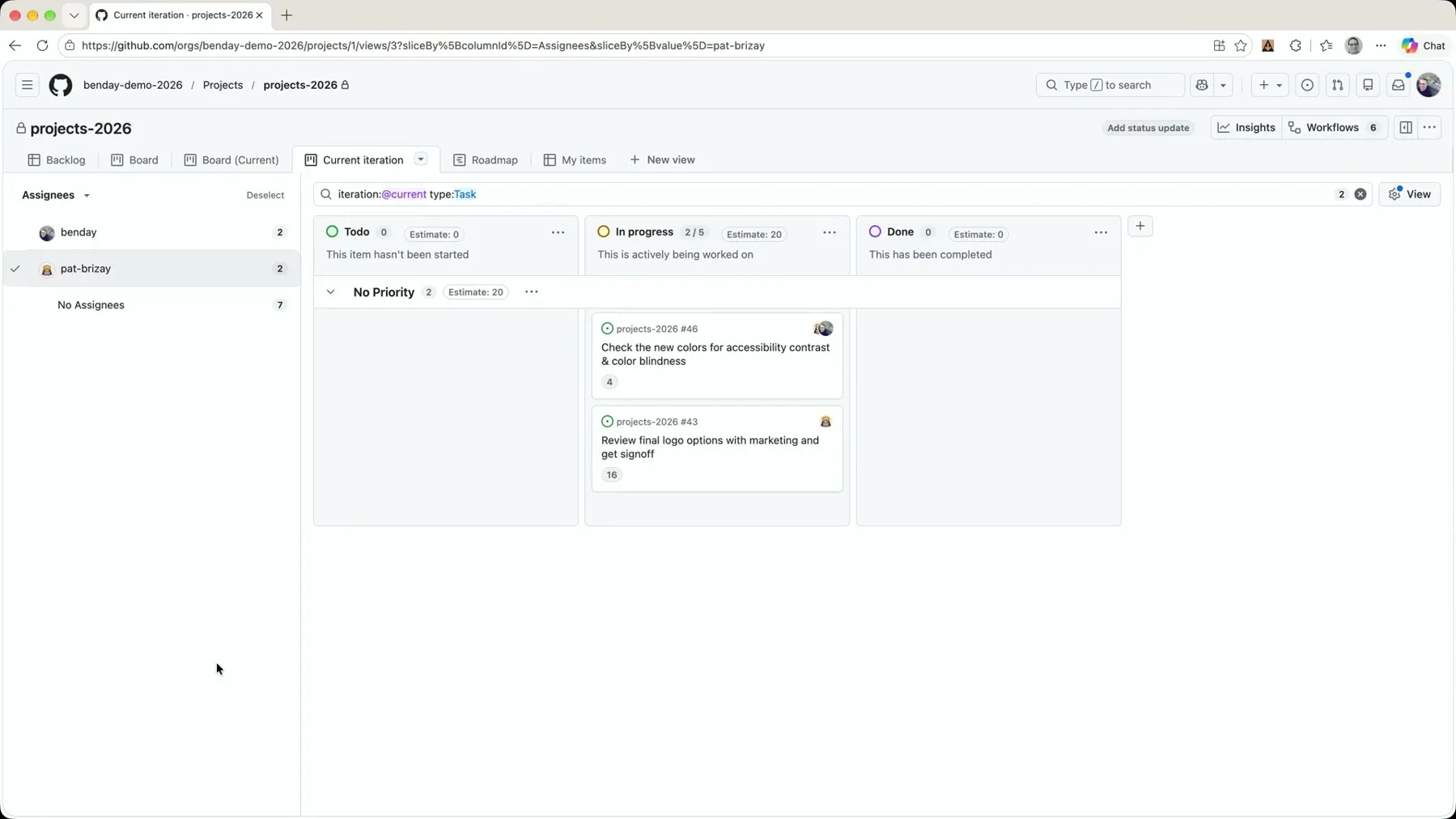
Sliced by Assignees. What's Pat working on?
What's Pat working on? These two. What am I working on? Those two. And what has no assignment? Seven tasks. (That adds up to eleven for ten tasks, because the one Pat and I share counts for both of us.)
But I switched it back. I really like leaving this slice on Parent issue, because then I can see what the status of the requirements is. I think that's way more relevant for most teams than who's assigned to what.
Assigning Features, and Agents
Over on Board (Current), you can do the same assignment on a feature that you can do on a task. Which brings up one more thought.
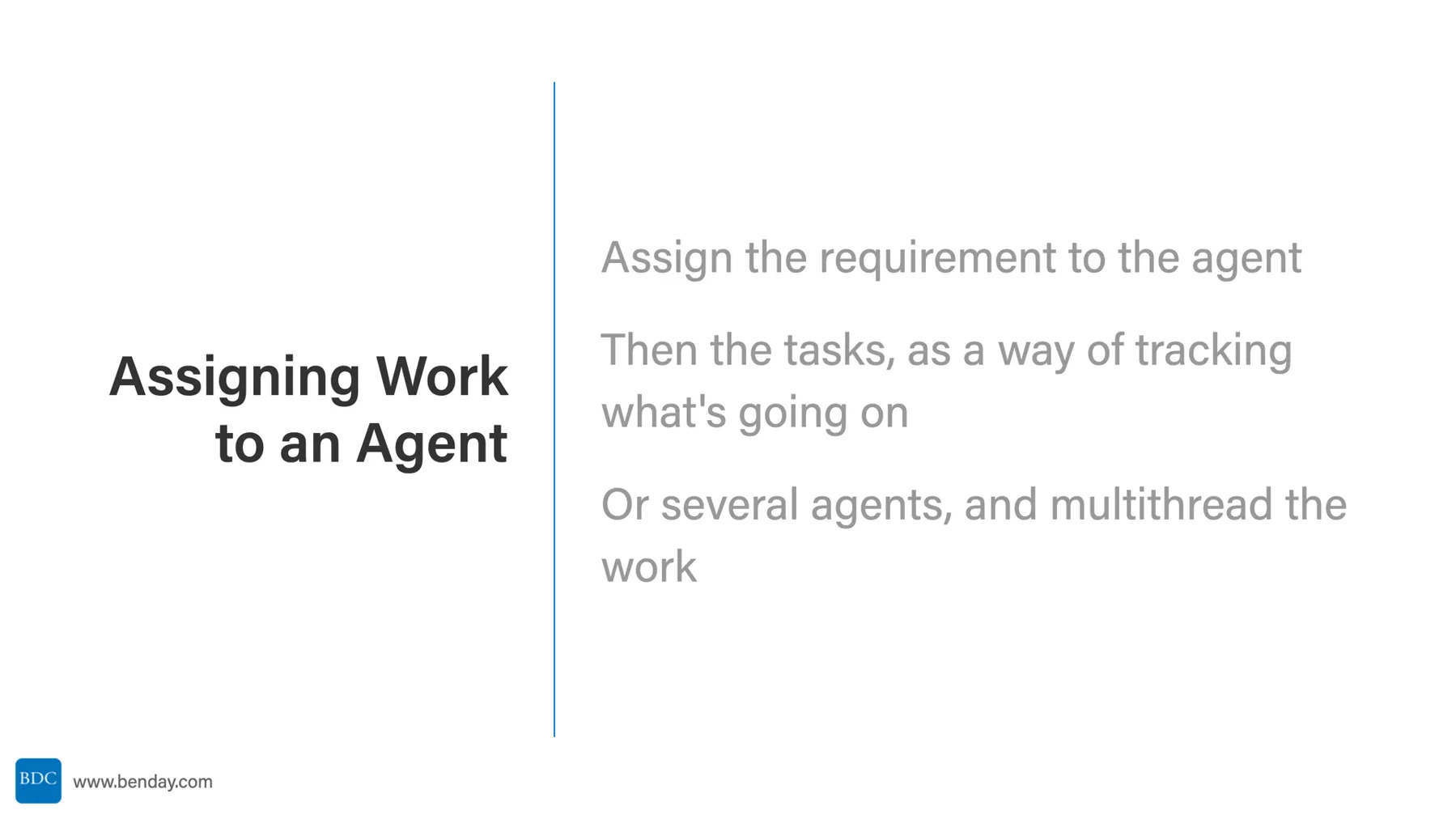
If you're thinking about agentic, AI-assisted delivery, this is where I think I'd actually do more assigning. I'd assign the requirement to the agent and have a conversation with it about the plan. Then create the tasks and assign a bunch of them to the agent, as a way of tracking what's going on. Or assign the work to several agents and multithread it.
That's a topic for another day.
Recap
So that's the status side of the sprint.
- Two views of the same iteration: Board (Current), a board of features for the product owner, and Current iteration, a board of tasks for the team.
- A WIP limit of one on the feature board's In progress column, which warns you when you go over it and doesn't stop you.
- We walked the board the way you would in the daily meeting: moved the cards, updated the hours remaining, zeroed out the finished tasks, and watched the progress roll up to the feature.
- And then, if you want them, assignees: assign yourself, assign two people at once, slice by assignee, and assign to an agent.
Status at the requirement level and status at the task level. Between those two views, you know what's going on and where you stand towards delivery.
Shameless Plug
This whole post was about "what are we working on right now?", one more time. Honest Cheetah takes the next question, are we on track?, and answers it for free with forecasting from your team's actual throughput. So, "when will it be done?" without a meeting. The planning side is free too (entering and managing requirements, backlog refinement, iteration planning, and importing from Azure DevOps). AI-assisted refinement, project coaching and QA testing tools are on the paid plan. Give it a try and let me know what you think.
-Ben
-- Looking for help adopting GitHub Projects for your team or your company? Need an assist getting going with GitHub Actions for automated builds and releases? Want to move your stuff over to GitHub from another service? We can help. Drop us a line at info@benday.com.
GitHub Projects in 2026: The Full Series
- Part 1: It Can Do Anything. That's the Problem.
- Part 2: Why Projects and Issues Feel Weird (and Why It Makes Sense)
- Part 3: Your First Project, From Draft Issues to Real Issues
- Part 4: Taming a Messy Backlog with Issue Types
- Part 5: Sprint Planning with Iterations and Sub-Issues
- Part 6: Tracking the Sprint with a Task Board, Hours and Progress
- Part 7: Standup with WIP Limits, Walking the Board and Assignees (you are here)
Related:
- What's New in GitHub Projects & Issues (2026 Q4): what GitHub has shipped since the original series
- The 2025 Scrum with GitHub Projects series
- "Scrum Has Too Many Meetings." So Stop Doing Them.: what the daily scrum was actually for
- Scrum: Don't Lick the Cookie: the 2016 post on why I mostly don't assign tasks
- Flow Metrics Explained: throughput, cycle time, and forecasting without estimates
- The GitHub Projects in 2026 playlist on YouTube